
When I posted about how I thought adding tagging tools to Keyboard Maestro was going to be a big deal, I hadn’t even used it yet — so here’s my first macro to use them. For me the biggest part is the fact that I can now start to use tags because I can quickly add them, whereas before it was far too much clicking of the mouse to tag files.
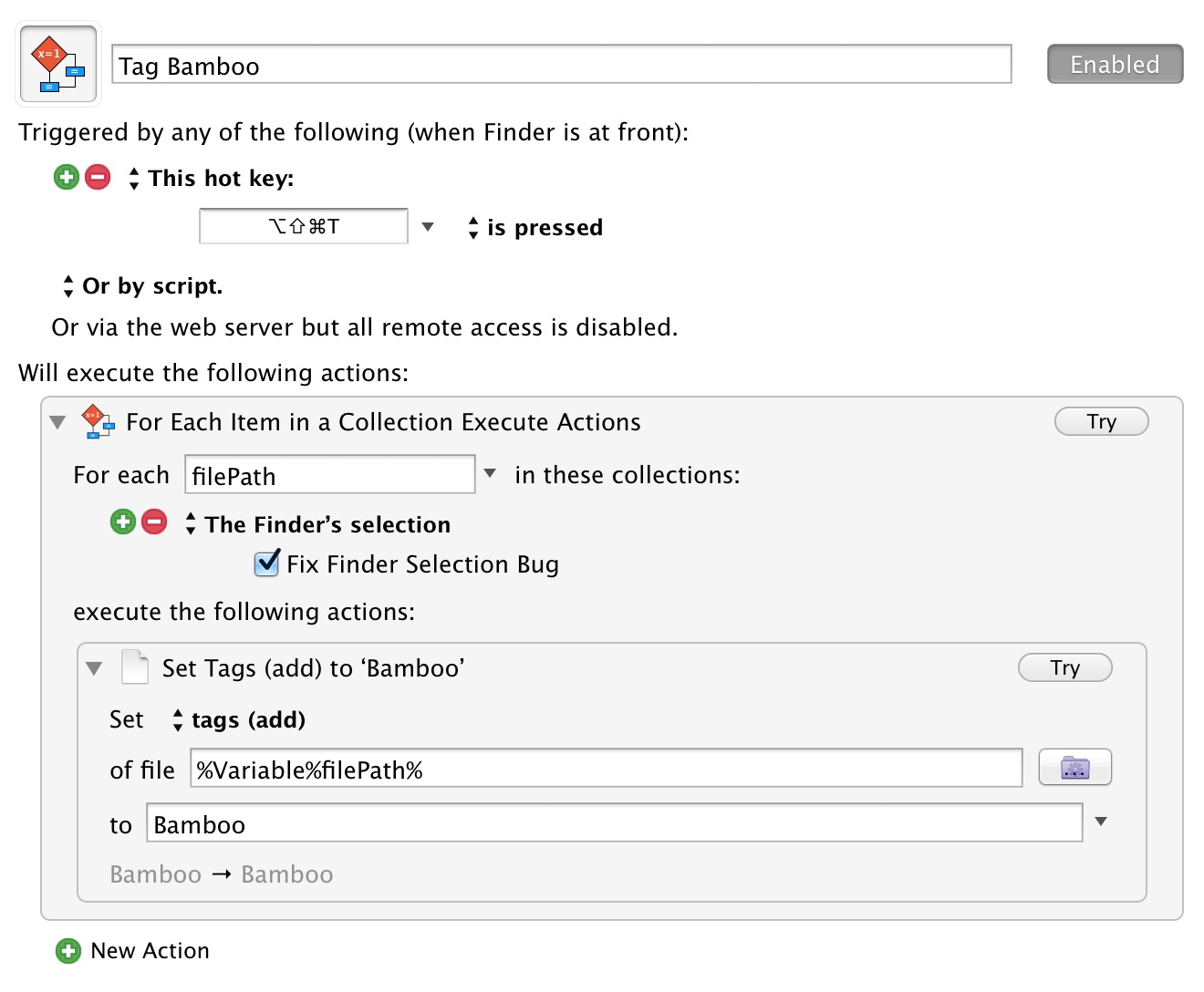
Here’s the setup:
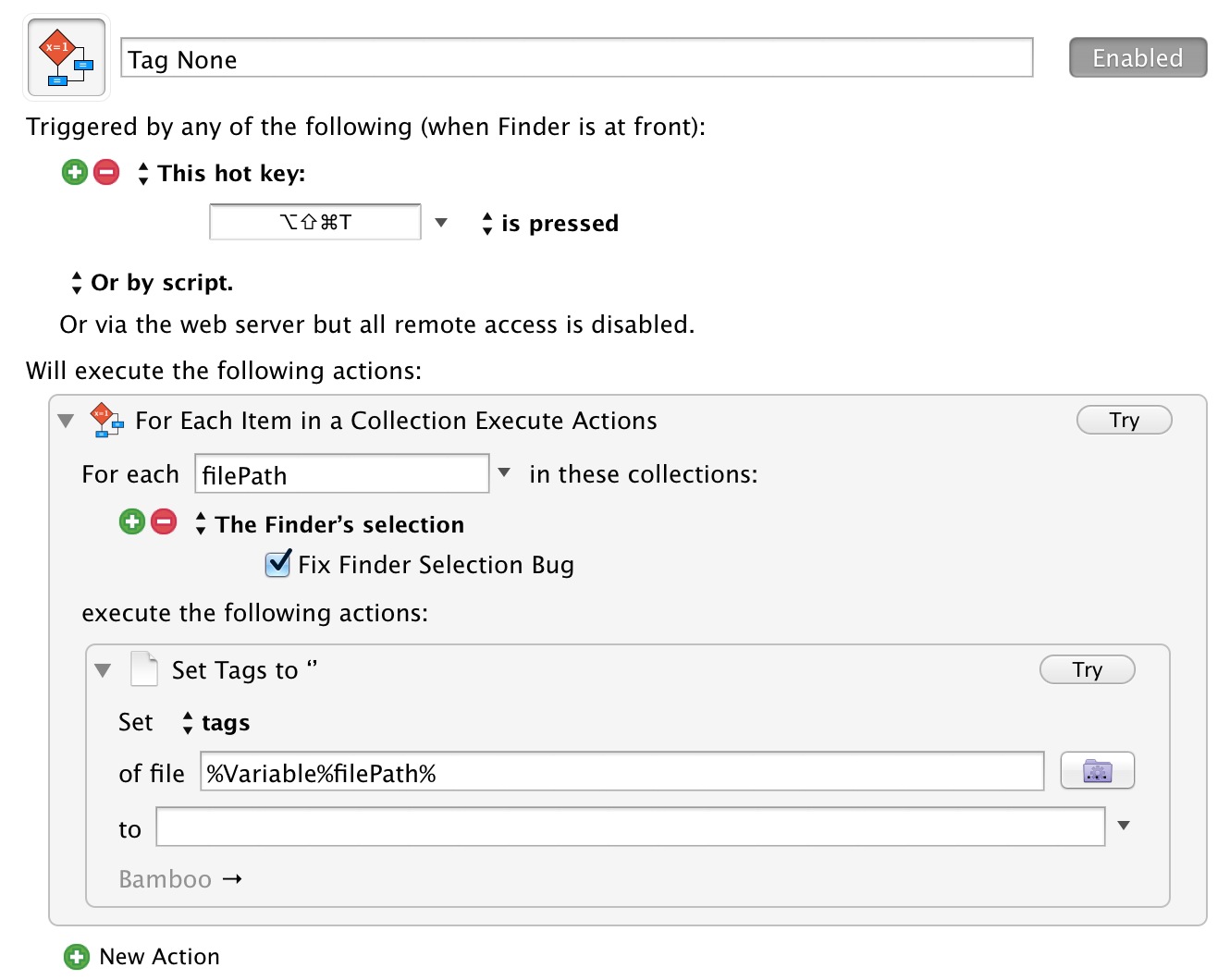
And here is the one to remove all tags:
There are currently four options for working with tags:
- tags : This sets the tags to a specific set, hence leaving it blank removes all tags.
- tags (add) : Think of this like append, as you aren’t changing the existing tags, but appending one or more new tags to the list.
- tags (toggle) : As the name suggest this will toggle on and off one or more tags. I am actually thinking of changing my macros to use this method, but for now I am not. I want to see if my way has conflicts or not and I am not sure I want tags turned off if I blindly apply a tag to a list of files.
- tags (remvoe) {That typo is in the app, not mine.} : This removes a specific tag.
All in all Keyboard Maestro has fixed the biggest drawback to using tagging instead of folders: mouse management of tags. I think this will getting me using tags a lot more.
UPDATED (on Apr 2, 2014): The macros were updated after the developer told me I was doing it the long way.