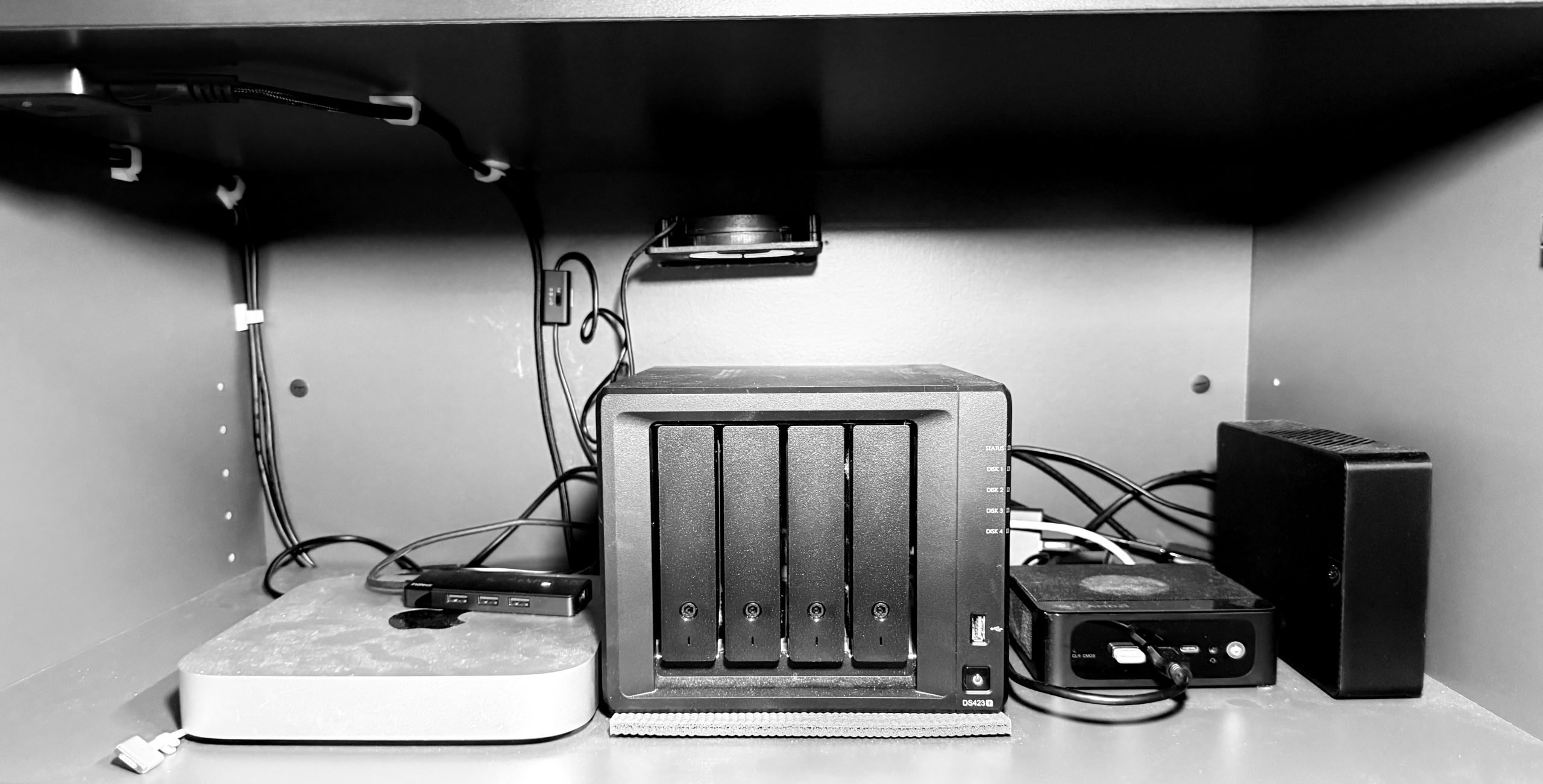
It’s been about a year now since I went really deep on my home server setup, replacing a lot of what I used to pay for with open source, self-hosted, systems which sit right next to me in the office. So I thought I would take a moment to talk through some of the software, and the hardware — what worked well and what didn’t.
Software
Generally speaking, I am really happy with most of the software options on the market. It feels like no matter what niche you might have, there’s something out there to fit it. It’s also staggering to me how many updates these get, and how stable they are. Especially when you compare them to stuff you pay for, and how shit some of that paid stuff is.
Quick side thought here: I have had loads of success building tiny “does one thing well enough” type apps using AI to write the code. As long as you have a clear enough vision and you keep the scope small, these little suckers are toil away in the background on my server and handle odd ball things for me. One pro-prompt-tip: specify you need the code to run on really low powered hardware, and AI will take more steps to optimize it. I have to wonder if this will play an even larger role in my setup this next year.
Good
The highlights:
- Notesnook: I’ve fully switched over to this for my notes. It has a lot of key features I wanted, including apps for all the platforms I use with full feature parity across the apps. It’s encrypted, and allows for additional protection/encryption on select notes. It allows for attachments as well. But it’s also very fucking fast to sync, and I cannot remember a time when I was waiting for anything to sync, which is so vastly superior to iCloud that I cannot even tell you — and that’s syncing with my home server from the otherside of the world. Oh, and that self-hosted option is considered very Beta, and yet it’s flawless. Good shit.
- The ‘Arr’ stack: you do what you want with these arr apps, but my god are they glorious. People are putting serious time and thought into these and it really shows. They are stable, easy, and just fantastically good.
- Karakeep (formerly Hoarder): I gave up all my other read later options and went all in on this. Hoarder was the better name, but trolls will be trolls, and Karakeep is fine. It’s a very solid app, with the only downside being the clunkiness on iPadOS/iOS and how they crafted the share sheet extension. Though it’s gotten much faster and is mostly good now. I don’t use this as much as I used to use read later apps, but it has some really nifty stuff and I like to use it so I can keep an archive of stuff I might want to reference later.
- Standard Notes: I kept this running most of the year so I could test both. It’s nearly as good as Notesnook, but I like the UI a little less than Notesnook. But this is the more stable offering if that matters to you. It’s also very secure and fast.
- LM Studio: I’ll often run the LM Studio server to hit as an API for small apps I build, it works impressively well.
- PhotoPrism: This is a neat, very private app for a Photo Library. It’s good, but it has a long way to go before anyone should really switch to it. I keep it now mostly when I screenshot things like passwords and API keys, which I don’t want syncing around via the other methods.
- Paperless NGX: this is a very good tool for scanning all your documents and storing/managing/organizing them. I don’t have any need for this, but it does work impressively well.
- Docmost: this is like a Wiki meets Notion. It’s really nicely done, fast, and easy. I actually host a version of this for my company in the cloud, as I didn’t have a need for this on the personal side of things, but I do like it.
- Ubuntu: you could swap in Fedora if you prefer, but fuck me is Ubuntu stable and easy. I rarely think about the OS, which is the best compliment I can pay to an OS being used for a server.
- Docker: this is a method for running a lot of the software, such that each is running in a ‘container’. Meaning you can add, restart, turn off, update all of these independently without issue. They also are unlikely to crash other apps if they have an issue. More than that, Docker makes getting new stuff running trivial. I am a big fan of Docker Compose for that, as once you get the hang of it, you can start up new apps much faster than with GUI installers.
- Tailscale: a crucial, yet secure, tool for getting back to your home network when you leave the house. The only downside is the battery drain on iOS. Otherwise, this is a really awesome tool, and am very glad it exists. They’ve been adding loads of new features, and I can’t wait to see this tool continue to flourish.
Bad
Not everything is great, some of the bad:
- Immich: people love this tool for photo management, but I found that it’s generally not very good. It’s a little clunky to setup, the UI is trash, as is the mobile UI. I simply do not like it.
- NextCloud: completely over engineered if you ask me.
- macOS: useless as a server OS, as all the privacy controls will constantly bog things down unless you keep everything formatted for macOS only. It doesn’t feel overly efficient, and the update process is egregious from a server perspective. Do not use for home server stuff, as you’ll just be more annoyed than you would with a Linux server.
- Seafile: no, just no.
- Most of Synology’s Offerings: these feel like hobbies at best, though I know many use the shit out of them. They are under powered and clunky to use, and seem designed for dentist offices who want to feel like they do tech. I don’t know, sorry if I offended any dentists. This is just shitty software, being crammed on to a device barely capable of running them well.
- Any Email: friends mock friends who host their own email servers — it is the way.
Hardware
I’ve not had tons of hardware rolling in and out, but I do have some notes for you.
Good
A few highlights on the hardware side:
- AMD Ryzen based MiniPC: I’ve been very impressed with the speed of this tiny machine, and the overall stability. It runs loads of services and I have yet to have it bog down in any way which hampers any of the services. It’s very snappy for processing the videos it does, and all of that. Given the price, this is a stellar deal — I did upgrade the RAM but I am not entirely sure that was necessary, or at least I am not sure you need more than 32GB at most.
- 4+ Bays for a NAS: I started with a 2-bay NAS and I wish I had started with a larger NAS. I think 4-bays is the minimum for sure, and really would love to get something larger. That’s mostly to keep the cost of adding storage down, but man are they expensive. That said, with 4-bays I’ve had a solid system which still has yet to run out of room.
- SSD Helper Drives: my Synology NAS has an SSD slot to use basically as a cache when serving files. The performance boost for just having one of these installed was well worth the extortion level pricing Synology charges for this. There’s effectively no lag at all in our house, no matter how many of us are streaming.
- Dedicated 6Ghz Backhaul or Ethernet: Part of the lack of lag has been my dedication to build out the networking side. I have as many things running on 2.5Gb switches as possible, and all next to each other, but the WiFi router this is all connected to is actually extending the network wirelessly. I didn’t have a router with a dedicated backhaul for most of the year, and at times things would go to shit. I swapped out to one with a dedicated 6Ghz WiFi backhaul and instantly every issue stopped. Huge upgrade for my setup where it wasn’t possible to run an Ethernet cable between the two.
- UPS Battery Setup: power reliability in the USA is trash, so you can save yourself tons of trouble if you invest in a large UPS to connect all your devices to. Mine are setup such that some power off when the UPS has been on battery for a handful of minutes, and others keep going until the battery is nearly dead. It keeps from there being a huge headache of machines needing to be brought back up and such. Just make sure you buy one where you can completely mute the alarm. And then you can use services to share the UPS status so that each system can control itself when you go to battery power.
Bad
Not everything I tried was good:
- N100/N150 Processors all proved to be far too underpowered for me. I know many get good use out of these, but I fully thought they were too slow for anything I was trying to do when it came right down to it. My iPhone is much faster.
- Mac Mini M1: I bought this as a secondary home server, thinking I could split the work. Turns out a Mac Mini M1 isn’t a great server by comparison, and mostly that’s because of the OS, which I mentioned above. But also fundamentally it’s just not great as an overall experience.
- Raspberry Pi: I love these little devices, but they are cludgy to use so even if you have stuff running fine on them (like my Home Bridge) you will not want to every log on to the machine to update it. I’d skip these unless you have specific use cases.
- External Drives for Storage: I’ve had the brilliant idea at least three times now to try and use external drives (instead of a NAS) for storage of different media, this is universally a bad idea and never works as well or as fast as I want it to.
- Wires and Server Cabinets: there are so many fucking wires that it’s a complete mess, even with my best effort to avoid it. I also like to keep these out of sight, but yet, here we are in a non-server cabinet with me drilling holes and adding fans to try and keep stuff cool. I am dumb.
- Portable Monitors: these are pretty much garbage for the most part. They can work for very niche uses, but I hated using these as an actual monitor to work on a server. It’s much easier to use VNC/RDP for quick things, or just an HDMI switch and long HDMI cord to my primary monitor so I can work comfortably and not spend hours cramped in a corner over a shit monitor. Don’t be me.
Top Tips
Ok, so some of the things I would advise anyone to do with their first go of it, so as to not make the mistakes I made.
- Spend way more than you want upfront on basically everything. This is my number one tip. It’s one thing to test out and play with this stuff on hardware you have now, or even on extremely cheap stuff so you can see if it works how you want it to. This is fine as long as you treat that as throwaway, and plan on starting fresh. But once you know “I want to do X” then spend more than you really want to on what you buy. I don’t regret the MiniPC I bought because I did just that, but I do regret having to upgrade from a 2-bay to 4-bay NAS, and THEN upgrading all the HDD’s in the 4-Bay NAS later. That sucked a lot, took forever, and in the end cost me more. It sucks, but I’d push my budget quite a bit if I were doing it again, and I won’t upgrade anything until I am prepared to spend a good chunk to make it a big upgrade.
- Setup key things to work cross platform before you start. There’s a good chance you’ll want a password manager that works on your Primary OS and your Server OS so that you don’t have to bang your head against the wall with password sharing. You’ll want something for Files and Photos too, and it’s really nice to have this from the get go. Same with notes and email. I kept stopping to setup this tooling as I was building things out, and it would have been much less annoying had I done it first.
- Put servers and NASs all as close to your modem as possible. As I mentioned, my servers are in my office, and that’s connected wirelessly to the main internet AP, which is far less than ideal. I don’t really want to move it at this point, but when I have to, it’ll be on the same switch as all the main networking gear, this will make things much better. Don’t make the same mistake I did.
- Practice doing things over cellular like whether you can remote restart and have things come back up when you do — all while you are still at home. Don’t wait and hope it works when you are on a work trip and the system goes down. Assume it will go down, and you’ll want to kick it remotely. Tests like: power cycle everything and see what does and does not come back up, and then can you still connect after that? It’s really easy to get this all working when you are in setup mode, and really annoying to remember how to do this later. A lot of drive level encryption is going to get in your way, so it’s best to test this remote reboot and login before you install anything else.
- Most of these tools have config exports, so once you have things working how you want, export those configs on a regular schedule and store them on a thumb drive, or cloud storage of some sort, so you can recover quickly if you need to.
I can’t imagine going back to not having this home server setup, and am planning my future expansions of it all. Good stuff.