Category: Member

Member only content.

  • Member Journal — 3/30/2020

    It’s still March… Anyways, this week: some more work from home stuff (free for non-members) about the top gear I have at hand, USB-C hub power drain on iPad Pros, Zoom, UPS backups — then we jump over to a bunch of iPad Pro specific topics for members.

    Enjoy…

    ## WFH EDC

    Something rather comical I keep seeing on the “EDC” (everyday carry) SubReddit is people posting ‘my WFH EDC’ or ‘my quarantine EDC’ — now this sub is rather repetitive to begin with – but these posts are particularly amusing. The idea that you need a wallet, two knives, a multitool, and a gun in order to move around your home — well that is a special kind of ‘grow up’ for me. But it did get me thinking how what I carry around has changed.

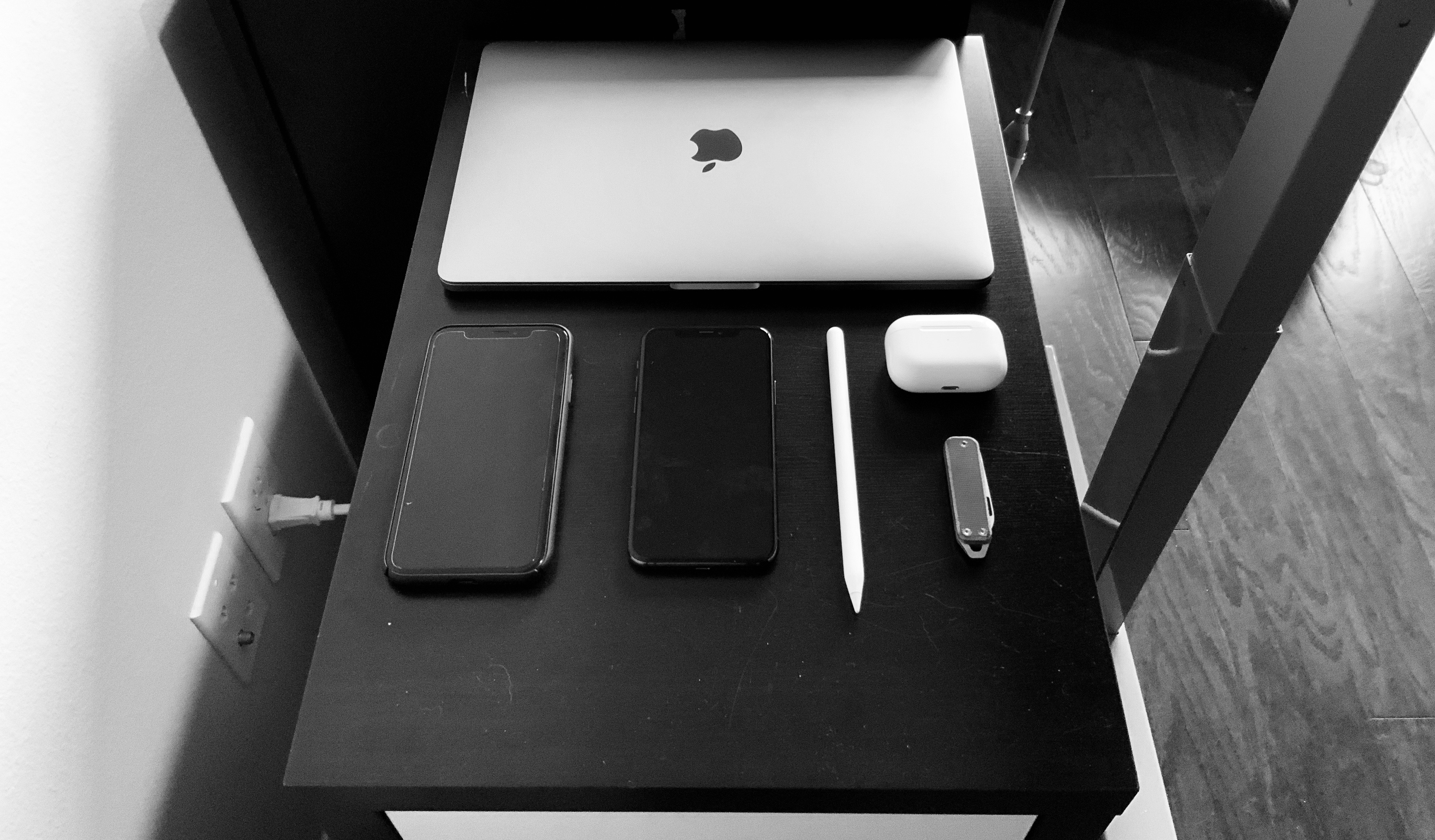
    Truth be told, I don’t really keep anything in my pockets when I am home, and if I am carrying something it is probably my iPad Pro — not even my iPhone that often. But, that doesn’t mean I don’t have a setup for myself, because I did find that as I worked throughout the day I needed *things* to help me. My home office is right next to the front door, and my wife and I have agreed that when a package comes I will open it at the door, dispose of the outer boxing, clean my hands and then distribute the delivery. For that I need a knife, but you know, I am not carrying one around my home because I don’t post to r/EDC — which is how this little area of my office formed:
    ![](https://f3a98a5aca88d28ed629-2f664c0697d743fb9a738111ab4002bd.ssl.cf1.rackcdn.com/2020-03-27-081812.jpeg)

    That’s a cabinet of drawers which sits to the left of my desk. It started the new WFH mandates with just the work issued MacBook Pro sitting on it — it’s the perfect size! — and then it morphed from there. I dropped my work and personal phone there, and that looked neat. Turns out having my AirPods Pro on that spot kept me from having to shuffle around looking for them before every call. I added the James Brand Elko knife so I could open packages — you don’t need more than that. And that’s the Apple Pencil for my *personal* iPad Pro — in case I need it.

    And I know what you are thinking: “I staged that for this blog post” and you are totally right. But what I staged was using a ruler to try and really make things aligned (I still messed that up), but in reality all those items really do sit there, really do sit in that arrangement and are almost always as neat and tidy as I can eyeball them. BECAUSE I HAVE SOME EXTRA TIME ON MY HANDS PEOPLE.

    The thing is, I need those items, but not that often. I need the MacBook Pro to test some web apps, but maybe once a week at most. I need my work and personal iPhones, but maybe once a day. [I use that knife](https://shop.thejamesbrand.com/products/the-elko?variant=3015957577768) about 3-4 times a day — deliveries seem to be constant right now, we got three different FedEx trucks on Friday alone. I rarely use the personal Apple Pencil, but I am trying to use it more so that’s a reminder.

    And those Airpods Pro are like work from home magic — [you should totally get them](https://www.amazon.com/exec/obidos/ASIN/B07ZPC9QD4/ref=nosim&tag=brooksreview-20). I keep a [charging](https://www.amazon.com/exec/obidos/ASIN/B0721DV7YX/ref=nosim&tag=brooksreview-20) cable stashed off to the side for the MacBook Pro and the Airpods Pro so that they don’t ever have to leave that spot.

    For me, this is not about what I carry *on* me (again, just the iPad Pro), but rather what I need *at hand*. And those are the items I have found that I need at hand. Yours may vary, but having them all in a neat area, arranged with extra compulsion, well that’s been nice for me.

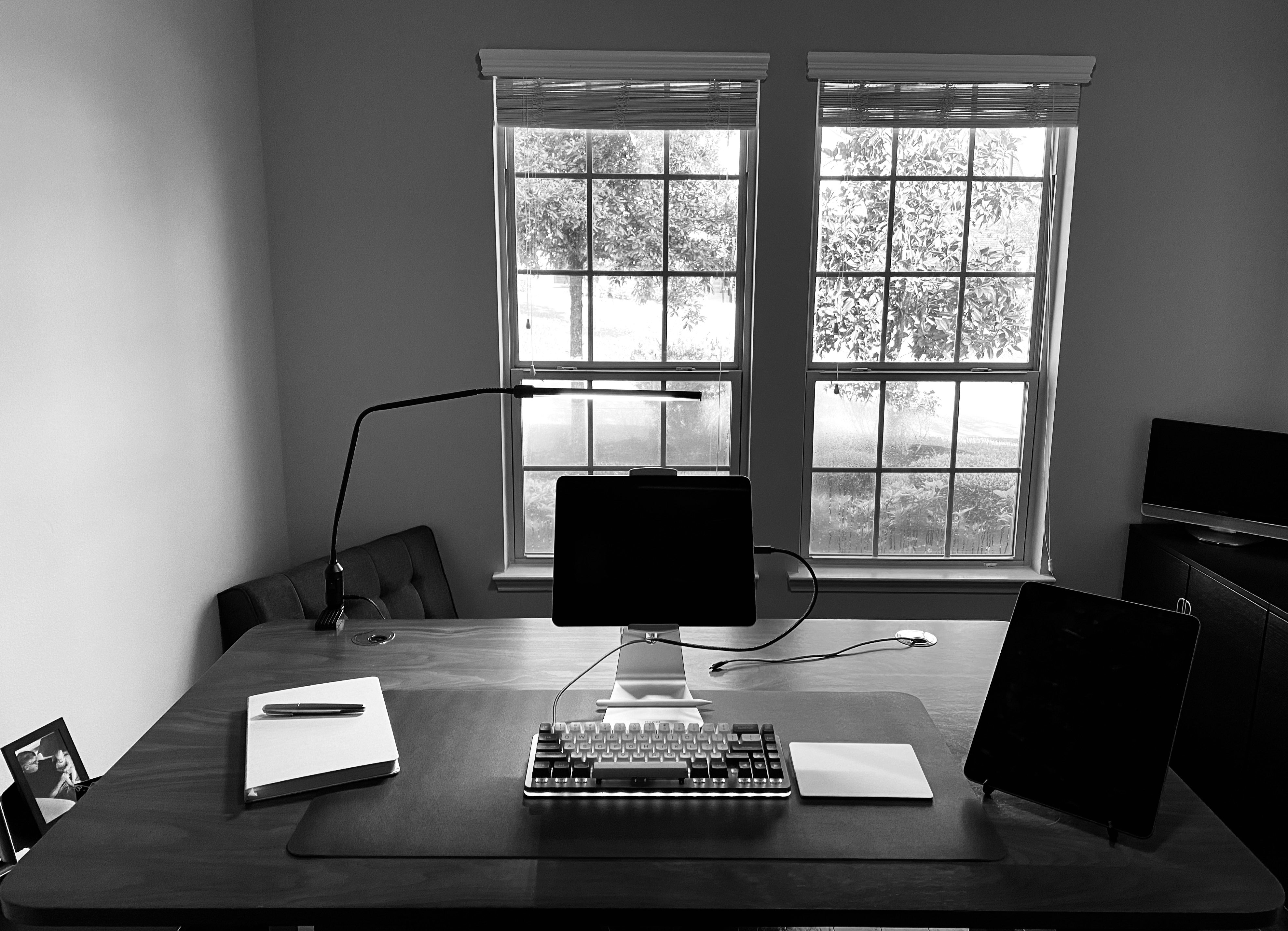
    And since you are wondering, this is what my desk setup looks like when I am working during the week:
    ![](https://f3a98a5aca88d28ed629-2f664c0697d743fb9a738111ab4002bd.ssl.cf1.rackcdn.com/2020-03-27-105510.jpeg)

    That’s a large Baron Fig, my Montblanc M Rollerball, Drop.com Alt keyboard, Apple Magic Trackpad, Viozon stand holding my work iPad Pro, and Compass Pro stand holding my personal iPad Pro (which is nervously keeping tabs on infection rates).

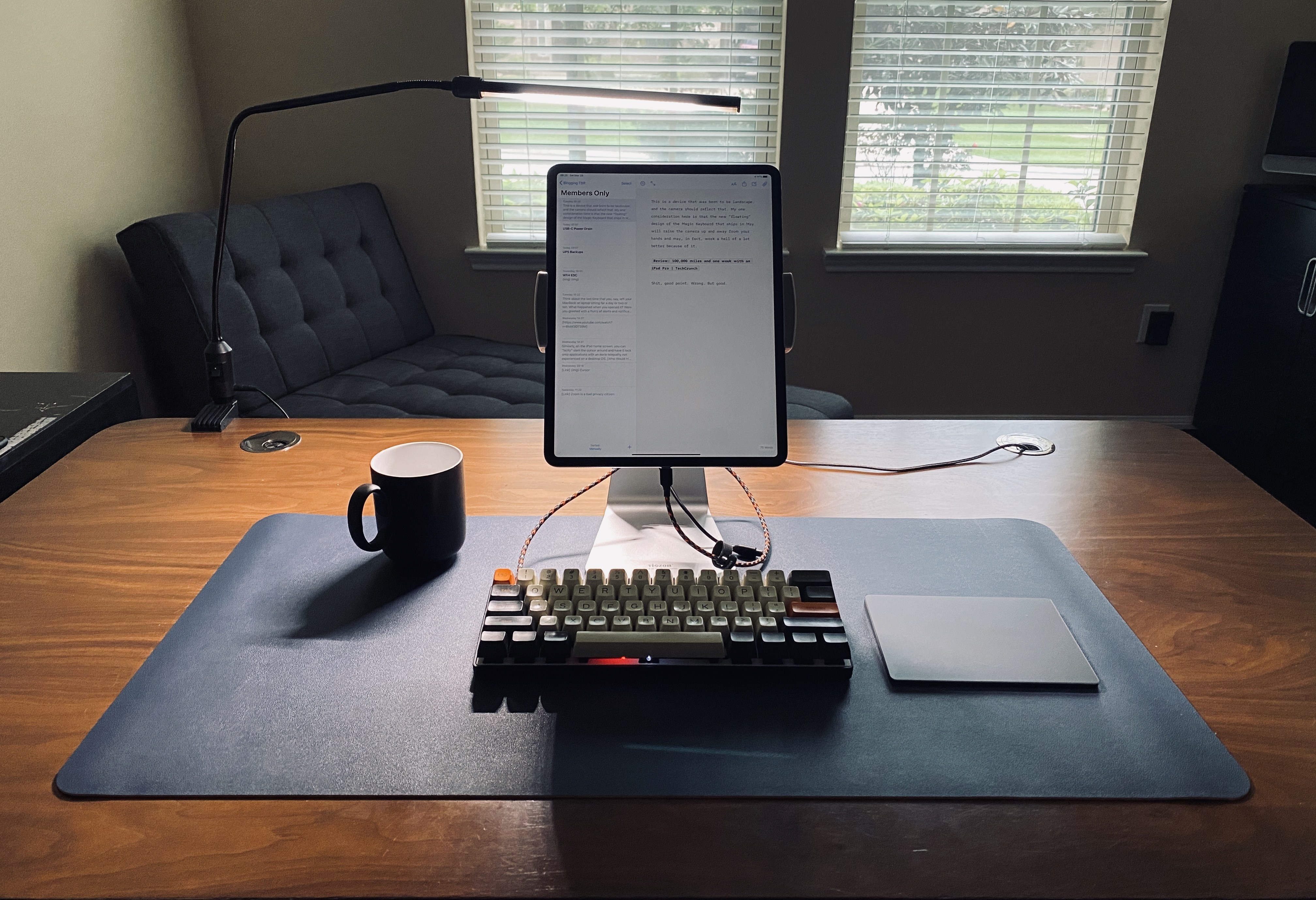
    And today, as I write these posts, here’s what it looks like:
    ![](https://f3a98a5aca88d28ed629-2f664c0697d743fb9a738111ab4002bd.ssl.cf1.rackcdn.com/2020-03-28-083712.jpeg)

    Coffee, Pok3er, Viozon stand with personal iPad Pro, and Magic Trackpad. And, yes, that little tool spot to the left of my desk, it holds different items on the weekend (I’ve got time people). You always need context shifts, which is why I changed the keyboard when I work on personal stuff, and took the time to completely put away my other keyboard in a cabinet. It tells my brain to get into writing mode, out of manager mode.

    One last note about my desks, because I know what type of emails people send me, the desk pad is [this one, in blue](https://www.amazon.com/exec/obidos/ASIN/B0794PSYSY/ref=nosim&tag=brooksreview-20). It was a sub $20 thing that made me happy-ish. It’s not super high quality or that impressive, but I wanted to know if a desk pad was something I wanted or not, before I went out and bought a [nice one from Grovemade](https://grovemade.com/desk-pad-collection/). I am still making up my mind on this, but the answer is likely: no, unnecessary.

    ## USB-C Power Drain

    Speaking of work from home stuff, I have been having some issues with my USB-C hub, it is a ‘cost effective’ UTechSmart USB-C hub that I attached to my iPad Pro with a ‘cost effective’ USB-C extension cable. From there I had my keyboard plugged in, as well as power off and on. But the battery life on my iPad Pro has been crazy bad going from 100% to 39% in about 2 hours. I know it is not my keyboard, because I use that at my office directly plugged in all the time. The only other variables would be:

    – Microsoft Teams (way higher usage and video call usage and I know that app was made with some crappy tooling)
    – The Trackpad
    – The OS update
    – The Hub

    So I decided to eliminate the hub and charged the iPad back up. I switched to a Bluetooth keyboard so I could keep working — my battery life span went back to normal. The USB-C hub, when not providing constant power to the iPad Pro is murdering the battery life.

    So, it could be the extension cable, it could be the hub — it’s probably both. But before I go out and spend a bunch of money on this: if anyone has a really great USB-C hub that they love using *with* their iPad Pro? [Let me know](mailto:benbrooks@protonmail.com).

    I have been reading around and it seems the TwelveSouth hub is one of the best as it offers a detachable USB-C cable so that you can place the location of the hub somewhere that is not dangling from my iPad Pro. And the reason I don’t constantly charge my iPad Pro battery? Well I am guessing that would not be good for long term battery life. But, educate me if I am wrong here, but leaving my iPad Pro plugged into power for 8 hours a day seems like it would not be good overall. (And internet research on this topic is shit.)

    ## Zoom, to Good to Be True?

    Zoom has been a hero during this work from home worldwide experiment. It has amazingly stayed up, and somehow not really pissed anyone off or done anything stupid. So while [this article tries to tamp the hype](https://www.vice.com/en_us/article/k7e599/zoom-ios-app-sends-data-to-facebook-even-if-you-dont-have-a-facebook-account), it’s actually not as abnormal as you might think.

    Basically, Zoom’s mobile app uses Facebook’s Graph API — likely to record as many analytics as can be had. This *could* be so they can make more informed product decisions, and this *could* be because data is data, and they want the data. It is likely both, and likely nothing they did with evil intentions. (A lot of times this stuff is added to commercial apps by developers pushing for them because they are asked to fix crashes without having access to users, and so they need as much possible information so they can actually fix bugs. So they choose a robust tool like this, without thinking through what else the tool itself might be collecting because they are trying to solve a problem *right now*.)

    But it is a good reminder that most apps use third party services (and many third party services at that) to collect data on your usage of the app — it’s not the fact that they want that data which concerns me, it’s that the third party also (often) gets that data too. So in the case of Zoom — well Facebook gets the data too, and as a company Facebook is a net bad for the world.

    So is Zoom too good to be true? No, but they should reconsider using Facebook tools to get what they need.

    At most, Zoom is a bad privacy citizen. But that’s not surprising given that they have a Freemium model and they give meeting hosts a ton of tools to tell what is going on in their meetings.

    What should you use instead: when and where possible FaceTime will always be your best bet. My company uses Teams, and I have to say the video calling is good quality with shit extras. I would prefer being tracked by Zoom.

    ## UPS Backups

    Not the delivery service, this is not about FedEx, but uninterruptible power supplies — battery backup surge protectors. I was reminded of my lax setup last night when the power went off in quite the dramatic sequence. Came back on a bit later, and then went off again — it did this a few times over the night. I have long kept a UPS on my internet setup so that I never really lose WiFi when the power goes out.

    This has been important in most of my houses as they have all had poor cell reception. The house we are currently in has the worst reception and yet last night I was reminded that my router stays up, but not the gigabit fiber connection. Because coming into the house is *another* part of the internet chain which needs power. So I picked up another UPS for that part to keep my entire network up when the power goes out.

    With everyone working at home, you should probably grab a UPS (CyberPower gets my vote, [I have one of these](https://www.amazon.com/exec/obidos/ASIN/B00095W91O/ref=nosim&tag=brooksreview-20)) and that way you can at least have internet to find out why the power is out and possibly for how long. The bigger the UPS, the longer the WiFi stays on, and usually the more likely it is to have a gauge to tell you how long. I would buy something larger than what I have, but mine meets my needs.

    One last pro tip: know how to turn off the alarm sound on your UPS, otherwise you will lose your mind one beep at a time. Oh, and just budget for needing to replace these every 12-18 months — they suck like that.

    You must be a member to read the rest of this article. (Already a member? Log In.)

  • Member Journal — 3/23/2020

    This week: new iPad Pros, Apple released new iPad Pros. Other stuff too like WFH, iPad stands, APPLE RELEASED NEW IPAD PROS.

    Anyways…

    You must be a member to read the rest of this article. (Already a member? Log In.)

  • Member Journal — 3/16/20

    Special Coronavirus edition, first part is free for all to read, as it is full of tips for working and managing teams from home. Free free *free*. And then we dive into a few other things like Apple News+ value, nothing is as secure as you hope, my purse, and a sale pick up.

    ## That WFH Thing

    Many people are finding themselves (or will be finding themselves) in a work from home situation in the coming weeks (or more, who knows) and my company is even doing a limited amount. Being someone who has run a team of distributed workers, and as someone who is not currently setup for working at home — well let’s just say all the advice I have been seeing is a crock of shit. I’ve got three sets of advice, for you as an employee, as a manager, and tech things. Hopefully it all helps you out.

    For you, the employee:

    1. It’s not easy to work from home, even if you have been doing it for years, or simply dreaming of doing it. What is easy is underestimating this, do not underestimate the ease of working from home.
    2. Say no to TV. Even if it is just to follow the news, or for background noise. If you wouldn’t have done it at your office, don’t do it at your home.
    3. No family, package delivery errands, or pet care while you are home and working. It might seem easy to take your dog for extra walks, or play with the kids. This is a bad idea, I don’t care what the justification. It also is going to be a pain for most people in the current situation to follow this advice as many parents find their kids home while they work. I get it, but do your best.
    4. Take breaks. Not like a lot of breaks, but you take a ton at the office, and you should do so at home too. If someone pings you while you are taking a break, just wait to respond. Don’t waste everyone’s time (including yours) trying to convince people you are constantly working. That is counterproductive.
    5. Don’t kill your day with small things that add up. Yes, you can move over the laundry in a few minutes, but you never stop there. Likewise, you don’t prep dinner while working at the office, so don’t do so here too. If you couldn’t do it from the office before, pretend you can’t do it now. You get extra time in your day, by virtue of the fact you don’t have to commute. Not by taking random breaks throughout the day.
    6. Headphones are a must when kids are in the house. AirPods will offer better quality audio calls than most alternate options.
    7. Clean up the space you are going to work in, and keep it tidy. You need room to work.
    8. No bed should be in sight. I know this isn’t possible for everyone, but try to make it as possible as you can. Get away from the area in which you sleep. I mentioned this on twitter and a few people chimed in to say it wasn’t economically feasible for most, and I agree. In short, this crisis notwithstanding, remote work should be reserved for only those with the space to have a dedicated office. I know that’s not the popular opinion, and rather elitist, but I will expand on this later. In short, for now, try to stay out of your bedroom if at all possible. Even the kitchen is better. Those with a studio apartment, Godspeed.
    9. No couch or bed working. Under no circumstances should you lounge on the couch or your bed to do work. That’s a scenario where you will get less done. Don’t do it. I don’t care. Sit on the floor if you have to.
    10. I am mixed about saying this because people will strongly disagree, but… Who gives a fuck what you wear, I don’t. People on your calls don’t. I hate the advice that you need to get fully dressed and all that. Brush your teeth, and wear what you want. But you should definitely brush your teeth, otherwise gross. If you need to dress like you are going into an office just to get work done, then you have some other problem that you should address. That said, you should be presentable for video calls, but like that could just be a nice t-shirt.
    11. Step away to eat. Don’t eat at the desk out of guilt that you get to work from home. You take a real lunch break at the office, do so here and don’t apologize. Step away.
    12. Over communicate. If you are stepping away for lunch set a status, let your team know and so on. Keep people informed of your availability. What drives managers crazy about working from home setups is that they often have no clue when you will be back at your desk. So make sure there is a way for people to know that, without them having to reach out to ask you. Status messages are key here.

    For managers:

    1. Drop notes to check in on your team, not so you know they are working, but so they have a chance to vent.
    2. Force video chat: audio only is for savages. Video is substantially better, so use it — always have your video on, and ask others to turn theirs on too. But warn them before you initiate a video chat.
    3. Monitor for misunderstandings in chat and get a call for those not ‘hearing’ each other. When you see that two people are going back and forth and not getting it, step in and get them on a call.
    4. Make sure people do sign off when work hours are over. Often people will feel the need to show up earlier and leave later, set an example by signing off in a group chat to everyone. And make sure others sign off too. E.g. “Ok, I am off for the day, everyone have a nice evening.” That little message will give everyone else permission to leave as well.
    5. Make sure people leave to eat at lunch. The best way to do this is to post something like “I’m taking lunch, back online in 30m” or something like that. Again, lead by example, but unlike in the office you need to explicitly state things.
    6. All team remote or no team remote. Those are best options. A mix of people in the office and people remote when you are not already setup for working like that is a recipe for disaster. Try to avoid this.

    Tech things:

    1. Standing desk more better, but not necessary to buy right now. If you work from home full time, that’s when you invest. Same with a ‘good’ chair, but like standing desk removes the need for a good chair. Win win. Think of it like this: you can buy the top chair and top desk people recommend for like $1000+ or you can buy a [great standing desk](https://www.standdesk.co/black-adjustable-height-desk/) and [sign up](https://brooksreview.net/join/) for a year membership to this site for like $550 and have an extra $450. You are welcome.
    2. Lots of power to charge. Get your chargers and such setup right away in the spot you are going to work in and leave them there. Don’t wait until you need the power. Route the cables nicely too, Velcro cable tie things are dirt cheap on Amazon.
    3. Good light is a must. 2700k or 3000k bulbs are ideal, make sure your home office has more light than you think you need and turn them on. Working in the dark is horrible for so many reasons. Also consider having a light behind your display to help your eyes.
    4. Monitor/laptop/iPad stands: get your device to a comfortable height and angle. These are worth buying and don’t cost much on Amazon. Cheaper than toilet paper right now it seems.
    5. Loud and proud keyboards can be used! Blue switch lovers can rejoice, smart people can keep using their clear switches.
    6. Prioritize your work devices on the WiFi network to beat back kids sucking your bandwidth on the network. Look at your router for QoS settings and prioritize the devices you use to work and drop the priority of your kids devices. Each router is different so search around to find out what each setting means, also not all routers have this feature.
    7. WiFi calling for smooth calls. In you cellphones turn on WiFi calling as that will often been a crisper and more consistent call quality when you are in your home. Especially if your are moving about.
    8. Pick one device for calls and one for everything else. When I do calls I use a secondary device, not my primary work device, for the call. This means I can keep using the primary device while letting the call be full screen on another device. For me that’s using a Mac for calls and an iPad for real work. For you, I don’t know.
    9. Eat chips or otherwise finger grease prone snacks with chopsticks to keep your keyboard clean. And pour them in a bowl for easy grabbing. No reason to get your fingers and keyboards gross when there is a proper tool for the job already. And every reason to eat nacho cheese Doritos when you work from home. You be you.

    Look, work from home isn’t science and you don’t need to go out and buy more stuff. But it does require you to focus and commit. So if you get to your desk and you can’t bring yourself to work, maybe give yourself the option of working, or of doing the worst chore in your home.

    Best of luck.

    ![](https://f3a98a5aca88d28ed629-2f664c0697d743fb9a738111ab4002bd.ssl.cf1.rackcdn.com/2020-03-15-130314.jpeg)
    *All I need to be productive.*

    ## Apple News+ is Killing It

    You must be a member to read the rest of this article.

  • Member Journal — 3/9/2020

    This week: notebook thinking, iBackpack, Slack, hankies, malware apps, and location tracking.

    You must be a member to read the rest of this article.

  • Member Journal — 3/2/20

    This week: my kickstand argument; I pick on John Gruber’s lack of iPad understanding; show you how unlimited time off is really an open office concept for HR policies; and preview some goods I am testing out.

    You must be a member to read the rest of this article.

  • Member Journal — 2/24/20

    This week: I go deep on this idea of contextual menus for iPad multi-tasking and describe why it is beyond stupid; let’s go to mechanical keyboard school, to help you out in your office or my office; the stress of different navigation apps; and a life pro tip your lawyer will love.

    You must be a member to read the rest of this article.

  • Member Journal — 2/17/20

    This week: my thoughts on remote work and offices; chicken nuggets; bedding scams; flashlights; and how do airplanes work.

    You must be a member to read the rest of this article.

  • Member Journal — 2/10/20

    This week: my advice for managing when pissed; paying for gas got better; watch statements; kudos to News+; notification hell; my new pocket organizer; site design updates, and how I split the work between Mac and iPad; and lastly a note on Apple Watch face design.

    You must be a member to read the rest of this article.

  • Member Journal — 2/3/2020

    Yesterday, [I posted a response](https://brooksreview.net/2020/02/ipad-turns-10-people-lose-their-damn-mind/) to many of the complaints I have seen about the iPad. Today, I write about the things I see missing from the iPad and touch on how I am using it full time these days. Including what exactly I think we need on the software front. Read on…

    You must be a member to read the rest of this article.

  • Member Journal — 1/27/2020

    This week: what I carry in my briefcase and brief reasons why; phones and looking at them always; living on Swiss time with watches; 5G and remote work; VPNs.

    You must be a member to read the rest of this article.

  • Member Journal — 1/20/2020

    This week: paper and pen, keyboards stress me out, someone thinks Apple is evil, my toilet paper supply, overrated work perks, toilet seats, and then we dive into the topic of bags.

    You must be a member to read the rest of this article.

  • Member Journal — 1/13/20

    This week: why apps like Excel fail to understand iPadOS, the $20 million test, why OmniFocus uses Stockholm’s Syndrome to keep users, and Black PR — it’s a thing.

    You must be a member to read the rest of this article.

  • Member Journal — 1/6/2020

    New year, short post. I’ll be back to full length next week, but for this week: News+ subscription, miscellany to kick of the year, bag talk, and the finally tally on the poll.

    You must be a member to read the rest of this article.

  • Member Journal — 12/30/19

    Short one this week: a poll, a pen thought, and Shortcut Automation fails me.

    You must be a member to read the rest of this article.

  • Member Journal — 12/23/19

    This week: very brief thoughts for another two iPad trick, a link to smart speaker privacy, and a note about watch accuracy. Back to full scheduling on 1/6/19.

    You must be a member to read the rest of this article.

  • Member Journal — 12/16/19

    This week: a trick for managing two iPads, update on my news diet, my weekly watch obsession, that thing about wearing my watch on my right wrist, perfect watch collections, holiday travels, some great videos, and someone broke a GORUCK bag.

    ## Trick For Managing Things Between Work and Personal iPads

    I have long used a different Apple IDs for buying stuff, and for iCloud. This goes back to 2004, because something weird got put in place for me back then (I think I started using one Apple ID in iTunes to buy music, and then later signed up for .Mac/MobileMe/iCloud and got a new Apple ID for that, and you can’t merge those). Anyways, I use two IDs, but there’s an advantage to that. Because the purchasing App Store ID I can use for my App Store ID on my work devices while not exposing my personal iCloud account to those devices as well.

    You must be a member to read the rest of this article.

  • Member Journal — 12/9/19

    This week: some follow up to my iPad guide, and to my watch guide, lefties and watches, my news intake reduction, and the lies of morning routines.

    ## iPad Guide Follow Up

    Two errors, a month of writing. I had two typos in the article, which I have fixed, but I do want to point out that I worked on that post everyday for a month and still two slipped by. Dang, that’s annoying.

    It seems for most people the post resonated, but some wondered why it wasn’t more of a getting started guide. That’s a good idea, but I think that’s ultimately a lot of what I have written in these member only posts about going all in on iPad Pro.

    You must be a member to read the rest of this article.

  • Member Journal — 12/2/19

    This week: iPads in portrait, Ulysses Sheet love, WiFi 6, month of writing, DuckDuckGo, and how I am tackling news heading into the end of the year.

    *Yesterday I published my article about switching to iPad Pro. This is the article I spent all of November working on each day, I quite like it.*

    You must be a member to read the rest of this article.

  • Member Journal — 11/25/19

    How is it almost the end of a year already… Anyways, this week: external displays with iPad Pros, naked iPad, standing desks at work, Keychron, daily writing, and watch talk.

    You must be a member to read the rest of this article.

  • Member Journal — 11/18/19

    This week: naked iPad Pro, new iPad stand, my alarms, waking up early, out of touch experts, and evil Silicon Valley.

    You must be a member to read the rest of this article.