Category: Articles

  • What Could Possibly Go Wrong?

    I can understand — and certainly agree with — HP’s exit from the PC business. Selling PCs is not the business to be in, the margins are thin and the competition is abundant. Unless you are Apple there is no real way to differentiate one computer from the next and thus you must compete on price and blue LEDs.

    What I don’t quite grasp is HP deciding to run WebOS as a software only business, exiting the mobile devices business — one laden with competition, but proving lucrative for more than a few. At this point it would seem that the best move HP could make, for both them as a company and WebOS, is to sell WebOS to a willing buyer.

    (Hopefully any willing buyer would be smarter than HP and realize that it may take more than 12-18 months to start making money with the platform.)

    The scenario that sounds far more likely at this point though is that HP has decided to license WebOS. At first brush this may sound like a great idea, WebOS is seemingly *better* than Android and with Google buying Motorola you have some eager customers in Samsung/HTC.

    The problem?

    Well licensing is a good move for WebOS as a platform and for HTC/Samsung (giving them leverage for negotiating with Google). BUT, this is anything but a good idea for HP the company — that is if they want to make money off of WebOS.

    Here’s the thought process HP must have had:

    “We need to do something with this Palm crap. I can’t have it dragging down financials anymore and honestly the PC business looks like shit too. … Ok, I know, let’s do what IBM did and focus on software and big enterprise markets. Here’s what we do: we spin off the PC division, we kill the mobile devices and just license WebOS. We make WebOS the Windows of the mobile world!”

    *Brilliant*

    Except that this strategy isn’t making much money for Microsoft or Google right now.

    You know who is making a shit-ton of money right now? Apple. You know how? By making software **and** devices that work seamlessly together, also known as what HP acquired in Palm.

    So in a moment of critical importance for the future of HP, CEO Leo Apotheker decided that — in a world where Apple is crushing Microsoft and Google realized they need more control over hardware (like Apple has) — well Leo decided he wanted to be *more* like Microsoft.

    What could possibly go wrong?

    At least HP still has those printer cartridges.

  • Software Update Versus the Mac App Store

    When Lion came out the big deal was that it was available first (and honestly mostly) through the Mac App Store, only later gaining a USB stick option for an additional cost. Yesterday brought us the first update to the new OS and it came in via Software Update.

    That may seem all well and good, but how do you update all the other apps that you buy in the Mac App Store? Via the Mac App Store, not Software Update (though I do believe Pro apps are not updated that way).

    I mentioned this on [Twitter last night](https://twitter.com/benjaminbrooks/status/103681625040240641) and I was surprised that most people think the Mac App Store is a poor update method — mostly it seems because the Mac App Store won’t prompt you for new updates.

    ### The Problem with the Mac App Store and Lion

    There are two major issues that I have with Lion in the Mac App Store right now:

    1. They call Lion an app. More specifically they call what you buy from the Mac App Store an app, which what you buy is actually just the installer for Lion — but that’s not really the point since Apple doesn’t specify this.
    2. All apps that you buy through the Mac App Store must be updated through the store. Except, you know, for those super special apps like Lion, Final Cut X Pro, and so on.

    I don’t care to argue about the first one — it is what it is and most people will be better off buying Lion through the Mac App Store than they were getting physical media. If it bugs you too much then just think that you are buying the installer app and move on.

    The second item is what really confuses me. I don’t care one way or the other how I update my apps, just so long as it works, but the Mac App Store was supposed to make things easier — and buying Lion in the store only to have to update it outside of the store makes it more confusing.

    The problem is this: there is a new update for Mac OS X, it’s called Lion, I tell my Mom to go get that update from the Mac App Store and follow the instructions to install it. *Now* I tell my mom there is another new update for Lion and that she should install it as soon as she can. Where is she likely to go?

    My guess: the same place she went to get it to start with. This means I get a call: “Ben, there is no updates.” (Truth be told my Mom is *not* a Mac user despite my best attempts.)

    This is confusing. Yes, Lion will prompt users for the new updates and the Mac App Store won’t — this only matters to power users. Normal users will put those dialogs off as long as possible because:

    1. They have been screwed by those dialogs before.
    2. They don’t want to restart their computer.
    3. They don’t have time.
    4. What they are doing right now is more important that whatever that dialog says.

    There are more reasons, but you get the point.

    I fully understand the logic: keeping the status quo. I think we are seeing yet another seam in Lion’s transitional fur.

    I am not sure that updating Lion through the Mac App Store is the right way to go about it, but it would seem to me that Apple should at least show you that there is an update for Lion in the Mac App Store. This way it could kick the user over to Software Update, thus solving all of this.

  • Lion Is More Painful Than Vista? Hardly

    [Adrian Kingsley-Hughes wrote a link bait article](http://www.zdnet.com/blog/hardware/os-x-107-lion-is-more-painful-than-vista/14242) one that I was going to let pass, but then I got to thinking about it and — well — I got a little more pissed.

    First things first: Lion has bugs. I know this and admit this — I have been using it since the first Developer Preview came out and I know first hand how annoying some of these bugs are.

    Kingsley-Hughes writes a hardware column, not a software column. Now this doesn’t mean that he can’t comment on Lion, but perhaps he should be extra careful when doing so and double check what he is really trying to say. Even so he installed Lion on his Mac mini and reports three problems.

    Each of these three problems are rare oddities that a vast *minority* are experiencing. The third one, though, is a specific problem with iMacs — yet Kingsley-Hughes claimed to have installed Lion on a Mac mini. Maybe he has both, but if that is the case I — the reader — want to know if he is having the issues on both machines, because that would lead to a far more credible tale.

    Kingsley-Hughes’ end conclusion is the Lion is far worse than Vista — oh really? I think what he maybe meant to say is that Lion is the Vista of Mac OS X (still wrong, but a better comparison), but that is *not* what he did say.

    I had Vista Ultimate two weeks after it came out, I know what Vista was like. Let me tell you some of the issues I had:

    1. There are literally two disks to install Vista with, a 32-bit and 64-bit. So even after I decided between the seven or so different versions I still had to figure out which version of the OS to install. Yay me! Now you maybe thinking well that is easy, what kind of processor did you have. Do keep in mind that Vista came out right around the same time that consumers started to get their hands on 64-bit Intel chips. I actually didn’t know there was a difference in the disks and installed the 32-bit version only to have to install the 64-bit version later on.
    2. My sound card didn’t work. In fact my sound card wouldn’t work for another month after the install. Yes, for an entire month that computer had *no sound*. I went out and bought a USB sound card to use for gaming, but it didn’t work either (I can’t remember if I even got it working).
    3. Every ten seconds a dialog popped up asking if I would allow access (or something along those lines) to program/process/activity X. That was *fun*.
    4. My older games — the games that I ran a Windows box for — they mostly were not useable. After a few months most of the games were patched, but you know that took a FEW MONTHS.
    5. It took about a month (that’s being generous) before the graphics drivers were up to speed and fast enough to game with.
    6. Oh, did I mention that there was *no* upgrade path from Windows XP Pro and so any Vista user **had** to do a fresh install? [True story](http://windows.microsoft.com/en-US/windows-vista/Upgrading-from-Windows-XP-to-Windows-Vista). Now this was the 32-bit OS to 64-but OS, but just look at that linked table of the upgrade options a user has. Crazy right?

    So *even if* Kingsley-Hughes is having random crashing, wifi dropping and “videos freezing iMacs” — even if those are all real — he *still* has a useable computer when those things are not occurring, which is likely not that often despite his best attempts to “prove” otherwise.

    With Vista my computer was barely useable, and honestly wasn’t useable for what I wanted to do on it for months.

    Lion is not worse than Vista and saying so is a flat out lie.

  • “Protecting the Ecosystem”

    Google’s acquisition of Motorola for a surprisingly low $12.5 billion is a rather concering proposition. Not when you think about the acquisition in terms of Google “wanting to control the hardware for Android handsets and tablets”. If you think about what Google really got things get all the more concerning, but first you must believe what [MG Siegler believes](http://techcrunch.com/2011/08/06/ive-abandoned-my-boy/):

    >Increasingly, Google is trying to do everything. And they have the arrogance to think that they can. And it’s pissing people off.

    I have a hard time arguing against that notion. Certainly everything doesn’t truly mean *everything*, but when an Internet search company starts creating self-driving-cars — well perhaps everything really does mean *everything*.

    You can’t take statements like this one by CEO Larry Page seriously:

    >The combination of Google and Motorola will not only supercharge Android, but will also enhance competition and offer consumers accelerating innovation, greater choice, and wonderful user experiences.

    Because the preceding statement is:

    >Our acquisition of Motorola will increase competition by strengthening Google’s patent portfolio, which will enable us to better protect Android from anti-competitive threats from Microsoft, Apple and other companies.

    “Increase competition” is a flat out lie, unless of course you mean between patent litigators in the courtroom.

    24,500. ((Technically 17,000 owned with another 7,500 or so pending.))

    That’s how many patents Motorola owns — that’s what Google is buying, everything else is a fringe benefit to Google and a potential disaster to competitors.

    ### Everything

    This acquisition is about far more than getting handsets and tablets — if that was all Google wanted they would have been far better buying HTC or Samsung, as these companies make more compelling hardware. What Google is getting in addition to the Android devices and the patents is:

    – Home telephones
    – Radios (walkie-talkies)
    – Modems/ routers

    The first two are a bunch of “meh” the last item is where things get really interesting. Google now not only owns patents and a “complete” Android experience, but they also bolster their ISP ambitions with the addition the Motorola modems.

    Motorola has long made the best modems a consumer can buy for their home DSL/Cable connections — Google now owns that. That prospect scares me as the last thing I want is a party with a vested interest in what, where, and how I browse the Internet to be standing between me and the Internet. Google is now that party — of course they may never leverage it, but do you *really* believe that?

    How long before there are Google branded modem/routers on the market that tout Google cloud features as the benefit? That scares me a lot, mostly because Motorola SurfBoard modems are so good.

    ### Back to Android

    Let’s get back to the meat of this acquisition: Android.

    [Mike Cane fears for Android](http://mikecanex.wordpress.com/2011/08/15/google-pulls-a-zune/) partners and thinks they may suffer the same fate as Microsoft MP3 partners did when the Zune came out:

    >This is exactly the position every single Microsoft partner using PlaysForSure DRM for MP3 players was in when Microsoft announced its own player, the Zune. They all dumped their products.

    I don’t see the same happening here, mostly because handset partners seem to be in far greater denial — more on this in a bit.

    In an interview for a [site on the Internet, Peter Kafka asks](http://allthingsd.com/20110815/gulp-google-buying-motorola-mobility-for-12-5-billion/):

    >Q: How does this change Android from partner perspective? Do you think MSFT now positions itself as a “neutral” platform?

    To which he gets these two response:

    >Page: No change to Android. Still an open ecosystem.
    >Rubin: Nothing changes. Motorola remains a separate business. This is about “protecting the ecosystem, and extending it as well”

    That’s a hard line to swallow even if you aren’t an Android licensee. Does any one really buy that crap? I think by now the Internet itself has by and large proven that Android is not-so-open and that Google hasn’t really done much to “protect the ecosystem”.

    Android may have more “open” facets, but it is not really *that* open in the respect that most open source software is. This acquisition will eventually wake Google up to the fact that they need more proprietary software.

    [Craig Grannell thinks](http://reverttosaved.com/2011/08/15/google-buys-motorola-mobility-offering-the-potential-of-apple-like-android-ecosystem/) such an acquisition will be able to up Apple’s game and create some of the best handsets out there. I can see the potential for that, but I also saw the potential for Google Wave and other failed Google offerings.

    This acquisition only has potential for as long as it can hold Google’s attention — thus far nothing other than Adwords and Gmail has been able to hold that attention for very long. Even Google searches are becoming less accurate than some smaller upstarts ([including Bing](http://www.infoworld.com/t/search/surprise-bing-tops-google-in-search-accuracy-035)).

    If you don’t believe — then explain why Motorola will be left as a “separate” company instead of rolled into the fat of Google? You will never get an Android device that controls the experience in the same way that any Apple product can if two separate companies are making the device. If — IF — Google had sought to actually make Motorola a part of Google then I could give that notion some thought, but that’s not the goal.

    Motorola will remain separate so that Google can drag Motorola’s name through the mud with patent disputes — I have seen that tactic somewhere else… ((Lodsys.))

    Kevin C. Tofel has a nice take on the purchase over at GigaOM [saying](http://gigaom.com/mobile/will-hardware-makers-trust-google-after-motorola-buy/):

    >The situation is akin to Microsoft buying Dell: Would HP and others be happy about that?

    That’s spot on, but he left out the fact that Microsoft would have to still be trying to convince HP that “everything’s cool bro”.

    Again at [GigaOm Darrell Etherington](http://gigaom.com/mobile/with-motorola-purchase-google-buys-a-seat-at-the-patent-table/) makes an excellent point:

    >Also, if Google is serious about ensuring that this deal doesn’t negatively affect its relationships with other hardware partners, it can use the purchase to at least try to ease some of the patent pressures being applied to Samsung and others.

    In other words Google is going to majorly tip its hand when they do, or likely do not, step in with their new found patent holdings to help out competing companies (because now Samsung and HTC *are* competitors to Google, as much as they are partners).

    [Of course Google has refuted all of this by putting up some choice quotes from Android partners](http://www.google.com/press/motorola/quotes/). Which leaves smart people asking: what was the question that was asked to get these quotes?

    I think the question was: How do you feel about Google buying Motorola’s *patents* to protect Android partners?

    When the question really should have been: “How do you feel about your licensor now buying a company to *compete* directly with your company?”

    That would have told a much different story.

    As [Dan Frommer points out](http://www.splatf.com/2011/08/google-motorola/):

    >Google would finally have a real business model for Android! Instead of just giving everything away for free for a cut of advertising revenue, Google is now in the position to bring in hundreds of dollars of revenue and profit per smartphone sold, the way other companies do.

    How any Android “partner” could read that and *not* be worried is beyond me.

    Lastly I leave you with some choice [wisdom from Horace Dediu](http://www.asymco.com/2011/08/15/the-perils-of-licensing-to-your-competitors/):

    >The lesson (and warning) was that a licensor that is also a licensee makes other licensees uncomfortable. The supplier is also a competitor. This is classic channel conflict and never ends well.

    >Open or not, with or without equity, these arrangements are always unworkable.

    Now who is more naive when Google states they are “protecting the ecosystem” with this purchase? Google, or Google’s partners?

    Update: A few have said that the Modems/Routers may not go with this deal. As far as I can tell the consumer grade stuff is a part of the Mobility group — though I may be wrong.

  • MacBook Air SSD Benchmarks: 2010 vs 2010

    [An interesting test comparison between MacBook Airs with and without FileVault turned on](http://thepracticeofcode.com/post/8681712620/macbook-air-ssd-benchmarks-2010-vs-2011-vs-lion) has been making the rounds. I was ready to publish a link to this post, but then I decided to run the FileVault ‘on’ test with my MacBook Air. Here’s where my numbers fall in comparison to the linked posts:

    Machine: 2010 FV (Jay’s) 2010 FV (Ben’s)
    Sequential
    Uncached Write 4K 120.4 MB/sec 167.14 MB/sec
    Uncached Write 256K 75.9 MB/sec 92.07 MB/sec
    Uncached Read 4K 12.7 MB/sec 12.86 MB/sec
    Uncached Read 256K 90.9 MB/sec 98.2 MB/sec
    Random
    Uncached Write 4K 46.0 MB/sec 45.76 MB/sec
    Uncached Write 256K 72.4 MB/sec 84.54 MB/sec
    Uncached Read 4K 6.7 MB/sec 9.36 MB/sec
    Uncached Read 256K 66.2 MB/sec 82.34 MB/sec

    So my machine performs better in most tests — what needs to be noted is that the machine specs are vastly different. Jay is using an 11.6″ Air with the 1.6 Core 2 Duo processor, 4GB of RAM and the 128GB Toshiba SSD. I am using a 13″ MacBook Air with a 2.13 Core 2 Duo processor, 4GB of RAM and the 256GB Toshiba SSD. I am not sure if it is the processor, SSD size or the possible difference in free space on the drive accounting for the difference (or all of the above) — but there *is* a difference. Even with the performance difference I still don’t notice it.

  • Facebook Messenger, SMS and iMessage

    Yesterday Facebook launched its new Facebook Messenger app for iOS that is a text messaging like alternative. In response to this launch [MG Siegler stated](http://techcrunch.com/2011/08/09/suck-it-sms/):

    >But the service that should be perhaps more worried about Messenger is the still-unlaunched iMessage.

    I read his post last night and liked it on Instapaper. Now this morning I had to remove that like and in thinking about it further I completely disagree with the notion that this service is a threat to iMessage.

    Siegler lays out these reasons why Facebook Messenger is better:

    – iMessage is tied to email addresses (phone numbers on iPhones only) whereas Facebook is tied to, well, Facebook.
    – iMessage and SMS look the same and reside in the same app.
    – Facebook Messenger will handle group messaging better.
    – Messenger will likely add video features.
    – Messenger will be cross platform technology where iMessage will be trapped in iOS. The biggest component of this is working on Facebook.com.

    Siegler makes a bunch of true statements, but the biggest reason — the biggest advantage — that iMessage will have is that it *is* seamless.

    With Facebook Messenger you need to do the following:

    1. Be a Facebook user (there are lots, not a big hurdle).
    2. Download and install the Facebook Messenger app (easy on iOS, but Android?).
    3. Learn how to use the app.
    4. Remember to use that app over text messages.

    It’s 2-3 that are going to cause the problems because it is a not a seamless process — the user much actively be choosing Messenger over anything else. Certainly it will get used, but not as much as iMessage when it launches.

    The reason being is best shown with how you use iMessage:

    – Open Messages app (the one you already know how to use and is pre-installed).
    – Pick contact to send a message to.
    – Send message.

    If the contact is using iOS 5 on an iPhone then you just sent an iMessage. There was no switch to flip or separate app to use. Yes, sending between email addresses can be cumbersome with people who have several email addresses — but so is figuring out which email address to send an email to with such people.

    The problem right now is that a bunch of developer/power users are using iMessage and everyone of those users has multiple email addresses. This is not the case with the average user and that is the segment that makes these things take off like wildfire.

    iMessage may lose with the younger crowd that is Facebook obsessed, but for all those corporate types — the adults that loathe Facebook or don’t “get” Facebook — well they *will* be using iMessage without even knowing it.

    That kind of seamless integration is how you push through change, not with standalone apps. Facebook Messenger may succeed, but it’s not going to hurt iMessage.

  • “Unlimited” T-Mobile Plans

    Last night, in what can only be described as a rare event, I was listening to the radio. There was an ad that came on for T-Mobile’s heavily advertised “unlimited” everything plans. For those not aware of these plans T-Mobile touts that for $49.99 a month you get unlimited: talk, text, data.

    Now on the radio I actually heard the fast talker when he was speaking the asterisk material. What I heard him say: “After 2GB of data at full speed, unlimited data is available at 2G speeds.”

    Umm, what?

    So I visited the T-Mobile website and saw [this](http://deals.t-mobile.com/unlimited-family-plans):

    There’s the 2GB cap on the unlimited data, but let’s find out more. Now clicking to get more details yields this text:

    >Unlimited data: Up to 2 GB of high-speed data (for capable devices), then reduced speeds after that. If you use up your high-speed data, we will automatically reduce your speeds for the rest of your billing cycle—so you can still connect without overages.

    How nice for you not to cut me off when I use up all of my “unlimited” data. So I get the same crappy 2GB cap that I get with AT&T, but instead of letting me just run up overage charges — well T-Mobile automatically makes a slow connection, even slower.

    But how slow?

    For that we must read the seriously fine text:

    >For unlimited data plans, full speeds available up to monthly data allotment; after allotment used, speeds slowed to up to 2G speeds for remainder of billing cycle.

    Technically speaking the original non-3G iPhone was considered to run at 2.75G speeds (EDGE). What’s 2G — is it even useable?

    2G is actually the old TDMA network that T-Mobile has, the best I can tell the top speeds on it are [right around 9.6 kbps](http://www.arcelect.com/2G-3G_Cellular_Wireless.htm). Honestly that can’t be right because such a speed wouldn’t even be useable. My guess is that they actually mean either GPRS (115kbps) or EDGE (384kbps). Either way that is a huge hit from the [minimum 1.8Megabit/s speed](http://en.wikipedia.org/wiki/High-Speed_Downlink_Packet_Access) you get over 3G.

    Doesn’t matter really, what matters is that this “Unlimited Plan” is hardly *unlimited*.

  • Let’s Substitute iTunes Passwords for Passcodes on iOS

    Any TestFlight user will tell you that one of the greatest parts is that you can install apps without a dialog popping up asking you for a password. In fact entering my iTunes password every time I want to buy or update an app causes two problems:

    1. User annoyance.
    2. Weaker passwords.

    My password is weaker because I typing long complex passwords causes two problems other:

    1. I forget them.
    2. They aren’t very easy/fast to type on iOS.

    This problem is compounded when you have a device passcode set to immediately (as I do), then you go to update apps and have to type another password.

    My proposal: if a user has a passcode set to activate no longer than 15 minutes of inactivity (I believe this is the current memory of the App Store for password-less purchases) then allow the user to turn on a feature where you can buy anything password-less once the device has been unlocked with the passcode.

    This would eliminate the first two problems listed above:

    1. Buying/updating apps would be less annoying (fringe benefit: you sell more apps).
    2. I could make super secure iTunes passwords knowing that I wouldn’t need them to do every little update in the App Store or to buy $1.99 song.

    Just a thought…

  • Hourly Wages and App Pricing

    I whipped up a handy chart for reference. Before you complain about an app’s price consult this:

    [](https://f3a98a5aca88d28ed629-2f664c0697d743fb9a738111ab4002bd.ssl.cf1.rackcdn.com/salary.png)
    *(Click to enlarge.)*

    Here’s how to use this chart: pick the salary that most closely matches yours and the app price the see where the two intersect. This number you get is the amount of hours you need to work to obtain the dollars needed to purchase the app in question. Then ask these questions:

    1. Do you gain more than X hours of value/time by owning this app over the course of the next year?
    2. What about over the course of the next two years?

    Let’s pick on OmniFocus for the iPhone. It is priced at $19.99, so with on the lowest salary on this chart you will need to work for about 2 hours to make that money. The question then becomes: will OmniFocus give you back two hours of time, or make you two hours more productive if you buy the iPhone app?

    I don’t know the answer to that question and I urge you just to look at what you get back over the next year of time — even though most apps will last you at least two years. ((At which time maybe you switch phones or there is a paid update you must, or want to, buy.)) I do know that most people scoff at the actual price of apps and not at the actual value of apps to them, given their financial situation. ((This is not to say that you buy apps when you don’t have the money to buy them. That would be silly.))

    I have also highlighted (in light yellow) the price point for each salary level that most closely represents one hour worth of work (or less in some cases). This is the price point where anything below this threshold becomes a no-brainer in my book and I think best explains the pricing model in the App Store.

    Most people are likely not to be inclined to pay for an app that will take them more than a one hour wage to earn, unless they are supremely confident that it will get them back that time. This is likely why most developers *know* that pricing over $9 is likely to result in low sales.

    It’s the is–buying-this-app-worth-slaving-for-*extra*-hour-at-this-job-I-hate-worth-it factor.

    Take a look on the store, most apps live under the $9.99 threshold which is also roughly an hour wage for a lower salary individual (lower salary on the above scale only).

    In green I have highlighted (light green) the dollar amounts for each salary level that represents one-tenth of an hour. This is the level that I think makes the price point of an app an impulse buy for most people.

    If you make ten times that amount in an hour, well then that amount of money starts to become very disposable.

    ### Conclusion

    I have no real conclusion here and no big lesson that you are to gain. But it is something to keep in mind before you complain about *how much* that app is — considering that developers spend far more time making the app than you do making the money you are fretting about spending on the app. ((Well in most cases.))

  • It Gets More Idiotic

    I guess I lied [yesterday](https://brooksreview.net/2011/08/buyers-remorse/) when I quipped this about Renee Oricchio:

    >Are you aware that anytime I see your name as the author I will now skip past the article?

    Because I went ahead and read her [follow-up piece](http://www.inc.com/tech-blog/comparing-pcs-to-cars.html) which is even more confusing than the original. Oricchio truly doesn’t get “it” let alone anything really.

    She posts a bunch of cherry picked criticisms (none of which are mine much to the sadness of my ego) and then stated this in the start of her response:

    >I think it’s a fair expectation that a new laptop, albeit cheap, should run seamlessly for more than a day.

    That is an absolutely fair expectation — naive — but fair. From there though she seems to forget that first mission statement she laid out (I am quoting large chunks and skipping a few things, but I am trying to keep her original intentions intact):

    >Who says you can’t compare apples to oranges? When you’re talking fruit, you absolutely can. It is fair to compare a $1000+ Mac to a $300 Windows machine. PC shoppers do it every day. They have to; both are on the spectrum of buying options. What would not be fair is having the same expectations for the bottom and top of that price range (just like comparing Honda to BMW).

    Yes, but you are wrong here. You see it *is* fair to compare a Honda to a BMW if your stated reason for comparison is not performance, but as you suggested above is: reliability. Asking: is a Honda more reliable than a BMW? Is a completely fair question, which seems to me is the crux of your argument. You never said that your new $329 computer was slow, but that it was unreliable because it crashed twice on the first day — the equivalent of a car breaking down — so you absolutely *should* (by your own reasoning) be comparing your Toshiba to a Mac.

    >I do expect both my Toshiba with Windows 7 and Toyota to perform consistently. I don’t think a cheap price is a reasonable excuse for a totally spotty performance. If you can’t sell something that works right at that price, then don’t go there.

    Ok we are back on point now.

    >I daresay that a $800 or even $1,800 PC with Windows 7 is just as likely to crash from time to time as my Kia—I mean Toshiba.

    Wait, you just got done saying that… No I thought you were arguing that a cheap computer is *less* reliable than an expensive one? Now you are saying that price doesn’t matter — all Windows computers crash? If you *know* that then why did you complain in the first place? Why did you buy Windows? ((I know why, but I fear she doesn’t. She’s cheap/frugal.))

    To use your own car analogies: this is more like you going to the junkyard and buying a car that someone wrote on the windshield “runs”, knowing full well that it likely will breakdown at some point, to only then get pissed when the inevitable happens: your car done stopped workin’.

    Oricchio, you keep comparing your laptop to a new car, when it sounds more like you should be comparing it to a used car.

    Oricchio ends with some odd quips about car analogies, but before that she states:

    >Excusing Windows from crashing because I may have been installing non-MS software (everything was Windows-compatible, by the way) would be like excusing my hyptothetical Honda from dying at a stoplight on the way home from the dealership because some of the parts were not made by Honda (only Honda compatible).

    I completely agree with this, BUT we *were* talking about the hardware not the software. The software is the same no matter the hardware when you are buying a Windows machine — you chose this!

    Here’s the thing, and why I am harping on this. I am perfectly fine with criticizing shitty hardware. I am perfectly fine with criticizing Windows for crashing. I am fine with people stating that Mac users are crazies. What doesn’t make sense is the logic (or lack of) for this buying decision, here’s why:

    1. Oricchio seems to be aware that Windows crashes no matter the hardware.
    2. Oricchio seems to know that even though this shouldn’t be the case, shitty hardware is in fact, shitty hardware.
    3. Oricchio bought shitty hardware (knowing it was shitty) with Windows on it (knowing it crashes).
    4. Oricchio then decided that even though what she knew would happen, happened (multiple crashes on day one), that she is *not* the one at fault. Even though it was her decisions that took her to this place and that she had adequate knowledge to make informed decisions.

    To use her own car analogy: this is like buying a brand new Ferrari and driving it straight into a telephone pole and then getting pissed that the car is totaled and your neck is broken. ((That may be a bit of an exaggeration — point stands, both are stupid decisions and stupider reasons for complaining.))

  • Digital Interruptions

    I can’t stand interruptions when I am in the “zone”.

    It’s something that I think most of us feel — nothings more annoying than a beeping phone mid-world-changing-thought. It can shatter and ruin everything that you are thinking about, forcing you to start fresh.

    This past weekend I went hiking with my wife and a couple very close friends. We went to Shi Shi Beach which is just south of the most northwesterly portion of Washington State. We took off right after work on Thursday night and drove for a little over an hour and a half to our first camp site.

    I only took my iPhone with me — no cameras, iPad, or computer. Thursday night before we started the camp fire I changed my voice mail message to tell my day job people they needed to call someone else for help and then my phone went into Airplane mode. ((There wasn’t going to be cell reception soon enough anyway.)) My iPhone stayed in Airplane mode until Saturday afternoon when we hiked back out — even then not getting cell phone reception until close to 3p that day.

    I tell you this as a setup for this thought: during that entire period of time I never felt ‘interrupted’ about anything that I was doing. I sat and thought while staring at the ocean with no interruptions. I built a camp fire with no interruptions.

    In fact I don’t think a single person in our group ever felt interrupted once that trip — save the moment when some crows stole some of our food.

    Digital interruptions happen because we *let* them happen.

    My phone rings because my phone is on and *I* have told people that it is OK to call me. My email lights up because *I* gave out the email address and have Sparrow open. Notifications and alerts happen because *I* don’t turn them off.

    But we can all stop interruptions — we just need the willpower to stop them.

    All in all this trip reminded me of the quiet time in the morning between 5:30a and 6:15a when I feel like I am the only person awake. I am now turning off every possible notification that I can with every chance I get.

    Life is much better without these digital interruptions.

  • Buyer’s Remorse Over Windows

    [This is one of those stories](http://www.inc.com/tech-blog/buyers-remorse-over-windows.html) that you read expecting it to happen like this: writer illogically chooses Windows, realizes Windows sucks, more pain, buys a Mac reluctantly, falls in love. Except that in this version the story stops short of the buying a new Mac part.

    It’s short and so let’s take a look at the story by [Renee Oricchio](http://www.inc.com/tech-blog/buyers-remorse-over-windows.html):

    >My original plan was to upgrade to a Macbook Air. In the end, I could not justify the expense or stomach the transition of moving from Windows to the Mac. I blinked and picked up a full-size Toshiba laptop with Windows 7 for $329.

    Wow, $329 is a price that I too think nothing could go wrong. ((Nope, that’s a lie.)) I am guessing you should have stuck to your original plan, but you didn’t ask me… Instead:

    >It will do what I need to it to do. It’s faster. The screen is bigger so it’s easier to navigate large spreadsheets, view streaming videos and put together PowerPoints.

    Ah, it *is* faster — I see now. I have also often heard that MacBook Airs are incapable of streaming videos and assembling PowerPoints’.

    >That being said, setting up my new laptop, transferring files and reloading my key applications killed most of my Sunday afternoon.

    Imagine how much longer that *slower* MacBook Air would have taken — weeks?

    >Before the sun set on the day of purchase, Windows 7 froze on me twice and I got the “blue screen of death” once.

    That’s what we call “user experience”, but at least the machine was $1000 cheaper.

    At this point Oricchio goes into some analogies about buying things to only have them break down on you instantly — all of which you think is leading to the inevitable Mac purchase, but:

    >There are two infallible truths about PCs.

    This is going to be good…

    >When Apple creates a product; the end user’s experience comes first, but they charge a King’s ransom for it.

    I agree with you right up and until the “King’s ransom” part. Truth be told Apple just charges a reasonable price to make a great computer that doesn’t — oh I don’t know — crash. I won’t waste more time on this, but suffice to say there are a lot of people that think this are have also been proven wrong time and time again.

    >When Microsoft creates a product; it’s all about what new code (features) can we slap on top of the old clunky, Byzantine code and call it an upgrade?

    Wait are you asking me, or telling me? Either way: I disagree.

    >And oh yeah, how cheap can we pressure the PC makers to keep their prices down? It is their only edge over the competition.

    And *you* fell right into the trap even though you know better.

    Now there is only one sentence left in the article, one, typically this is the one that says something like: “So I bought a Mac and it just works.” We have all read these stories, but not this time — not for Oricchio, nope:

    >Mom was right; you do get what you pay for.

    What? There’s quite a few things I don’t get here not the least of which is what I am supposed to glean from this “conclusion”.

    What’s the resolution to the brand new crappy, but “fast”, computer that you just purchased?

    If you “get what you pay for” does that not mean that in actuality you were incorrect in stating the “King’s ransom” bit about Apple laptops?

    And if not, then do you not value you all the time you will waste “maintaining” your fancy, “fast”, new, $329, competitive edge, laptop?

    You do know that you can return stuff right, specifically for reasons like “it crashed the first day”?

    Are you aware that anytime I see your name as the author I will now skip past the article?

    Well now you know and knowing is half the battle.

  • Review: Sparrow

    When [Sparrow](http://sparrowmailapp.com/) came out I was pretty annoyed that it copied the look and feel of Tweetie so I consciously decided not to download it. This in addition to the fact that (like switching task apps) switching email apps is very disruptive to my workflow I decided not to try it at all. Lately though I have been seeing/reading/hearing from too many people that I respect whom have really taken to Sparrow.

    I decided to give it a try.

    I have been using it now for over a week and I think I have enough usage that I feel comfortable telling you my take as a hardcore Mail.app user.

    It’s good, but it’s not better than Mail.app as an email app — yet I am switching to it. I can’t quite put my finger on it, it’s not the design of the app or the hideous icon — there is a lack of power in the app, yet I don’t miss the power.

    I asked a couple of people that use the app why they like it better than Mail.app to see what I was missing, here’s what they told me.

    [Chris Bowler](http://chrisbowler.com):

    >Mail and Sparrow are close, but the integration of keyboard commands & more configurable interface make Sparrow the better choice.

    Here’s what [Justin Blanton](http://hypertext.net/) had to say:

    >It makes me hate email less. It’s prettier, simpler and just more fun to use. Also, for whatever reason, it makes me feel less guilty about firing off very short replies.

    So while Chris seemed to have a “productive” reason for liking Sparrow, Justin has a more emotional response to the app — a response that I completely “get”.

    When I use Sparrow I don’t feel like I am using a *real* email application, because it doesn’t look a feel like a *real* email application. It feels more akin to email on my iPad — robust, but not *the* tool. It’s an odd sensation that I am just now coming to terms with.

    Chris is right in saying that there are a lot of little things in Sparrow that make it a very nice app — not the least of which is allowing ‘send and archive’ without having to invoke third party utilities. Sparrow just has a lot of common sense things in it, but it is sorely lacking in the bottom-posted email support…

    I can’t say I have done my job as a reviewer unless I note some very really problems I have with this app, so here they are:

    – **Bottom-posting**: You can’t do it automatically and I didn’t find a plugin or workaround on the net. What year is this? Instead I whipped up a Keyboard Maestro macro to bottom post emails replies for me — with the added benefit of it working better than my Mail.app hacks.
    – **Multiple Email Accounts**: This still very much feels like an app designed for no more than two email accounts. The reason being: the avatars for each account. The sidebar is just bad. Where the pictures would be cute for users that only have a couple of email accounts — what picture am I to use for my business? What about this blog where I have three different email accounts? The avatar thing is just odd. (Yes I know about the extended sidebar, but it is hideous.)
    – The icon is *really* bad.
    – I wish I could turn off or change some of the colors the app uses, particularly the green. Not a fan of that shade of green.

    As you can see my complaints about this app are pretty minor and that is because of the apps greatest strength: keeping you out of the app (which keeps me from noticing too much).

    ### Why I Like Sparrow

    I mentioned this earlier but Sparrow really feels like using the simplicity of an iOS email app on your Mac. What’s good about that is it makes me feel (as Justin said) fine with shooting off shorter replies — the same feeling I have when using my iPhone or iPad to respond to emails — which in turn means I reply more promptly.

    I don’t hate the Sparrow interface, but I doubt that it will ever truly feel like ’email’ to me — that’s a good thing. In Mail.app I was constantly checking folders, tweaking rules, and staring at emails. In Sparrow I usually only look at the combined inbox and then I search for everything else — Mail.app has a nice search engine in Lion, but so does Sparrow. The biggest difference is that Sparrow encourages the use of search and all but forces a user to forget about “filing” their email.

    Thank you. Well done.

    ### Closing Arguments

    Mail.app is a better email app: it’s more powerful, has more add-ons, is free, and you can hack on it more. Sparrow is a better app for replying to emails — it’s not an email app so much as it is a communication widget. Sparrow feels weak, but it isn’t weak. It feels gimmicky, but it *still* works.

    If you go into Sparrow thinking that it’s just another email app then you are already predisposed to hating it. If you go into using Sparrow with the mindset that you hate email and want to spend as little time emailing as you can — well you just may be surprised, I was.

    ### Tips

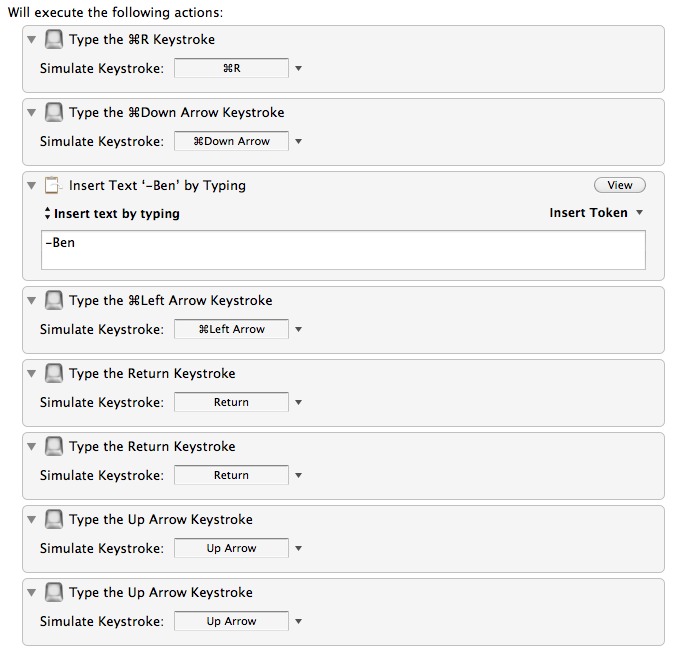
    Here’s how I am bottom posting:

    Basically I set this to trigger only in Sparrow when the `Command+R` keyboard shortcut is pressed.

    And one tip to make things look better: turn off the sidebar and stick with the unified inbox with search to find ‘old’ emails.

    ### Still Missing

    A Clip-o-tron for OmniFocus — this is really, really missing.

  • How I Evaluate and Decide to Purchase New iOS Apps

    My mind was wandering the other day and I began trying to figure out why some of my favorite iOS apps aren’t in the top rated sections of the App Stores.

    First a note: All of this is based off of my own perceptions and experiences — coupled with my observations of other users. There is no science here.

    As I see it there are three main ways that people come across new iOS apps:

    – Outside source (web site, friends, advertising) directing them to an app (likely recommending it).
    – Browsing the app store (top charts, categories, genius suggestions) looking for new apps.
    – Searching for a specific app, or type of app to fill some void.

    With outside sources you are coming to the app with intent to get that app (most of the time). Those that are willing to pay will likely buy that app as soon as they are sure that it is the one recommended to them by whomever sent them to the app. This is the easiest sale for an iOS app: the user who comes directly to the app.

    Browsing users are quite different. These users are likely skimming through long lists of apps looking for two things: something to pop out at them, and names/brands they recognize. With browsing users a developer only gets four ways to sell the app to a potential customer:

    – Icon
    – Name
    – Rating
    – Price

    Take one look through the top charts at the apps that you have never tried and you will get an idea for just how limiting those four factors are. These are the four ways that a developer can get a user to click on the app for more information and details.

    Searching shoppers are coming with intent to fill a need that they currently have and need filled now. They use the following to help decide which app is right for them:

    – Name
    – Icon
    – Price
    – Rating
    – Screenshots
    – Description

    One thing you will note is that I have intentionally left out reviews. Personally I don’t think they are very worthwhile and of the people that do look at them — typically those are people that are looking for a reason *not* to buy your app. ((Free apps don’t count here, why you wouldn’t just “buy” it and try it for yourself I don’t know.))

    All is not equal though with these buying decisions. For the last two types of buyers I think you can prioritize the importance of each decision criteria, but first we need to better understand the price factor.

    ### Pricing

    It doesn’t matter if your app is $0.99 or $99, if someone doesn’t want to pay for the app, they are not going to pay for the app, no matter the price.

    You cannot change this.

    If someone is willing to pay for an app you have three categories they fall in: ninety-nine-centers, willing buyers, and me.

    #### Ninety-nine-centers

    They finally realized how much ads suck, but are still only willing to pay $0.99 — because after all it is *just* an iOS app.

    #### Willing Buyers

    These are people that are pretty willing to fork over the cost of a double tall Starbucks latte to get a decent app. They are likely to be fine paying up to $2.99 for an app, with $4.99 being the upper limits of comfort and impulse buys for them.

    #### Me

    This is the group of nerds that prefers to pay and is willing to pay more than $19.99 for an excellent app. These are your ideal customers — they are anyones ideal customers.

    ### Priorities

    As I mentioned above each buyer is more likely to pay attention to the following when making a buying decision via browsing:

    – Icon
    – Name
    – Rating
    – Price

    Now that list is probably ordered incorrectly as far as what matters the most, it should read like this:

    – Icon
    – Price
    – Name
    – Rating

    The icon is what will catch the browsing users eye and cause them to stop. The price comes second because that only matters to users who don’t like to pay, from there the other items are of little consequence.

    With buyers who are searching for apps things happen a little differently:

    – Name
    – Icon
    – Price
    – Description
    – Screenshots
    – Rating

    Let’s break down the psychology of these priorities a little bit.

    ##### Name

    The name is going to tell the person if they have found what they are actually looking for via search. ‘Dropbox’ is a fine search, but will result in a lot of options to choose from because of all the Dropbox enable text editors out there.

    However names start to become irrelevant when you are searching for something not brand specific like: ‘notes’.

    ##### Icon

    This is your opportunity to make a good first impression, giving the user an idea of the level of design your app has. If I am searching for a weather app, there are going to be a ton of results and the names will be pretty meaningless. Thus I am more likely to check out the app icon that I like best first.

    This is important because if the app I try first meets all my needs I will have little reason to come back and look at the other apps.

    ##### Price

    Simple: am I willing to pay X to fill need Y? Not much you can do here, as discussed above.

    ##### Description

    Most of the time when I am searching for an app to fill a need, I am looking for a specific feature. Can I quickly see if that feature is listed in the description?

    I tend to prefer straight bullet points here, unless it is an app that I am not likely to see the value in with out the developer telling it to me. For example: Instagram, Instapaper, Dialvetica, Capture.

    ##### Screenshots

    These are actually tied with the description in priority in my book, but I put the after descriptions because I know a bunch of people that never look at them.

    These are especially important for visual apps like weather apps. People are looking to see if this is an app they want to use and if it looks straightforward.

    ##### Rating

    Smart iOS buyers know that reviewers and ratings are horse shit.

    However I know a lot of people that won’t even download an app that has less than three stars. Where this starts to matter for someone like me is when there are multiple apps that are very similar and all cost money. Ratings (not reviews) then come into play for which app I try first (and if I like the first app I try I am likely not to come back an try others).

    Again this is guess work by me, but this is how I and others that I have talked to think about iOS purchasing. That leaves one big thing: reviews.

    ### Reviews

    A smart buyer knows that reviews are not trustworthy and thus ignores them. What about the rest of the market?

    From what I have read on the web and in talking to others: the negative reviews seem to matter, but only to a small degree.

    Someone who wants to buy your app, will buy your app regardless of the reviews. The people who are on the fence about your app, or your apps pricing, are the ones that you are at risk of losing with poor reviews.

    That is: if I only am comfortable paying $0.99 for your app, but it is priced at $1.99 I will be looking for a reason *not* to buy your app. “Oh John left a terrible review, says app is worthless — yeah *not* buying that now.” As if I ever was going to buy it.

    This is also likely the same person, that if they do buy your app, puts you at risk of getting a review from them that says: “One star, over priced. Everything else is amazing though.”

    ### Lessons

    I am not a developer and though the above seems very logical it doesn’t explain the popularity of some apps:

    What I have learned is that there are two categories of apps that seemingly defy all logic: free apps and games.

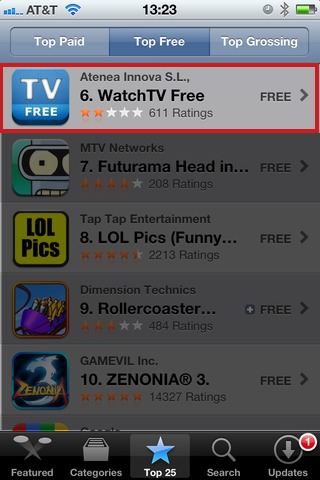
    As evidenced in the above screenshot a free app that many don’t think is very good is still rated #6 in the top free apps — #6. Yet, it’s free and the app title seem pretty exciting: free TV, on my iPhone? Why not. Well because it sucks. ((That’s my official review of the app.))

    Games are an entirely different beast, one that I just can’t even pretend to understand.

    ### Long and Short of It

    Make a nice icon, price it at $2.99 with a detailed description. Wait for reviews that say it is too much money, but gain smart loyal users.

    Either that or give it away free.

  • Some Additional Lion Thoughts

    One thing that is hard about writing a review for yet-to-be-released software is there are only a handful of people that have used the software and typically those people are all geeks. This means that somethings, perhaps important things, get missed or are simply lacking in ‘coverage’.

    I don’t care to read every review of Lion out there, but I feel like I didn’t do a few aspects of Lion enough justice in my initial review.

    ### FileVault

    I didn’t write a lot about FileVault in my review because I had only recently enabled it (I basically waded through the dev forum posts on FileVault 2 to make sure my computer wouldn’t melt upon enabling it before I turned it on). I have had it enabled for a while now and I have a few thoughts on it:

    1. I don’t know why you wouldn’t enable this. It is not like old FileVault as the entire disk is encrypted and this encryption is transparent to all Applications.
    2. John Siracusa has a great [overview of it](http://arstechnica.com/apple/reviews/2011/07/mac-os-x-10-7.ars/13) and reiterates my above statement: “The end result is that regular users will be hard-pressed to notice any reduction in performance with encryption enabled. Based on my experience with the feature in prerelease versions of Lion, I would strongly consider enabling it on any Mac laptop I plan to travel with.” That’s Siracusa saying it, not me. I completely agree.
    3. Again, if you have a portable Mac I strongly recommend that you enable FileVault. (Perhaps one exception being people who need maximum performance and have no concern for losing or having their laptop stolen.)
    4. You can use your computer while it is encrypting, budget about half a day depending on your disk size and type (smaller SSDs will be faster, larger HDDs will be slower).

    I hated the last iteration of FileVault, but I love this version. The process is fully reversible leaving you little reason not to give FileVault a try.

    ### Automatic Termination

    On Episode 19 of the B&B Podcast I was talking with Shawn about my hatred for Launchpad. I mentioned that I thought it was poor because it would eventually lead users to using too much swap files given that the dock doesn’t show application status by default (more on this in a bit).

    What I didn’t know is that Lion actually has a protocol called Automatic Termination. This allows Lion to close down your apps that support this command in order to reclaim RAM space. For more advanced users this probably seems a touch unnerving.

    What will perhaps be more interesting is which developers choose not to support this (Yojimbo would be one I would think shouldn’t support this, ever). Though if an app supports the ‘restore’ functionality in Lion I don’t see any reason to *not* support Automatic Termination unless it is something that is only beneficial when it is running (again, Yojimbo).

    I actually think this is a huge deal and a massive change for full-fledged OSes. This is basically Apple asking users to stop worrying about managing system resources and to start treating apps on your Mac the same way that you would in iOS.

    ### Dock Dots

    So the Dock by default does not show the application status dots. My Dock only has applications that are running in it and so I keep the dots turned off (they aren’t very attractive). I would suggest that until more apps get Automatic Termination support that you should turn the dots on. After a few months turn them off as it is likely that your Mac will just be better if you trust the OS to manage your RAM allocation. Again, *likely*.

    The biggest problem I see with the Dock dots being off is that for the system to work well developers need to support auto-save, restore, and Automatic Termination all together — what could potentially make this default setting problematic is support being too slow in rolling out.

    ### Option Key

    Go crazy holding the `option` key in Lion before you click on things — there is a whole world of options and extras waiting to be discovered here.

    ### Natural Scrolling

    A lot of people seem to hate the new natural scrolling — leave it on for the next two weeks. At the end of those two weeks if you still hate it then you can turn it off. I bet after 6 days you forget all about it.

    ### More

    Shoot me an email, or an @reply on Twitter if there are any nagging questions that you have because somethings I just don’t think of mentioning.

  • Time for the Big Cat

    This will mark the fifth version of Mac OS X that I have used since I “switched” to the Mac. With every new OS X version I have thoroughly enjoyed the new features that were delivered and the slight UI improvements that also came with each update. New versions of Mac OS X are far more important than most other software updates — my life simply revolves too much around my laptop to not pay close attention to OS X and any updates that Apple makes to it.

    Ignore the fact that this is still the “same old” Mac OS X. Lion represents the most polished operating system that I have ever had the privilege and opportunity to use — iOS included.

    With Lion we begin to see a subtle obfuscation of the file system and a move toward skeuomorphic design for certain apps — yuck. This represents exactly what Lion is: a nudge forward that pushes what seem to be subtle changes, which are in fact a rethinking how computers *should* be used.

    Not a nudge in the sense that this is an entirely new OS, but a nudge in the sense that this is an OS built *for* today’s computer users. In stark contrast to what we are used to: systems built for people that want, or know, how to use the *system*.

    Yet it is the same old Mac OS X that were all very used to.

    Lion then, is built for people — plain and simple. One could argue that the Mac from day one was built that way, but then I would ask you how many times you heard someone say: “I don’t know where I saved it”. Until you eliminate those phrases, until you eliminate the confusion, you don’t have a system built for *real* people. Lion is a step in the right direction towards removing this confusion.

    ### The Gist

    As I said Lion is not about massive operation changes — it is more about subtle refinement of every aspect of not just Mac OS X, but of computing in general. That’s why at first glance it is harder to see the system files in Finder and easier to just see every user created file — OS X is showing you what you are likely to be looking for first not the logical structure of all your data.

    Lion is not about the ‘iOSification’ of OS X — that is a short-sighted summary of Lion in my opinion. There is edge smoothing, feature additions and all sorts of stuff like that, and yes some cues were taken from its sibling iOS — but it’s not iOS, it doesn’t want to be and it doesn’t try to be.

    Lion makes a full-fledged operating system feel intuitive in a way that you think: “I always *should* have been able to do this, but only *now* can I do this.”

    This is best shown with the addition of tools that allow you to virtually sign a PDF only using a webcam. Keeping you from having to buy expensive hardware to ‘get’ a signature on to your Mac. You see it with the refinement of the system-wide autocorrect and the beautiful way that your Mac transitions from being a laptop, to a desktop.

    These features alone are not enough to convince most that this is anything but a feature upgraded OS, but when you start to use Lion — all these small refinements — tell you that this is an OS made for users and not for programmers. ((With no offense intended towards programmers.)) That’s a good thing — a really good thing.

    ### Biggest Changes

    Let’s go through some of the bigger changes that will be most apparent to upgrading users.

    #### Scrolling

    As most of you have heard by now, scrolling has underwent some major changes in Lion, not the least of which is the reversal of the way the scrolling works. Apple changed the scrolling behavior so that your interaction with the trackpad or magic mouse (or scrolling wheels) manipulates the windows in the same way that it would if you were directly touching the screen.

    Therefore sliding your fingers downward scrolls up and not down. It is a major change that takes some getting used to, but once you get used it everything seems far more logical. This can of course be turned off, but I urge you to keep it on for a couple of weeks. I have really come to prefer this scrolling reversal, especially when using a Magic trackpad, which is what Lion seems to be built around.

    Apple also changed the looks of the scroll bars — you don’t see them — they only appear on hover and have no arrows for up and down. This is a welcomed change from those terrible looking bright blue plastic looking scroll bars. My biggest concern with this change is that it is no longer readily apparent to users that the content is scrollable.

    I believe this is a change that will be welcomed by long time users, and mobile first users (the current crop of ‘kids’). However casual computer users, the group I usually refer to as “my Mom” will likely have a long adjustment period to this UI change. Overall, it seems like a change made for aesthetics and a logical move for the more advanced users — my fear is the added hurdle this will add for “new” OS X users.

    The best change though, is the addition of elasticity in scrolling. As Apple did with iOS you can see the document run past the end of the actual document before it *snaps* back, and some apps are now implementing pull down to refresh types of behaviors. ((Notably: Twitter for Mac.)) This is the addition that makes reversal of the scrolling, momentum, elasticity, and multi-touch gestures, feel ‘natural’.

    I am a huge fan of all the scrolling revamps in Lion, they are all welcomed in my book and really make the entire OS *feel* much different.

    #### UI Looks

    There is a lot of craziness going on with Lion’s overall UI changes, and to list off what has changed we would need to start a whole other blog. There are three major design themes that come with Lion.

    ##### Skeuomorphism

    This is all the hideous screenshots you have seen of iCal and Address Book. This is the worst thing I have seen Apple do in quite a while, I half expected Mail to turn into a postal box with letters you had to pull out and unfold — thankfully that is not the case (yet). However, you do get these lovely looking apps:
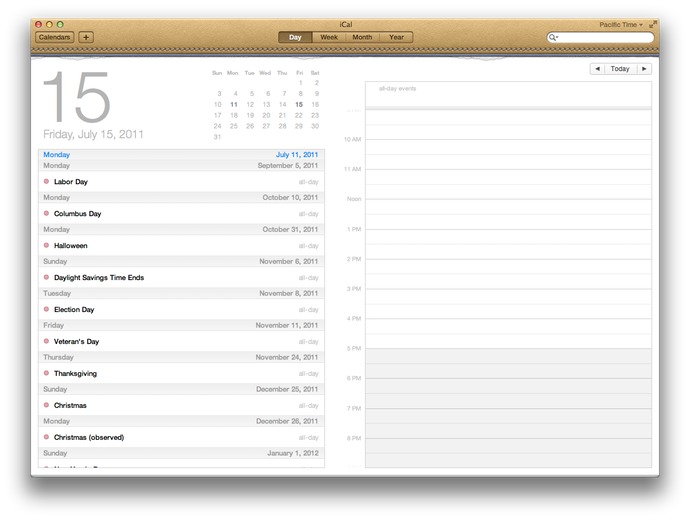
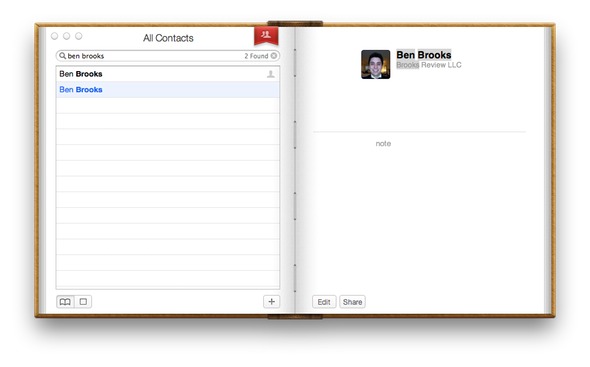
    Arguments for an against each app’s new design has been rehashed here and other places quite a few times since the screenshots first leaked. No need to go over them again, it’s just a design trend that Apple has decided they would like to do in a select few apps — and that I am glad they only chose to do in a few apps.

    ##### Rounded corners

    All four corners of every window are now rounded. The rounded corners look really nice on the bottom of every app, but for looking at certain documents I find it a bit odd to have those corners cut off. For instance: Pages. If I am designing a newsletter, or whatever else you do in Pages, I am going to guess that you won’t be trimming those corners off the bottom of your printed paper. Therefore I would really appreciate a more *accurate* view of the documents I am creating.

    Those corners just give you an unrealistic view of what you are working on, so for things that you are creating for physical production I don’t like those rounded corners. However for most other things the rounded corners are a nice touch that ease the lines of the OS.

    One thing about this though that bugs me: a few versions back of OS X the top two corners of the menubar itself were rounded, thus there was a few pixels on every Mac’s screen that were rarely used. Then Apple changed it so that those top corners were no longer rounded and every thing looked a bit better. Now, we have sharp corners on the OS itself, and rounded corners for every window — it’s not that important, but does seem oddly contradictory.

    ##### Monochrome everything

    This might be the most apparent change in Lion, Apple decided to save users money on LCD ink and change their OS to one that need only show shades of bluish gray. We saw this change coming in iTunes and it has permeated it’s way through much of the OS. Finder is a primary example, and while it looks nice, it makes Finder a touch harder to use.

    I like the subtlety of the monochrome and I like to look at it. However, I don’t like using the OS as much with these changes, I find it just to difficult to find what you are looking for — too much subtlety and not enough usability.

    I can see the argument for both sides of this coin:

    1. Too much color is just as useless (case in point, most people’s Dock). So Apple wanted to simplify the color schemes for the sake of aesthetic appeal and to make a change.
    2. Too little color is just as problematic as too much color. Now when I look at playlists in iTunes, ‘favorites’ in the Finder sidebar — well everything looks the same.

    Or:

    >If you make everything bold, nothing is bold. —Art Webb

    We need a compromise here.

    ### Best Changes

    #### External monitor support

    By far my favorite change in Lion is the way the OS handles external monitors. It used to be that when you wanted to run your Mac in clamshell mode (external monitor attached, lid of portable Mac closed) you had to plug everything in and close the lid. The computer would then sleep and you would then need to wake it by hitting the keyboard or mouse — this would put the Mac into clamshell mode.

    Now, under Lion, closing the lid of the computer with an external screen attached just results in a momentary flash of blue while the machine switches over to clamshell mode. This also means that opening back up the lid on your Mac will put it back into dual screen mode — all automatically.

    I have to do this at least twice a day, so this change alone has made Lion an awesome upgrade for me. This is just another ‘commons sense’ update for Lion.

    #### Finder

    No, Finder is not magically less sucky in Lion, it does however offer some very cool new features. The biggest of which is the obfuscation of the underlying Mac file system. Instead of showing you the pure directory structure of Mac OS X, Finder shows you the information that the average user is likely interested in seeing: their files.

    Apple is placing a primary importance on the user and what the user needs. This is most apparent by the new way that the list of folders and drives is ordered along the sidebar of the Finder window. The Finder first shows you the new ‘All Files’ option that seeks to show you every file on your Mac that is a user created document (Pages files, text files, pictures and PDFs), from there you get common folders (Documents, Music, Movies, Pictures) then you get shared computers and lastly drives that are connected to your mac.

    Whereas in Finder previously the user saw drives at the top, the shared computers, then commons folders, then smart folders — Apple has refocused the attention away from drilling down through the file system, to just presenting you with the files that you will likely want to access.

    This is just one small step in Apple’s over arching goal in Lion to disconnect the users from the file systems that they are used to, and get them into a mindset of one repository for finding files. Essentially Apple wants you to stop worrying about where you saved things.

    It’s a change that will be off putting for advanced users, but that will be loved by more novice users (novice to both the Mac and new computer users) in the same way that iOS has done for mobile users. Quite honestly the ‘All Files’ view is something that I find to be rather nice.

    ##### AirDrop

    A feature that will likely to be that ‘hallelujah’ feature for small offices and Mac obsessed homes is: AirDrop. Finally a way to quick and easy way share files (large files) with other users on the same network — this is killer.

    I can’t tell you how many times I need to send my wife a folder of RAW images that weigh in over 1GB — right now we have to use the public ‘Dropbox’ built into Mac OS X, AirDrop will make the process way less confusing for my wife. Likely, this will be a big hit among small business users.

    #### Forget about what is running

    Continuing the iOS trend Apple has decided that, by default, the user doesn’t need to know or worry about what is running on their Mac. This isn’t to say that programs will be closing by themselves, but that the indicators on the dock are not shown by default.

    There is a push towards just using your Mac and not worrying about RAM, or how many of anything you have open. Macs have done a marvelous job of managing RAM for most users that don’t use Adobe products on a regular basis, so this change is only natural. Those little glowing lights have always been a nag to users that know what they mean — the clear advantage being that a user should just use and not think about the ‘resources’ available.

    This sounds small and odd that I should send this much time talking about it, but I really think this is one of the major themes of Lion. The thought that users should just be able to use the operating system without thinking about how they are using it and how they *should* be using it.

    *(Side note: This change is also huge with the move toward SSDs as the swaps are much quicker and therefore RAM above 4GB is likely not to matter for the majority of Mac users.)*

    #### The new preview

    Since getting a Mac I have consistently been blown away with how good Preview.app is. It is an incredibly powerful tool, one that is so versatile it amazes me the application is free. The version of Preview that ships with Lion has one feature that blows me away, and I really mean that. This is a futuristic type feature: signature scanning through your Mac’s webcam.

    I have to “sign” PDF files all the time and have a saved TIF file on my Mac with a digital signature that I made with a Wacom tablet and Illustrator. That has served me well over the years, but it looks like a digital signature. Scanning in a signature of mine has never looked great, so I stuck with my TIF.

    Preview allows you to sign a piece of blank paper, hold it up to your Mac’s built in camera and presto — you just signed the PDF. This is a feature that when shown or talked about seems like a better idea than it would actually work. I have used this feature about a dozen times since I installed Lion and it has worked perfectly every single time.

    I am blown away by this feature and all the other new features in Preview — this is likely to be a huge selling point for people that deal with contracts on a regular basis. I’d pay the $29 to upgrade to Lion if this was the *only* new feature.

    #### State Saving

    Another huge difference is that Lion remembers what and how your screen looked before you restart the OS. This means that restarting for installing Office or Adobe products is slightly less painful as your Mac will be “restored” when you boot back into it.

    This is slightly hit and miss right now, as developers need to update their apps for better functionality with this. However, it is likely to be a huge differentiating feature of the Mac.

    There is also state saving when you close applications, be sure to close windows/documents before quitting an app unless you want those to reopen when you next open that application.

    #### Quicklook

    I think Quicklook may be one of the most underrated features of the Mac, Lion makes some much needed changes to the service. For starters you can Quicklook a document and CMD+Tab away from it to another app. In the past that action would make Quicklook go away until you tabbed back, that’s not so in Lion — Quicklook stays up and I can’t tell you how nice that is.

    There are some various visual changes that I don’t like (the milky white background), but overall the improvements are welcomed.

    ### Worst Features

    Lion is not all good though, there are quite a few changes that were made that don’t sit well with me. I want to highlight just a few of the ones that are likely to be more obvious to current Mac users.

    #### iCal & Address Book Design

    These two designs are almost enough reason to never upgrade to Lion — almost, but not really. They are absolutely atrocious designs that are overly skeuomorphic and physically hurt me to look at. There is the [little bits of torn paper](https://brooksreview.net/2011/04/mimics/) and the over all stupidity and navigational confusion that exists in the new version of Address Book.

    My biggest gripe about Address Book is that it uses a red bookmark flag as the navigation between seeing all the contacts and seeing the contact groups — this took me a bit to figure out, pure confusion with the UI when you do something unintuitive like this.

    iCal on the other hand doesn’t suffer from navigational woes, it just gets the award for ugliest top bar of any Mac app that I have ever seen — even if you account for the ‘Ribbon’ interface in Microsoft Office. It’s that bad, I recommend using only Fantastical for your calendaring on Lion and BusyCal if you need more.

    #### Fullscreen mode

    As long as I have been following the Mac scene and talking with people who have switched to the platform I have been hearing the complaints about the lack of native “full-screen” mode like Windows has (through the use of the maximize button). Lion introduces fullscreen mode, but it isn’t the same as ‘maximizing’ a window is in Windows.

    It is better to think of Lion’s fullscreen mode as maximizing the app to fill your screen, while also pushing that app onto its own virtual desktop. You are basically pushing the app onto its own desktop and forcing it to be the only app you can see on that screen, all without the menubar too.

    Not all apps support this right now and I don’t find it a very compelling feature at all. The success of this mode will largely depend on how developers implement the features in their apps — apps like iA Writer will likely make good use of it, however I find Safari to be useless in this mode, even on my MacBook Air’s screen smaller screen.

    I also find Mail a bit ridiculous to use in this mode too, though very ‘focused’. It is just so much and so bright that it isn’t better. I would love to see apps make use of this feature by radically changing the interface when you invoke this mode, but if Apple is setting the example then such designs don’t seem likely — the glaring exception to the rule being iPhoto, more like that please.

    Lion’s new fullscreen mode, if only used to maximize an application to the full size of the screen is poor. Lion’s fullscreen mode used to change the UI of the app when you pop it into fullscreen mode has the potential to be very interesting.

    #### Dashboard

    Dashboard has an odd new ‘feature’ that is on by default — which shows your Dashboard widgets on their own “space”, or virtual desktop. Meaning they don’t overlay over the current desktop, though you can turn this feature off, I really don’t get this and think that it defeats the purpose of the Dashboard (which is bad given the limited utility of Dashboard to begin with).

    An odd change to be sure.

    #### Launchpad

    I hate this feature. Yes, it was created as a way for novice users to see a visually pleasing view of all their installed apps, all without having to clutter their dock. However, there is no way to manage what shows up here — all your apps appear.

    Oh, if you hold down Option to try and remove them? Yeah that removes them from your computer, not just Launchpad — this is useless to all but the most novice computer users. ((Note: I say novice computer users, not novice Mac users.)) It is not easy to access and the icon is terrible, please let this die.

    As best I can tell you can only actually ‘delete’ applications from your Mac using Launchpad if it was installed via the Mac App Store, otherwise you are s.o.l. Further, since I have Parallels installed running a Windows VM — yep all those crappy Windows app show up in Launchpad. Overall, this is pretty crummy.

    ### Other odds and ends

    Those are the major things, here are some of the other items that are worthy of a mention.

    – Versions: this is likely to be pretty cool once apps start to support it, definitely helpful for people who don’t like to remember to make duplicates of documents before they make considerable changes. I for one can’t wait for apps like Writer and TextMate to support it. This is huge for advanced users and once ‘regular’ users get the hang of it, well user error support issues should drop.
    – Auto-save: Awesome feature for those stubborn fools whom don’t save a document until they are *done* with the document. Should make the ‘IT’ guys of the family much happier.
    – Mail: The new layout is great. That’s about all that is great about it. My biggest problem with Mail is that they removed the ability to ‘Bounce’ an email message — what the hell! Search is vastly improved and is a really great change to the overall archiving versus folder system of email storage. The conversation view in Mail is really welcomed, but is oddly in conflict with interleaved emailing. Conversation view makes pretty much every message interleaved, however if you do interleave emails I find this view to be a bit troublesome and redundant. More on this to come at a later date.
    – Find my Mac: coupled with iCloud you now can track your Mac without having to use services like Hidden.
    – Reboot in Safari only trick : If you have the find my Mac option turned on there is an option on the lock screens and login window to reboot the Mac into a Safari only mode. Essentially this means that an anonymous user can boot into Safari and connect to WiFi to surf the web. What this is really for: to get your Mac online so Apple can tell you where it is if you lost it, or it is stolen. Very clever.
    – New Auto Corrections: very iOS like, you get a little bubble that shows the correct spelling suggestion that Lion will use if you keep typing. This is a very nice change, but takes a lot of getting used to if you aren’t used to this type of spelling correction. (It has caused me quite a bit of trouble if I don’t carefully proofread posts.)
    – Font Book: Still sucks, get [Fontcase](http://www.bohemiancoding.com/fontcase) instead.
    – When copying a file into a folder that already has a file with the same name, Lion will ask if you want to ‘keep both files’ — what a great change to a minor annoyance that I see all the time.
    – Safari: Much faster than before, Chrome like speed. The new downloads indicator is nice, but takes a bit of getting used to — I much prefer it integrated as part of the app instead of a separate window. You can also double tap the trackpad with two fingers to ‘zoom’ into a text block much like you would in iOS ((This is actually a system wide gesture, set in preferences.)) — what a great touch. The back and forward navigation is a bit screwy, as horizontally scrolling a page that doesn’t need to be horizontally scrolled with take you back a page or forward a page. ((Again this can be disabled.)) I find this behavior really odd, and it takes a bit of getting used to.
    – Gestures: I honestly can’t remember which of the gestures were in Snow Leopard, and which are new. Suffice to say this is the area that many are split on their opinions about — to me they are only good with a Magic trackpad and serviceable with a MacBook (Pro/Air) trackpad.

    ### Upgrade Worthy

    At $29 I don’t see any reason to not get Lion. In almost every aspect it is better than every version of Mac OS X that has preceded it. It is faster, smoother, more stable, and generally better looking than Snow Leopard. All of the apps that I depend on work well with it already, it’s a no-brainer upgrade.
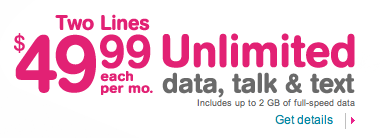
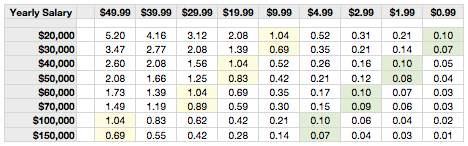
  • Review: The All New Calvetica

    I think it is only fair to start off this review by saying that I have never met a calendar (digital or otherwise) that I thought was perfect. When the iPhone came out I used the built-in Calendar.app until Calvetica came out. Then, not seeing anything but a design difference (more or less), I switched to Calvetica.

    Between that point and the release of [Agenda](https://brooksreview.net/2011/06/agenda-review/) I switched back and forth between the built-in Calendar and [Calvetica](http://calvetica.com/). When Agenda came out, I quickly moved to it as my full time iOS calendar app — it was just simply better to use.

    I won’t rehash all of [my complaints about calendars](https://brooksreview.net/2010/09/sucky-calendars/), but leave it at one main issue: don’t show me stuff that is from the past — my past. This is one area in which Agenda excels, and all others haven’t fare so well.

    ### Mobile Calendar Usage

    I am not sure how most people use calendars on their phones, but I do know how I use mine and it breaks down into four routines:

    1. Wake up in the morning and check the calendar for today’s events.
    2. Input new events when I am not at my Mac throughout the day.
    3. Be alerted to upcoming events.
    4. Review the coming appointments for the next day before bed.

    There is an odd couple of days in each month where I am looking at my calendar far off into some distant future to plan an event that will likely change before it happens — but that is the exception, not the rule.

    ### How Does Calvetica 4 Fare?

    Calvetica still fails at hiding my past from me (well at least past events), but there are some very compelling things that make a good case for using Calvetica over Agenda.

    ### New Appointments

    Calvetica has reworked how you create a new event in a calendar — it may be the fastest way to add a new event on the iPhone, yet not as fast as natural language input with something like Fantastical on the Mac. ((One thing that I am unsure about though is if given the smaller keyboard on iPhones, whether natural language input would be any good on iOS.)) When you want to create a new event, Calvetica presents you with this screen:

    [](https://f3a98a5aca88d28ed629-2f664c0697d743fb9a738111ab4002bd.ssl.cf1.rackcdn.com/calvetica/new-event.jpg)
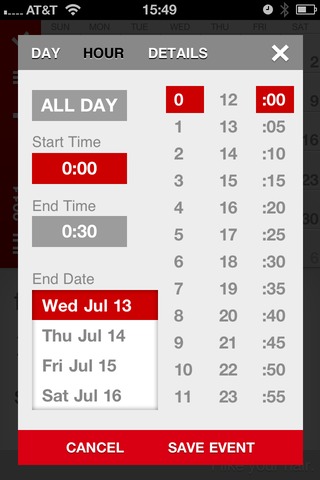
    That’s very nice, enter the title and tap out the time and you are done. You can however tap that more button and you are brought to this screen:

    [](https://f3a98a5aca88d28ed629-2f664c0697d743fb9a738111ab4002bd.ssl.cf1.rackcdn.com/calvetica/more.jpg)
    This screen is still pretty quick and straight forward (note that you can set the default duration and alarm times, thus some people will be able to avoid these screens all together). What annoys me most about this is that you are taken immediately to an expanded time screen, most of which can be controlled on the previous screen — the details screen is what I really want to get to. It looks like so:

    [](https://f3a98a5aca88d28ed629-2f664c0697d743fb9a738111ab4002bd.ssl.cf1.rackcdn.com/calvetica/details.jpg)
    There are two reasons I need this screen:

    1. I like to enter locations into my events.
    2. I don’t keep all my events on the same calendar. ((Though I am rethinking this, I mean does it really matter if it is a work event or personal event? I still have to attend both…))

    Overall and in my usage, the Calvetica interface is a touch faster to use than Calendar’s. If I could just get a faster way of adding in the location information I think it would be a pretty killer input method for me.

    ### Scheduling Appointments

    As I mentioned above there are rare occasions where I need to schedule a future event with someone — this means constantly scanning my calendar on different days to see what is open and what works with other people. This is quite possibly the most annoying thing to do, but I still need to do it.

    With the built in Calendar app this is best done by using the month view and tapping through the days to see what each day looks like. It’s not ideal, but it gets the job done. In Agenda I just used the never ending scrolling list of days to accomplish this — this works really well, right up and until the point that you need to jump to a specific day, at this point the system breaks down a bit.

    In Calvetica though you can view this:

    [](https://f3a98a5aca88d28ed629-2f664c0697d743fb9a738111ab4002bd.ssl.cf1.rackcdn.com/calvetica/week-view.jpg)
    With the full month shown and a scrolling view of the week selected — well you get a pretty good idea of what you have going on. A quick tap on the month name and you can jump to any date that you want very quickly. All of this makes for a pretty ideal way to schedule and plan with others. (The color coded dots and bars along the top of each day in the month calendar also give you a nice heads up of a potential problem/conflict.)

    ### Tasks

    One new addition in Calvetica 4 is the ability to schedule/manage/track tasks. I get the sense that this is a fairly basic offering. One nice thing is that there is a free cloud based backup for all your tasks, this makes the system a bit better — though syncing with a Mac app is still needed.

    If tasks liked this synced back to something on a Mac I could really see someone like my wife using this and liking it. Very straight forward with little confusion.

    There is also a nice UI change when you are viewing tasks versus events, very neat.

    ### Quick Reminders

    One of the neatest features is the new quick reminders, this almost takes the place of apps like Due for me. Touch and hold on the plus symbol and you are presented with the following screen:

    [](https://f3a98a5aca88d28ed629-2f664c0697d743fb9a738111ab4002bd.ssl.cf1.rackcdn.com/calvetica/quick-remind.jpg)

    These reminders will appear on your calendars as appointments, which is why I really love them for fast event creation. Sometimes when my day gets busy there are things I know I need to do before X time, but that I can forget. I used to create a task in OmniFocus for these items, but quick reminders in Calvetica is much faster and better.

    My most common reminder: go to bank, set due in 1 hour. I am forever forgetting to run to the bank. Quick reminders are great for this, love this feature.

    ### Day View

    There is no ‘day view’ in the sense that all you see is the days events, Calvetica will always keep a partial display of the month calendar. This is not bad, but it also brings about one other problem that I have with the day view as it is implemented: it feels like ‘old Calvetica’ and not this new Calvetica.

    I will admit though that this is the fastest way to delete appointments on my iPhone — man do I love deleting appointments.

    ### Agenda View

    Not to be confused with the Agenda app, agenda view is a fairly common calendar view that shows the appointments only. Using agenda view on Calvetica essentially turns the app into a better looking version of the built-in Calendar app’s month view. It works the same way.

    The one nice thing about Agenda view, is that unlike with week view you get to see the location of events — we should always ‘get’ to see this information if you ask me.

    ### Week View

    One of the best and prettiest features of the last version of Calvetica was the week views. In portrait orientation you get a lovely looking week view (which is still around), spin to landscape and you get a more traditional week layout.

    Gone is the landscape mode, which was a bummer for me until I realized that even — though I liked it — I never used it.

    The current week view with the mixed in month Calendar not only offers the best looking view for the app, but it is also the most useful for me when checking out my day. I can see if the day is empty at a glance and what is coming up and when. It’s clean and simple, best viewed with the month view partially hidden.

    ### Alerts

    Calvetica suffers the same fate as Agenda: system level alerts. When you have an alert go off before an event, the default Calendar is what you are taken to when you ‘slide to view’ the alert — this is both annoying and *not* Calvetica’s fault. Unless they wanted to run their own calendar databases, thus (as far as I understand) requiring you to re-input all your data.

    This is a problem and one that iOS 5 does not solve, but hopefully someone figures out and soon.

    ### Gesture Support

    An important part of using Calvetica is to make use of the gestures the app provides. The basics are swiping between calendar months, to the more advanced tap and hold to get additional features and pinch actions on the views to change the view type.

    One thing about Calvetica that should be apparent is that each of the view modes (Day, Agenda, Week) have their usefulness, tapping the small button to switch between them means that you are likely to never switch view modes, or be annoyed when you want to switch. With pinching gestures you can quickly switch between the modes — making Calvetica infinitely better.

    The app has a built in tutorial on gestures and I highly recommend you look through it before using the app.

    #### Hiding the Month Calendar

    One gesture is swiping up and down to show and hide the month calendar. Though the calendar doesn’t disappear (it shows the last two weeks, always), this is a very nice addition to the app. As much as I like this action, I have two major complaints about it:

    1. When slide the month up and out of the way, the last digit in the year is cut off, so right now it reads: JUL 201. That seems very un-Calvetica like and I would love to see it automatically change the wording to perhaps: JUL ’11. Same amount of characters, nothing cut off.
    2. Sorry, but why are you showing me the last two weeks in the calendar? Why *aren’t* you showing me the current week and next week — it’s doable and seems much more helpful. I like having the month calendar slid up and out of the way, but it would really be trick if it could still be helpful while it is tucked away — beyond just giving me more screen real estate.

    ### One More Complaint

    If you have multiple calendars syncing with the same name (say you test a lot of stuff and you have duplicate calendars in both iCloud and, oh, MobileMe) this is a very confusing app to figure out which ones should be shown.

    In fact the only app that handles this well is the built in app, since it shows what account each calendar is from. This is likely only an annoyance to people that keep multiple calendars, but it drove me crazy.

    ### Design

    When [I wrote about Agenda](https://brooksreview.net/2011/06/agenda-review/), I had this to say about Calvetica:

    >The problem with Calvetica is that I have always liked looking at Calvetica more than I have liked using it.

    I never meant that as a bad thing, it’s just a *thing*. When the guys at Mysterious Trousers asked if I would take a look at the beta of version 4, they seemed pretty confident that they addressed that issue. I couldn’t agree more, what’s more impressive is that they made me like using Calvetica — while also making the app *much* better looking.

    Overall Calvetica is better looking, however there is one screen that really bugs me:

    This details screen pop-up doesn’t sit right with me. Looks almost Android-ish. For instance: why are some of the fields rounded off on the corners, while others remain square? It’s a small nitpick, but I am not a huge fan of the design on this screen, mostly because I think these guys *can* do better.

    ### Spit and Polish

    There’s a few little things about Calvetica that are really nice little ‘extras’.

    – When in week view there is a little bit of footer text that says things like: “I like your hair.” It’s a touch of personality and makes me smile every time I see it.
    – You can change the color each calendar is displayed in. Yes, this *is* awesome.
    – You can rearrange the order things are shown in the ‘details’ screen so that what you use/want is at the top.
    – When in week view, the day’s date is show just to the right in a subtle gray — great touch that is both nice looking and very handy. This may seem trivial, but for some reason I really noticed how much I appreciated this.
    – The app still opens incredibly fast.

    ### Agenda v. Calvetica

    Honestly, I have a tough time deciding. The interfaces and logic behind each one is very different. If I had to choose I would say that Calvetica has a slight edge over Agenda right now for two reasons: design and event creation. As for the layout and display of your calendars, it’s Agenda all the way.

    Calvetica 4 is in the App Store now and is a free upgrade for existing users, [go check it out](http://calvetica.com/).

  • Patina

    At the end of last week Marco Arment [posted a follow-up review on the Smart Cover](http://www.marco.org/2011/07/15/ipad-2-smart-cover-review) for the iPad 2. In it he states:

    >I can’t think of many situations in which a Smart Cover provides enough protection to be worth carrying and using for people who care about the aesthetic condition of their iPad.

    He freely admits that here that he can’t let go of the fact that it is “only the back” of the device that likely will get banged up. I am quite the opposite of Marco when it comes to the Smart Cover — personally I think it is the best device cover you can get right now.

    Yes, it leaves [lines on the screen](https://brooksreview.net/2011/03/smart-covers/). Sure as Marco comments the leather doesn’t feel great. But, from a usability perspective I have never been happier with a case — this coming from someone who [prefers to *not* use a case on things](https://brooksreview.net/2011/05/iphone-case/).

    For me what makes the Smart Cover so good is three things:

    – Screen protection.
    – Easy on and off.
    – You don’t *have* to take it off.

    The auto-unlock is great, but not a deal breaker. With the original iPad I started by using a sleeve, then another sleeve, then the Apple iPad case. Each of those options sucked. The sleeves are nice, but highly inconvenient when you just want to pick up the iPad to look something up. I also found sleeves to be a pain in meetings and coffee shops — where do you store the sleeve when you are using the device? Your bag? Then you need to carry a bag.

    The Apple case for the original iPad solved my quick access problems, but added an ugly and awkward case to the device. The smart cover though easily pops off and folds into a small triangle that looks kinda neat sitting on a desk when not in use. I also could open and remove the smart cover quicker than I could pull my iPad out of a sleeve. I can even put the cover back on in about the same time as it takes to put the iPad back in a sleeve. ((This largely depending on the sleeve of course.))

    For me it comes down to how I use the iPad: I use it regularly and sporadically. Enough so that I find it incredibly annoying to take a sleeve on and off.

    #### Holding

    One complaint of Marco’s that I agree with is that there is not ideal way to hold the iPad with the Smart Cover on. In short spurts this has never bugged me, but when trying to hold the iPad for long periods of time — yeah the cover needs to come off. The beauty is that the Smart Cover is ridiculously easy to take off, so much so I find this hard to complain about.

    #### Protection

    One last thing that Marco mentioned:

    >And not having the back covered means that the iPad 2 can’t share a bag pocket with anything else without a risk of being scratched.

    I get what Marco means here, but my iPad and MacBook Air share the same pocket in my bag (padded laptop area) — everyday. I simply put the iPad 2 in with the smart cover resting between it and the MacBook Air and I have yet to see any problems on my MacBook Air’s top lid.

    Now, I likely wouldn’t be comfortable letting the iPad share a pocket with keys, but the same goes for anything of mine that is not fully protected — keys are a nightmare to carry.

    ### Patina

    The last bit that I really want to touch on is scratches on your device. I stopped using a case on my iPhone sometime around 2008, so all my iPhones have scratches on them. Every time I get a scratch on my iPhone, iPod, MacBook Air, or iPad I get upset.

    I don’t like my devices to get scratched up, I like my devices to always look brand new.

    But, and this is a big ‘but’, I do like the over all look — the patina — of a well used and scratched up device. When I hand over my old iPhone to my wife I look at it and know that I *used* it, I know that the device was *mine*.

    It’s an odd relationship to have: I like the end result of a well worn device that shows the life it has had, but I don’t like the minor nicks and scratches that it takes to get to that point.

    At the end of my original iPad’s tenure as my tablet it looked nearly perfect, save one scratch in the screen. It was always carried in a case that fully protected it. Right now, my iPad 2 (that has only been used with a Smart Cover), looks brand new. The back of the iPad has seen its share of woes (table grit, cats sliding it across a table, cats spilling a glass of water on it), but it doesn’t show any of those issues.

    I doubt this will be the case long term, but I will say, I have been very impressed with the durability of an iPad 2 + Smart Cover setup.

  • Basecamp versus Google+?

    Yesterday [I complained](https://brooksreview.net/2011/07/goog-pluser/) that I couldn’t see what Google+ is good for, that is why I should use it. Then a follower on Twitter [sent me](https://twitter.com/huuuze/status/90705437258817536) [this link](https://plus.google.com/u/0/103097764320602190090/posts/BThQZaMDvEY) talking about Gmail and Google+ integration, this of course was [first reported by MG Siegler](http://techcrunch.com/2011/07/11/gmail-plus/).

    I was looking at all of this again and a thought occurred: Google+ could potentially be a huge competitor to [Basecamp](http://basecamphq.com/). I’m not saying it could replace it for everyone, but think of the features that could easily be integrated:

    – Gmail
    – Google Docs
    – Google Analytics
    – Google Reader
    – YouTube
    – Google Groups (well likely this will die, hopefully)
    – Google Sites
    – Google Calendar

    You wrap integration with Google+ into every one of those and you have a powerful project management system that goes beyond the walls of a ‘company’. Say you are working on project X, a website redesign with a group of people both internal to your company and external.

    You create one circle for that project, collaborate on documents in Gdocs, email with Gmail, meetings with Gcal, A/B test result sharing with Analytics, and so on… That could be very big.

    I don’t know if it would work, or if it would be any good, but Google certainly has the right products for such a powerful integration.

    And if you look at Basecamp in comparison — well the choice would become a bit tough.

  • Thoughts on Goog+ After Using It

    I left MySpace for Facebook because Facebook didn’t crash my web browser and destroy my vision with user “designs”. I left Facebook when my mother-in-law started ‘hiding easter eggs’ on my wall and random people from my past kept ‘poking’ me.

    I started using Twitter because you can *still* get value in using Twitter while being a mute, but I may leave Twitter soon because — like with Facebook — people are starting to be offended when I choose not to ‘follow’ them.

    I decided to join Google+ for two reasons:

    1. I was getting a lot of grief from readers (you guys) for commenting on it, without ever having tried it.
    2. A lot of people that I respect have started using it and are *not* hating it.

    Now having used Google+, I can’t help but wonder what it’s for?

    Of the other social networks I have used, here is where I see them fitting:

    **GeoCities**: Was epic, and the best place to share animated GIFs.

    **MySpace**: It was the place to go for crappily designed user profile pages and scantly clad pictures of women that you don’t know. To check out bands so that you could later tell you buddies: “I was listening to them way before they were *main stream*. It was the GeoCities of the early 2000’s.

    **Facebook**: It is the place that you go to see what your ex is up to, if what’s her name from high school is still hot, and well who took a bikini vacation recently? It is also the place that will yield preposterous valuations, and shoot you an average of 30 clicks just for posting a link. Facebook made social networking an acceptable activity for everyone. Also: FarmVille.

    **Twitter**: It’s the place where no one can deny your “friend request” and ADD heaven. Where millions can declare their allegiance to people they hardly know, and where a relative nobody ((Me.)) can get rather instant tech support.

    **Tumblr**: This is basically the modern day GeoCities with better templates and (sometimes) faster loading sites. Also, it’s taking blogging to be a mainstream accepted activity.

    **Google+**: …?

    I am not saying Google plus is bad, but it’s place in the current market is confusing and unclear. The whole circles thing is neat, but what about when I just want to post something to everyone? Every ‘post’ that I see is too long for Twitter, but too short and non-sensical for a blog post.

    Everything is not tl;dr — rather it is: Seems Boring; Don’t Care.

    It feels like a cross between Facebook, Twitter and Tumblr. Long form sharing of all media, with a ‘can’t be rejected’ friending system and the appeal of ‘profiles’ from Facebook.

    There is a lot of speculation that people will soon hate it as soon as the general public starts to get in, I wonder what people truly like about it right now. Honestly, the way I look at it is if you line up the current market leaders: Facebook and Twitter — would you rather lose one of those to keep Google+, or would you rather lose Google+?

    The granular control of who sees what is fairly nice, but I wonder if that was made as a reaction to users wanting more privacy, or users just not wanting to hurt people’s feelings? Did Google add that granular control because they thought it was better, or because it is a clear differentiating feature of the service?

    That is, if I don’t friend you on Facebook you may get mad at me. But if you create a system where I don’t need to friend you, and you still can’t see some things — well then no feelings are hurt, right? Wrong.

    It’s like a no-cut sports team in high school: lame and terrible. (Let’s not get into that debate, and no I am not a parent.)

    ### Bottom Line:

    I learned a few important things:

    1. Google+ is most certainly better, technically speaking, than Facebook. I loathe it less. Once ((If.)) it gets more users, I imagine it will give Facebook some good competition. I fear though that moving an entrenched group from Facebook may be hard, when — well — Facebook works for the general “mass” and Google is still invite only.
    2. I am incredibly frustrated by social networks that require me to constantly interact with them in order to gain value. It’s the difference between Facebook/Google+ and Twitter/Tumblr/Gowalla. I can get a lot out of the latter with mostly passive interaction, which isn’t the case with the former.
    3. I just don’t like social networks. Honestly, they just aren’t my “thing”.

    Having said all that, Google+ is probably great for people that are fans of Facebook — for people that value Twitter over Facebook, it’s not there yet.