A TextExpander compatible tool for Windows that, well, is essentially TextExpander for Windows. Nice.
Year: 2011
-
Gruber on ‘Save As’
John Gruber:
>Good point from David Chartier: perhaps the biggest problem with Duplicate is that Apple didn’t give it a standard keyboard shortcut. I’m going to assign Duplicate the old Shift-Command-S shortcut, and see if that helps.I like that tip, so I did that (you can too). Just go to System Preferences > Keyboard > Keyboard Shortcuts, click the Application shortcuts and add [this](https://f3a98a5aca88d28ed629-2f664c0697d743fb9a738111ab4002bd.ssl.cf1.rackcdn.com/duplicate.png).
-
A Hack to Get Back “Save as”
Shawn Blanc has a nice `Save As` hack using Keyboard Maestro to get that functionality back to Lion enabled apps. It works well in my testing.
One thing I would caution against is relying on this type of a hack. Apple isn’t likely to double back on this change and so it really is in your best interest to get used to the `Duplicate` functionality.
-
The Flying with Electronics Survey Says…
Yesterday I asked you to fill out a quick survey about how you use electronics when you fly. Given all the hubbub out there I wanted to know how my very tech centric audience dealt with the rules. For take off and landing I asked what you did with your electronics in multiple choice. After 696 responses (as of this writing, here is the [live link to the results](https://docs.google.com/spreadsheet/ccc?key=0AvxECnheEuzKdEo2ZThJTnhpZXZTRGcxWFBPdF9HN1E)) here is what you said:
– **63%** said that they “Turn on Airplane mode or otherwise make sure all radios are off before sleeping the device.“
– **16%** said that they “Turn the device power completely off.” (The current rule.)
– **13%** said that they “Just sleep the device.”
– **8%** are rebels saying they “Willfully ignore all instructions.”
– And one dubious fellow said: “I don’t fly with electronics.”Say this data is someone representative of all tech fliers. That means that 8% off all nerds flying are leaving everything on. Let’s say that 10% of people flying are nerds. So out of 1,000,000 fliers that would be 100,000 nerds. So 8,000 people out of a 1,000,000 ignore all instructions leaving their devices fully on during take off and landing.
Hmm, where’s the fireball crashes?
More interesting is how people handle the devices while in flight:
– **74%** say that they “Make sure the device is in airplane mode.”
– **15%** say that they “Keep WiFi on so that I can hope that there is a free WiFi.”
– **11%** say that they “Leave everything on.”
– And one guy is still in the stone age.Look at those numbers again. During the flight more people break the rules than they do during take off and landing. Still, flying has only been getting safer…
If anything I just wanted this survey to show that there certainly are people who break the rules without the horrific outcomes the FAA would have you believe.
What outcomes? I asked what people have heard would happen if they don’t power down devices and here are some of *my* favorite responses:
– “death”
– “The nice lady says so”
– “Because our advanced electronics systems aren’t capable of filtering out a little radio noise. I’m fairly sure this hasn’t a problem since the late 90s but, whatever.”
– “Theyd rather be safe than sorry. “
– “I am British and therefor used to stupid rules that make no sense.”
– “It may explode the plane.”
– “Otherwise the plane could crash into a mountain because of interference.”
– “Not quite on topic, but on one flight, the pilot came on just as we were pushing back from the gate and stated that there was a cell phone still on in the plane and they couldn’t take off until it was turned off. I watched at least 10 people dig into their bags to turn off a phone. Mine stayed on. We took off just fine.”
– “Spontaneous human combustion”There are a lot of good answers, mostly people have heard that cell phones cause interference with the airplane communications. A couple of pilots wrote in, and I reached out to a commercial pilot I know about the issue. The consensus from these pilots is that only older, non-3G, devices cause interference — the same way they might cause a buzzing sound to come through your car speakers. This however is gone by 10,000 feet.
However I have been told by a couple of the people that I spoke with that not only do *they* leave their cell phones on while flying, many pilots don’t turn off their phones.
It seems this is largely a B.S. rule, then again I doubt the FAA would want to gamble 120+ lives when they *know* that asking all phones to be turned off *is* safe.
-
How to Comment
Matt Gemmell turned off comments on his blog yesterday (well done) and offers three ways to comment on his site instead. His first way is:
>Write a response on your own blog. Considered, long-form follow-ups by an identifiable, accountable person are the ultimate form of feedback and discussion. I’d love to read what you have to say. Let me know about it via email or a tweet.He also adds Twitter and Email to the list, but the above is his preference. It is my preference too. When you comment on something I write by posting on your own blog you are doing two important things:
1. Owning what you say.
2. Allowing me to publicly respond if I want too.Many people think that commenting this way is a surefire way for it to not be seen. To address that let me tell you how you can make me aware of it:
1. Click a link that takes you from your comment to my site. Then you show up in my referrers and I try to look and read what and who is linking to me. Obviously the more traffic you have the quicker I notice this.
2. Shoot me a link on Twitter. That makes it dead simple for me to send the link to Instapaper, thus ensuring it will be read.
3. You can email the link to me, but I archive a large portion of email while only scanning it. Sorry, but that’s the truth — emailing me a link will likely not get the link read. That’s not the universal case, but if I don’t respond “Instapaper’d” then yeah… -
RIM Offers Device Management for iOS and Android
You know what would make your iPad really great? RIM putting its greasy hands all over it.
-
iA Writer with iCloud
My favorite writing app, iA Writer, just came out with an update to both the Mac and iPad apps that adds in iCloud support and folder support for Dropbox. In the few minutes I have had to play with it, the iCloud support looks fantastic — along with a bunch of other nice touches.
-
Malls Cancel Plans to Track Shoppers’ Movements via Cellphone
Well [that](https://brooksreview.net/2011/11/mall-heatmaps/) was short lived. Interesting quote Maggie Shader has from Senator Chuck Schumer (D-NY):
>Personal cell phones are just that—personal—and should not be used as tracking devices by private companies.I wonder what implications that has for the [Apple Store system](https://brooksreview.net/2011/11/apple-pick-up/) that locates a person in the store…
-
Facebook’s “Entire” Business Model Is Under Fire in the EU
This is an interesting position that the European Commission is putting Facebook in. If I read this correctly they are essentially telling Facebook that Facebook can only use the information they collect for advertising and such “in the manner that its users expect” if the user gives consent. Even though you basically give consent when you sign up for the service.
Perhaps the EC wants it explicitly stated in clear and simple terms all by itself? I am all for that, but it won’t change anything.
-
Evangelist
Mike Swanson:
>I created a “novelty” app primarily because I didn’t have time to maintain servers or other back-end infrastructure, and I wanted a fun app that nobody would depend on. I also needed an app that the press wouldn’t find very interesting. After all, my day job was still as a Technical Evangelist at Microsoft, and nobody needed that article.From Microsoft Evangelist to iOS app developer. I’m not implying he hated his job at Microsoft, but I find it pretty interesting that a Microsoft employee of 11 plus years with the title he had left to just work on iOS apps full time.
That’s a testament to both the iOS app ecosystem and how healthy it is and to Microsoft’s ability to keep people how have been with them for quite a while.
-
Malls Track Shoppers’ Cellphone Signals to Gather Marketing Data
Sean Gallagher:
>The technology, from Portsmouth, England-based Path Intelligence, is called Footpath. It uses monitoring units distributed throughout a mall or retail environment to sense the movement of customers by triangulation, using the strength of their cellphone signals. That data is collected and run through analytics by Path, and provided back to retailers through a secure website.Apparently the service can then use the data to create a heatmap of the store. While creepy, this is also pretty cool.
Also: time to bust out the tinfoil hats.
-
How I Roll When I Fly
If you have a minute I would love to know what you do when you are told to turn off electronics while flying.
*(There’s a bonus question about the lame things you have been told for the reasons behind having to turn off electronics. I’ll post the best answers later this week.)*
-
Apple Store Employees Use App to Locate Shoppers Picking Up Online Purchases
Nathan Ingraham:
>It shows the customer on a map of the store so employees can find them and deliver their purchase, ideally without the customer ever having to ask for help.Now *that* is cool. Relatedly: a bit freaky.
More importantly I want to know how they get the location inside the store that accurate. Google maps has a hard enough time telling one street corner from another.
-
The Degrading State of Common Sense
Kristina Grifantini:
>Researchers at Dartmouth College and the University of Bologna in Italy have developed an Android app that uses the camera on a smart phone to detect oncoming traffic.It isn’t amazing that this possible, it *is* amazing that we see a need for such a thing.
-
Red Glow
Well here’s a reason for shutting off electronics in flight, from Anna Leach:
>An iPhone caused a small emergency in an Australian airplane after it inexplicably started to glow red and emit “significant amounts of dense smoke” as the craft touched down in Sydney airport.Check out the picture in [this pdf](http://www.regionalexpress.com.au/MediaRelease/Files/295_MR20111125%20-%20Mobile%20Phone%20Self%20Combustion.pdf).
[via James Wilson] -
The Why
This statement from Marco Arment rings so true:
>His father has many good reasons not to switch, and I don’t understand any of them.Marco’s talking about the feeling of banging your head into a wall that you get when you try to “help” people with their technology problems. I too stopped long ago trying to help anyone because most of the time I just don’t understand why they are doing things the way that they are — and more importantly don’t care to understand why.
#### Another short story ####
I grew up working construction for my father’s company. I am now a property manager and a licensed real estate broker. When it comes to just about any home repair I either know how to repair it, or I have a “buddy” who could do it for me, likely for close to free. It’s a “perk” of my job.
These are things you may not know about me and it really doesn’t matter.
I rent my current place and you would think that given my background and current profession that I would never need to call my landlord to have a repair done — that’d be a wrong thought.
Nothing has occurred other than A/C troubles that I couldn’t fix myself, but I usually always make the landlord come and fix stuff and while I play dumb with the repairman. ((The only exception is if I need it done now and don’t care to wait. That and toilet issues: they are so easy to fix I don’t see making someone waste money on a plumber.)) The reason is the same as why I play dumb with technology: I don’t care to learn why things are being done the way they are, because those things will likely always look “wrong” to me.
If it’s not something that I own, then I want the person who does own it to make the call on how something is fixed because at the end of the day I don’t know the why and don’t care to know it.
-
How Many iOS Devices Will Be Sold in 2012?
A great look at what iOS device sales could be in 2012 by Horace Dediu. The interesting thing here is that he is expecting the sales in 2012 to be close to the same amount of devices that are *already* in the market. Read that again.
You know that app you have been trying to launch? Time to do it.
-
The Computer-less Scanner: Doxie Go
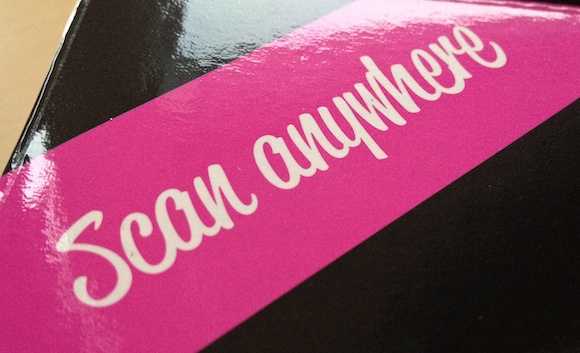
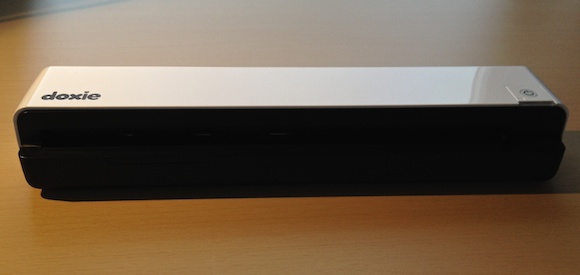
A while back a long time sponsor reached out to me and asked if they could book a couple of weeks for the planned launch of their new product. That new product is Doxie Go: a fully mobile scanner.
[
 ](https://f3a98a5aca88d28ed629-2f664c0697d743fb9a738111ab4002bd.ssl.cf1.rackcdn.com/doxie-go-1.jpg)
I have always been intrigued by the products that Doxie makes because they always look great and are priced right — I just hadn’t purchased one. Doxie is all about scanners, but I have a trusty [Scansnap](http://www.amazon.com/gp/product/B003990GMQ/ref=as_li_qf_sp_asin_tl?ie=UTF8&tag=produchacks-20&linkCode=as2&camp=217145&creative=399369&creativeASIN=B003990GMQ) at my office that works well. I kept threatening my wife that I was going to buy a scanner for our house, but laziness gets the better of me (that and not knowing what to get that is cheaper than a Scansnap).
When I found out what Doxie Go was I asked Doxie if I could buy a unit and get it earlier — before they started shipping.
[
 ](https://f3a98a5aca88d28ed629-2f664c0697d743fb9a738111ab4002bd.ssl.cf1.rackcdn.com/doxie-go-5.jpg)
They did me one better and gave me a Doxie Go. ((Full disclosure, they are both a sponsor of this blog and have given me a free unit.)) This is a very interesting product so I thought that in addition to the normal sponsor links I would take the time to do a full review of the product.
### Go
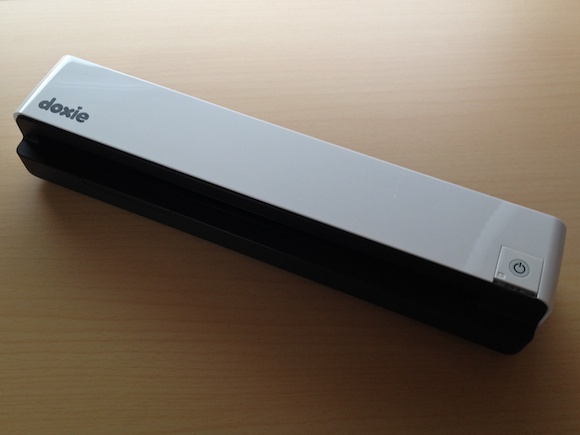
One of the most important things to understand when you are looking at the Doxie Go is that it is a computer-less, sheet fed, single page scanner. That’s kind of confusing.
Here’s the low-down:
1. You don’t need a computer or power source attached to the scanner in order to scan something.
2. It scans one page at a time, and each page is its own file (more on this in a bit).What this means is that the Go is a completely stand alone device and I think that is pretty cool. More importantly it means that you have a scanner that is small enough to be tucked away, yet dead simple to pull out and start scanning with. I for one don’t want to keep a scanner on my desk all the time — especially not one the size of a Scansnap.
This almost feels like the magical moment you set your printer up for wireless printing — finally no more USB and *finally* you can tuck that hideous printer out of sight. The Go is kind of like that except that it is pretty nice looking.
### File Transfers
[
 ](https://f3a98a5aca88d28ed629-2f664c0697d743fb9a738111ab4002bd.ssl.cf1.rackcdn.com/doxie-go-6.jpg)
There are four ways that you can get your scans off of the Go and onto your Mac:
1. There is an SD card slot in the back of the scanner and when an SD card is present all scans go on to that card — no need to reconfigure the device at all. Pop out the SD card and place it in your Mac and pull the scans off of it. This plays nicely with the camera connection kit for getting the scans directly onto your iPad too since they are scanned and stored as JPG files.
2. There is a USB port on the back of the scanner that accepts a USB flash drive. Like the SD card, once a flash drive is present all scans go to that drive (drive must be formatted FAT-32). In practice this works really well and if you have a really small flash drive ([like this one](http://www.amazon.com/gp/product/B004BLIMOU/ref=as_li_qf_sp_asin_tl?ie=UTF8&tag=produchacks-20&linkCode=as2&camp=217145&creative=399369&creativeASIN=B004BLIMOU)) you can hardly tell that something is plugged into the back of the scanner. Alas the flash drive I mentioned above doesn’t work with the camera connection kit (you get a too much power needed warning).
3. You can also plug the scanner into your Mac with a mini-USB cable. There is some internal storage on the scanner and you can pull the scans off the internal storage (the Go’s internal memory will store 600 pages). It is important to note that you cannot scan directly to a computer when the Go is plugged into the computer, so there is a need to always know which storage you want to use. Though, as I said, the Go requires no setting changes to switch between the storage methods.
4. The most interesting option involves the WiFi enabled SD cards like the Eye-Fi. I don’t have one of these cards to play with, but my understanding is that you use a WiFi network to shoot the scans straight to your Mac or iOS device (using the Eye-Fi app). I think this is a pretty neat option, but without testing it I don’t know how well it would work.That in a nutshell is how the Go works. Whereas most scanners scan directly to a device the Go scans directly to a storage device allowing you to later transfer those scans where ever you would like.
If you think of the Go as a digital camera for your documents then you pretty much get a good sense of what the device is and how it works.
### Scanning
I am approaching how well the Doxie Go scans from the standpoint of someone who has spent far too many days using flatbed scanners to digitize old photos and someone who has used a Fujitsu Scansnap every work day for the past 5 years.
The Go leaves a bit to be desired when compared with the Scansnap and is magical feeling compared to a flatbed scanner. For most people I think the flatbed scanner is a waste of money, too cumbersome to use and often over priced. Likewise a Scansnap is usually overkill because it is meant for scanning a lot of pages at once directly to a PDF. The Go (and most of Doxie’s products) fits right in the middle — something for the average person.
When scanning with the Go I have run into two things that I haven’t seen with my Scansnap:
1. Because the feeding deck is shallow it is not uncommon to send a sheet of paper through at an angle. I haven’t run into a situation where it makes the scan look unreadable, or jams the scanner, but being a bit more careful when feeding paper is required to get perfectly straight scans (you can rotate scans with the software on your Mac). Even the “calibration” sheet that it came with went through crooked — though it was my first try using the scanner.
2. If the paper is at all ripped, or badly bent along the edge, it will make for a very challenging time feeding the paper. Simply turning the paper around usually solves this and I imagine getting more familiar with the device will help too. I should say that this is a problem I have never encountered with a scanner before so whether it is just a tradeoff of this scanner, or user error I don’t know.The Go has two settings, by default it scans at 300dpi and with a simple tap of a button you can flip that to 600dpi. I would say the latter is over kill for anything that’s not a photograph and 300dpi is a great default setting — maybe even too high.
Speaking of photographs, the Go comes with a sleeve that you can slide a photograph into for better, easier, scanning. That’s a nice touch, but this isn’t the scanner you will ever want to use to digitize your photo album with — it’s just not fast enough, but it would be faster than most flatbed scanners.
For a “normal” black and white text page that I scan, the speed feels much slower than my Scansnap, but then again the device is about 1/5th of the size… (When in 300dpi mode the scanner takes 8 seconds per page.)
### Hardware
The device itself is really well made and I am a huge fan of it. It has ample rubber feet on the bottom so that it sticks well to the desk — never feeling like something that would slide off. The scanner is all plastic so it is lightweight, but not so much so that it would easily be carried about in your daily bag — though not too heavy to carry if needed.
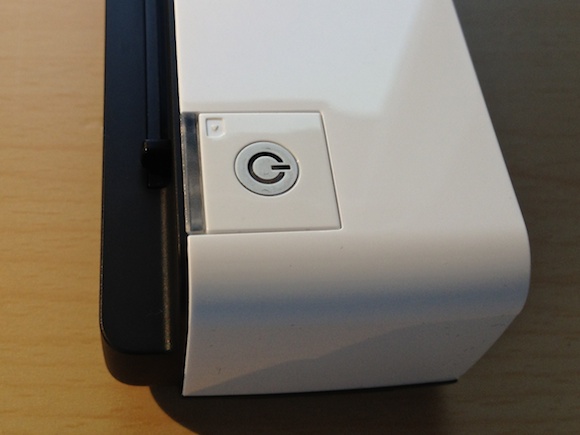
There is just one button on the device. A press and hold will turn the Go on and off, and a quick tap will switch between 300dpi and 600dpi modes (denoted by the change of the LED light from green to amber). All in all: dead simple operation.
The Go charges off of a mini USB cable making it easy to add in with your normal allotment of USB chargers — or charging off your computer. Doxie says that you will get 100 scans off of the battery and it will only take 2 hours to fully recharge. That sounds like a pretty good balance, I can’t imagine a typical user will find 100 pages too limiting.
There are two really interesting things about the hardware I want to note and one massively annoying thing:
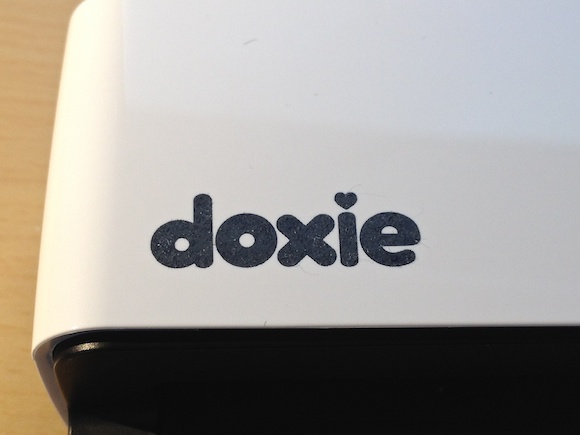
1. Both the logo and the power button are coated with a rubbery coating. So the logo itself feels rubberized like the back of a Kindle Fire, just a touch rougher. The power button has the same coating in the center, but is white instead of black. I am not sure of the goal here, but it does give a nice flat look to the logo that I like. Though I don’t think it gives the same nice look to the power button as the white rubber does’t match the white of the plastic on the device.
2. The white plastic seems to be a magnet for black specks of dust from the cover that the Go comes with — a little black, velvety, carrying case. I highly recommend that you just toss that case to the side, don’t put your Go in it, because it seems to just make your device more dusty.
3. The most annoying thing about unpacking the Go was all the protective film on it. Unlike with an Apple device where you can easily remove the plastic, I had to scratch at corners all over the device to get the very tightly adhered film off of the Go. It’s not a deal breaker, and this is more of an OCD complaint, but I find the harder it is to remove such film the more people tend to just leave it on their devices until they are forced to remove it for one reason or another.[
 ](https://f3a98a5aca88d28ed629-2f664c0697d743fb9a738111ab4002bd.ssl.cf1.rackcdn.com/doxie-go-4.jpg)
[
 ](https://f3a98a5aca88d28ed629-2f664c0697d743fb9a738111ab4002bd.ssl.cf1.rackcdn.com/doxie-go-3.jpg)
All in all I think the Go is a handsomely made device that will travel well on infrequent trips, but will likely need to be protected while traveling with it (to keep it scratch free and dust out of it).
### Software
As with any device the Doxie comes with its own [scanning software](http://www.getdoxie.com/product/doxie-go/software.html) for the Mac. The basic features of which are:
– Import scans from the three media types accepted.
– “Staple” pages together. The Go scans each page as it’s own file, the software makes it easy to combine these pages into one file (select the pages and click one button, it’s actually pretty nice). ((The usage of the term “staple” I think is also a much better way to present the task of combining pages — much more user friendly. Kudos there.))
– Save the file. By default everything is scanned as a JPG (this is why it plays well with iOS), but you can save out the scans as either a JPG, PDF, or PNG.
– You can directly send the file to one of many other pieces of software you have installed. (For me that list is: Acrobat Pro, Illustrator, Photoshop, Evernote, Preview, iPhoto, and Yojimbo.) This is a nice little touch if you mainly are scanning to immediately archive into something like Yojimbo.
– You can make various contrast, crop, and rotation adjustments.
– There is also a free Doxie Cloud service that you can upload your scans to and share the files with a URL. I think this is a mildly useful tool, but an iOS app counterpart could make this really killer. However if you have a really large file this could be a great way to share it.
– The Doxie documentation says that OCR support will be a free update that is due out in December 2011. The addition of which would be very welcomed and a greatly useful.Overall I find the Doxie software simple and powerful.
Something I have noticed with the software is that double clicking the file will open the adjustments panel — not the expected outcome of such an action. In order to preview the file you use Quick Look by hitting the spacebar, but each time I tried this I noticed quite a bit of lag — enough that it really bugged me. Other than this quibble the software works as expected for a bit of software to pull in scans. Any more than that and you will want to work with something else.
(I am bothered by the pink heart icon though. But it is the Doxie corporate identity.)
### iPhone / iPad
Doxie says there will be an iPhone/iPad connection kit for $39 that syncs scans directly to your camera roll. I know nothing about this right now but really would love to see how this works.
This could be the magical component to this setup.
### Examples
So let’s test out this scanner and see what it looks like. [Here is the file we will be working with](https://f3a98a5aca88d28ed629-2f664c0697d743fb9a738111ab4002bd.ssl.cf1.rackcdn.com/doxie-test.pdf) as printed directly to a PDF from Pages. The pages was then printed with a laser printer.
[Here’s the first scan](https://f3a98a5aca88d28ed629-2f664c0697d743fb9a738111ab4002bd.ssl.cf1.rackcdn.com/doxie-300dpi.jpg) as it comes out of the scanner in JPG format.
Here is the [same scan converted to PDF](https://f3a98a5aca88d28ed629-2f664c0697d743fb9a738111ab4002bd.ssl.cf1.rackcdn.com/doxie-300dpi.pdf).
[Here is a scan](https://f3a98a5aca88d28ed629-2f664c0697d743fb9a738111ab4002bd.ssl.cf1.rackcdn.com/doxie-600dpi.jpg) as it comes out of the scanner at 600dpi.
Obviously these are not has high-quality as the natively made PDF, but they are readable and with the future addition of OCR should be pretty great.
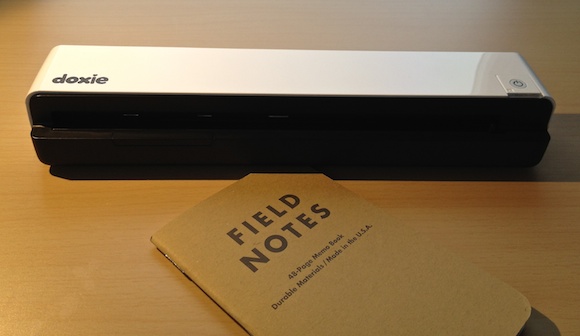
### Where The Go Fits In, Or Why You May Want One
[
 ](https://f3a98a5aca88d28ed629-2f664c0697d743fb9a738111ab4002bd.ssl.cf1.rackcdn.com/doxie-go-2.jpg)
The Go isn’t as high quality as a flat bed and it’s not as fast and robust as a Scansnap. So I am guessing people may be wondering why they would want one.
I wouldn’t recommend the Go for anyone that thinks they will be scanning from the same computer, at the same desk, every day — or maybe even every few days — you will probably like a Scansnap a lot more. But if you are anything like me you don’t scan very often and most (if not all) or your computers are portable.
I like a clean desk and I only need to scan things at home a handful of times each month (at the most) and the same goes with my wife. That pretty much makes the Doxie the perfect scanner for us.
It can just sit neatly tucked in a drawer and we can scan things when we need to without fussing about with wires. The Go is $199 and I don’t think that is too high of a price to pay for something that does its job very well.
What is especially nice is if you really just want to take scans directly from a scanner to your iOS device — that’s not something I could do with a Scansnap without the aid of a computer.
Overall I think this is a great scanner for a mostly paperless family. I love this little thing.
-
Shawn Blanc on Stamped
Mr. Blanc has a great sentence on how one should think of Stamped:
>What Twitter is to status updates, Stamped is to our favorite things in life.He also has two great criticisms of the app, things that I fully agree with. I didn’t realize they were using Affiliate links for things that can link to, that alone maybe enough to sustain the app.
-
[SPONSOR] Doxie Go — Now Shipping
Doxie Go is the tiny, cordless scanner that scans anywhere — no computer required. Doxie’s elegant Mac software makes it easy to go paperless.
Doxie creates create searchable PDFs you can save and share — save scans to your desktop, add them to your iPhone or iPad’s photo roll (and therefore to iCloud), send to Evernote, or simply keep your scans in Doxie’s app and recycle all that cluttered paper.
This holiday season, give the gift of organization. Now available on [Amazon](http://www.amazon.com/gp/product/B0053TRH2M/tag=brooksreview-20) and [direct from the manufacturer](http://www.getdoxie.com/a/tbr_nov11-2.php).
*(Editors note: I will have a review of this product up in just a little bit.)*