By itself this is a respectable number, now take into account [this Tweet](https://twitter.com/#!/trixxy/status/94145791643492352) from Thomas Ricker:
>In other words, Apple moved over 3.6 petabytes in the last 24 hours.
Wow.
By itself this is a respectable number, now take into account [this Tweet](https://twitter.com/#!/trixxy/status/94145791643492352) from Thomas Ricker:
>In other words, Apple moved over 3.6 petabytes in the last 24 hours.
Wow.
Anil Dash:
>Why are they so cynical about conversation on the web? Because a company like Google thinks it’s okay to sell video ads on YouTube above conversations that are filled with vile, anonymous comments. Because almost every great newspaper in America believes that it’s more important to get a few more page views on their website than to encourage meaningful discourse about current events within their community, even if many of those page views will be off-putting to the good people who are offended by the content of the comments. And because lots of publishers think that any conversation is good if it boosts traffic stats.
A must read for any web user.
The end of an era.
TidBITS Staff:
>Can’t remember which key combination creates an e with an accent agu (é)? Press and hold a key to bring up accented alternatives, a feature introduced in iOS. You can click the accent you want, or, since your fingers are already on the keyboard, press the number that appears below the character you want.
I actually didn’t know this one and a few others on this list. One thing I do know: `option` is an incredibly powerful key in Lion.
Nice tip from Matt Gemmell:
>It would be unacceptable to invite the inevitable physical slips this would case, so “Don’t Save” is now triggered by Command-Backspace (which is an excellent shortcut, since not saving means your document’s contents will be deleted, in a sense, and hitting Command-Backspace is slightly more difficult than hitting Command-D).
John Siracusa:
>Lion will quit your running applications behind your back if it decides it needs the resources, and if you don’t appear to be using them. The heuristic for determining whether an application is “in use” is very conservative: it must not be the active application, it must have no visible, non-minimized windows—and, of course, it must explicitly support Automatic Termination.
Shawn and I were talking about how Lion needs this feature on the podcast we recorded yesterday. I had no clue Lion supported this and the implementation sounds near perfect. ((Likely I had no clue about this because apps must support it, and when you beta test a new OS it is pretty rare to test apps designed for that OS. Good catch by Siracusa.))
Shawn and I talk all things Lion.
Brought to you by: [HipChat](https://www.hipchat.com/) and [Campaign Monitor](http://www.campaignmonitor.com/)
Shawn Blanc on how to make the Library folder visible under Lion:
>The ~/Library folder is now hidden. If you want to see it, a simple terminal command will unhide it:
>`chflags nohidden /Users/[username]/Library/`
Also: the rest of his review is excellent.
Apple via press release:
>Users who do not have broadband access at home, work or school can download Lion at Apple retail stores and later this August, Lion will be made available on a USB thumb drive through the Apple Store® (www.apple.com) for $69 (US).
This is pretty much the kiss of death to the CD/DVD drives in all Macs.
David Sparks:
>Until today, FileVault was the ugly stepsister of the Mac OS X operating system. Nobody liked it and anybody with serious security concerns used other disk encryption options. I would have given it a different name since FileVault was such slug. Regardless, Mac OS X now ships with some real security teeth. It includes whole disk encryption, Time Machine disk encryption, remote wipe of your Mac, and sandboxing. So long PGP.
The last time I used FileVault it broke everything, but a few weeks ago my paranoia took hold and I turned it on in Lion. I didn’t talk about it in my review much because I honestly haven’t spent that much time with it. It is vastly improved from when I last used it.
To date I have seen no issues and no performance problems — I am quite impressed.
Charlie Sorrel:
>And if you want a white plastic MacBook, you’d better rush to your local reseller — Apple has discontinued it.
Along with Lion Apple released new, faster, Mac minis. Of note is that there are no longer optical drives in the Mac minis — a very telling move as the Mac mini is seen as a “desktop” computer. I would guess that the Mac Pro will be the last Mac to have an optical drive and the MacBook Pros are next to lose them.
There is also a [new display](http://www.apple.com/displays/) and new [MacBook Airs](http://www.apple.com/macbookair/) which are sure to be speed demons.
Everything got a Thunderbolt port, but alas my MacBook Air didn’t get magically upgraded while I slept.
This will mark the fifth version of Mac OS X that I have used since I “switched” to the Mac. With every new OS X version I have thoroughly enjoyed the new features that were delivered and the slight UI improvements that also came with each update. New versions of Mac OS X are far more important than most other software updates — my life simply revolves too much around my laptop to not pay close attention to OS X and any updates that Apple makes to it.
Ignore the fact that this is still the “same old” Mac OS X. Lion represents the most polished operating system that I have ever had the privilege and opportunity to use — iOS included.
With Lion we begin to see a subtle obfuscation of the file system and a move toward skeuomorphic design for certain apps — yuck. This represents exactly what Lion is: a nudge forward that pushes what seem to be subtle changes, which are in fact a rethinking how computers *should* be used.
Not a nudge in the sense that this is an entirely new OS, but a nudge in the sense that this is an OS built *for* today’s computer users. In stark contrast to what we are used to: systems built for people that want, or know, how to use the *system*.
Yet it is the same old Mac OS X that were all very used to.
Lion then, is built for people — plain and simple. One could argue that the Mac from day one was built that way, but then I would ask you how many times you heard someone say: “I don’t know where I saved it”. Until you eliminate those phrases, until you eliminate the confusion, you don’t have a system built for *real* people. Lion is a step in the right direction towards removing this confusion.
### The Gist
As I said Lion is not about massive operation changes — it is more about subtle refinement of every aspect of not just Mac OS X, but of computing in general. That’s why at first glance it is harder to see the system files in Finder and easier to just see every user created file — OS X is showing you what you are likely to be looking for first not the logical structure of all your data.
Lion is not about the ‘iOSification’ of OS X — that is a short-sighted summary of Lion in my opinion. There is edge smoothing, feature additions and all sorts of stuff like that, and yes some cues were taken from its sibling iOS — but it’s not iOS, it doesn’t want to be and it doesn’t try to be.
Lion makes a full-fledged operating system feel intuitive in a way that you think: “I always *should* have been able to do this, but only *now* can I do this.”
This is best shown with the addition of tools that allow you to virtually sign a PDF only using a webcam. Keeping you from having to buy expensive hardware to ‘get’ a signature on to your Mac. You see it with the refinement of the system-wide autocorrect and the beautiful way that your Mac transitions from being a laptop, to a desktop.
These features alone are not enough to convince most that this is anything but a feature upgraded OS, but when you start to use Lion — all these small refinements — tell you that this is an OS made for users and not for programmers. ((With no offense intended towards programmers.)) That’s a good thing — a really good thing.
### Biggest Changes
Let’s go through some of the bigger changes that will be most apparent to upgrading users.
#### Scrolling
As most of you have heard by now, scrolling has underwent some major changes in Lion, not the least of which is the reversal of the way the scrolling works. Apple changed the scrolling behavior so that your interaction with the trackpad or magic mouse (or scrolling wheels) manipulates the windows in the same way that it would if you were directly touching the screen.
Therefore sliding your fingers downward scrolls up and not down. It is a major change that takes some getting used to, but once you get used it everything seems far more logical. This can of course be turned off, but I urge you to keep it on for a couple of weeks. I have really come to prefer this scrolling reversal, especially when using a Magic trackpad, which is what Lion seems to be built around.
Apple also changed the looks of the scroll bars — you don’t see them — they only appear on hover and have no arrows for up and down. This is a welcomed change from those terrible looking bright blue plastic looking scroll bars. My biggest concern with this change is that it is no longer readily apparent to users that the content is scrollable.
I believe this is a change that will be welcomed by long time users, and mobile first users (the current crop of ‘kids’). However casual computer users, the group I usually refer to as “my Mom” will likely have a long adjustment period to this UI change. Overall, it seems like a change made for aesthetics and a logical move for the more advanced users — my fear is the added hurdle this will add for “new” OS X users.
The best change though, is the addition of elasticity in scrolling. As Apple did with iOS you can see the document run past the end of the actual document before it *snaps* back, and some apps are now implementing pull down to refresh types of behaviors. ((Notably: Twitter for Mac.)) This is the addition that makes reversal of the scrolling, momentum, elasticity, and multi-touch gestures, feel ‘natural’.
I am a huge fan of all the scrolling revamps in Lion, they are all welcomed in my book and really make the entire OS *feel* much different.
#### UI Looks
There is a lot of craziness going on with Lion’s overall UI changes, and to list off what has changed we would need to start a whole other blog. There are three major design themes that come with Lion.
##### Skeuomorphism
This is all the hideous screenshots you have seen of iCal and Address Book. This is the worst thing I have seen Apple do in quite a while, I half expected Mail to turn into a postal box with letters you had to pull out and unfold — thankfully that is not the case (yet). However, you do get these lovely looking apps:
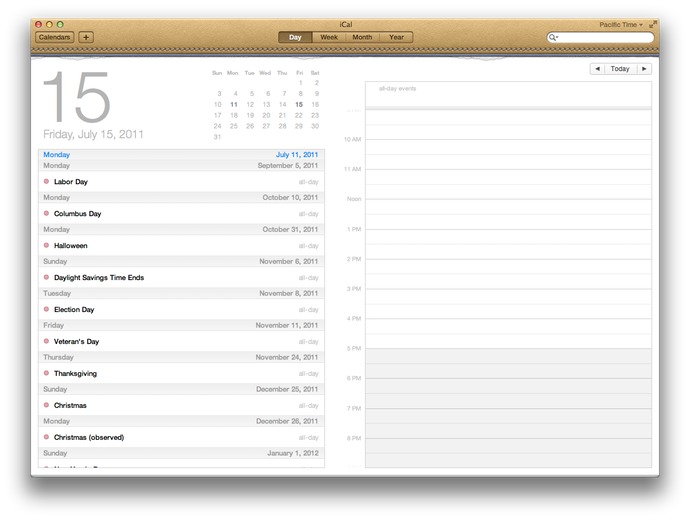
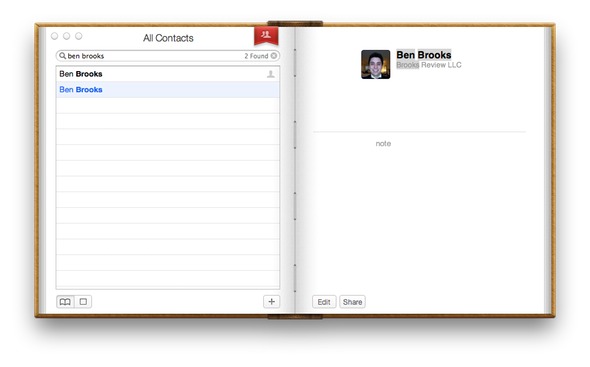
Arguments for an against each app’s new design has been rehashed here and other places quite a few times since the screenshots first leaked. No need to go over them again, it’s just a design trend that Apple has decided they would like to do in a select few apps — and that I am glad they only chose to do in a few apps.
##### Rounded corners
All four corners of every window are now rounded. The rounded corners look really nice on the bottom of every app, but for looking at certain documents I find it a bit odd to have those corners cut off. For instance: Pages. If I am designing a newsletter, or whatever else you do in Pages, I am going to guess that you won’t be trimming those corners off the bottom of your printed paper. Therefore I would really appreciate a more *accurate* view of the documents I am creating.
Those corners just give you an unrealistic view of what you are working on, so for things that you are creating for physical production I don’t like those rounded corners. However for most other things the rounded corners are a nice touch that ease the lines of the OS.
One thing about this though that bugs me: a few versions back of OS X the top two corners of the menubar itself were rounded, thus there was a few pixels on every Mac’s screen that were rarely used. Then Apple changed it so that those top corners were no longer rounded and every thing looked a bit better. Now, we have sharp corners on the OS itself, and rounded corners for every window — it’s not that important, but does seem oddly contradictory.
##### Monochrome everything
This might be the most apparent change in Lion, Apple decided to save users money on LCD ink and change their OS to one that need only show shades of bluish gray. We saw this change coming in iTunes and it has permeated it’s way through much of the OS. Finder is a primary example, and while it looks nice, it makes Finder a touch harder to use.
I like the subtlety of the monochrome and I like to look at it. However, I don’t like using the OS as much with these changes, I find it just to difficult to find what you are looking for — too much subtlety and not enough usability.
I can see the argument for both sides of this coin:
1. Too much color is just as useless (case in point, most people’s Dock). So Apple wanted to simplify the color schemes for the sake of aesthetic appeal and to make a change.
2. Too little color is just as problematic as too much color. Now when I look at playlists in iTunes, ‘favorites’ in the Finder sidebar — well everything looks the same.
Or:
>If you make everything bold, nothing is bold. —Art Webb
We need a compromise here.
### Best Changes
#### External monitor support
By far my favorite change in Lion is the way the OS handles external monitors. It used to be that when you wanted to run your Mac in clamshell mode (external monitor attached, lid of portable Mac closed) you had to plug everything in and close the lid. The computer would then sleep and you would then need to wake it by hitting the keyboard or mouse — this would put the Mac into clamshell mode.
Now, under Lion, closing the lid of the computer with an external screen attached just results in a momentary flash of blue while the machine switches over to clamshell mode. This also means that opening back up the lid on your Mac will put it back into dual screen mode — all automatically.
I have to do this at least twice a day, so this change alone has made Lion an awesome upgrade for me. This is just another ‘commons sense’ update for Lion.
#### Finder
No, Finder is not magically less sucky in Lion, it does however offer some very cool new features. The biggest of which is the obfuscation of the underlying Mac file system. Instead of showing you the pure directory structure of Mac OS X, Finder shows you the information that the average user is likely interested in seeing: their files.
Apple is placing a primary importance on the user and what the user needs. This is most apparent by the new way that the list of folders and drives is ordered along the sidebar of the Finder window. The Finder first shows you the new ‘All Files’ option that seeks to show you every file on your Mac that is a user created document (Pages files, text files, pictures and PDFs), from there you get common folders (Documents, Music, Movies, Pictures) then you get shared computers and lastly drives that are connected to your mac.
Whereas in Finder previously the user saw drives at the top, the shared computers, then commons folders, then smart folders — Apple has refocused the attention away from drilling down through the file system, to just presenting you with the files that you will likely want to access.
This is just one small step in Apple’s over arching goal in Lion to disconnect the users from the file systems that they are used to, and get them into a mindset of one repository for finding files. Essentially Apple wants you to stop worrying about where you saved things.
It’s a change that will be off putting for advanced users, but that will be loved by more novice users (novice to both the Mac and new computer users) in the same way that iOS has done for mobile users. Quite honestly the ‘All Files’ view is something that I find to be rather nice.
##### AirDrop
A feature that will likely to be that ‘hallelujah’ feature for small offices and Mac obsessed homes is: AirDrop. Finally a way to quick and easy way share files (large files) with other users on the same network — this is killer.
I can’t tell you how many times I need to send my wife a folder of RAW images that weigh in over 1GB — right now we have to use the public ‘Dropbox’ built into Mac OS X, AirDrop will make the process way less confusing for my wife. Likely, this will be a big hit among small business users.
#### Forget about what is running
Continuing the iOS trend Apple has decided that, by default, the user doesn’t need to know or worry about what is running on their Mac. This isn’t to say that programs will be closing by themselves, but that the indicators on the dock are not shown by default.
There is a push towards just using your Mac and not worrying about RAM, or how many of anything you have open. Macs have done a marvelous job of managing RAM for most users that don’t use Adobe products on a regular basis, so this change is only natural. Those little glowing lights have always been a nag to users that know what they mean — the clear advantage being that a user should just use and not think about the ‘resources’ available.
This sounds small and odd that I should send this much time talking about it, but I really think this is one of the major themes of Lion. The thought that users should just be able to use the operating system without thinking about how they are using it and how they *should* be using it.
*(Side note: This change is also huge with the move toward SSDs as the swaps are much quicker and therefore RAM above 4GB is likely not to matter for the majority of Mac users.)*
#### The new preview
Since getting a Mac I have consistently been blown away with how good Preview.app is. It is an incredibly powerful tool, one that is so versatile it amazes me the application is free. The version of Preview that ships with Lion has one feature that blows me away, and I really mean that. This is a futuristic type feature: signature scanning through your Mac’s webcam.
I have to “sign” PDF files all the time and have a saved TIF file on my Mac with a digital signature that I made with a Wacom tablet and Illustrator. That has served me well over the years, but it looks like a digital signature. Scanning in a signature of mine has never looked great, so I stuck with my TIF.
Preview allows you to sign a piece of blank paper, hold it up to your Mac’s built in camera and presto — you just signed the PDF. This is a feature that when shown or talked about seems like a better idea than it would actually work. I have used this feature about a dozen times since I installed Lion and it has worked perfectly every single time.
I am blown away by this feature and all the other new features in Preview — this is likely to be a huge selling point for people that deal with contracts on a regular basis. I’d pay the $29 to upgrade to Lion if this was the *only* new feature.
#### State Saving
Another huge difference is that Lion remembers what and how your screen looked before you restart the OS. This means that restarting for installing Office or Adobe products is slightly less painful as your Mac will be “restored” when you boot back into it.
This is slightly hit and miss right now, as developers need to update their apps for better functionality with this. However, it is likely to be a huge differentiating feature of the Mac.
There is also state saving when you close applications, be sure to close windows/documents before quitting an app unless you want those to reopen when you next open that application.
#### Quicklook
I think Quicklook may be one of the most underrated features of the Mac, Lion makes some much needed changes to the service. For starters you can Quicklook a document and CMD+Tab away from it to another app. In the past that action would make Quicklook go away until you tabbed back, that’s not so in Lion — Quicklook stays up and I can’t tell you how nice that is.
There are some various visual changes that I don’t like (the milky white background), but overall the improvements are welcomed.
### Worst Features
Lion is not all good though, there are quite a few changes that were made that don’t sit well with me. I want to highlight just a few of the ones that are likely to be more obvious to current Mac users.
#### iCal & Address Book Design
These two designs are almost enough reason to never upgrade to Lion — almost, but not really. They are absolutely atrocious designs that are overly skeuomorphic and physically hurt me to look at. There is the [little bits of torn paper](https://brooksreview.net/2011/04/mimics/) and the over all stupidity and navigational confusion that exists in the new version of Address Book.
My biggest gripe about Address Book is that it uses a red bookmark flag as the navigation between seeing all the contacts and seeing the contact groups — this took me a bit to figure out, pure confusion with the UI when you do something unintuitive like this.
iCal on the other hand doesn’t suffer from navigational woes, it just gets the award for ugliest top bar of any Mac app that I have ever seen — even if you account for the ‘Ribbon’ interface in Microsoft Office. It’s that bad, I recommend using only Fantastical for your calendaring on Lion and BusyCal if you need more.
#### Fullscreen mode
As long as I have been following the Mac scene and talking with people who have switched to the platform I have been hearing the complaints about the lack of native “full-screen” mode like Windows has (through the use of the maximize button). Lion introduces fullscreen mode, but it isn’t the same as ‘maximizing’ a window is in Windows.
It is better to think of Lion’s fullscreen mode as maximizing the app to fill your screen, while also pushing that app onto its own virtual desktop. You are basically pushing the app onto its own desktop and forcing it to be the only app you can see on that screen, all without the menubar too.
Not all apps support this right now and I don’t find it a very compelling feature at all. The success of this mode will largely depend on how developers implement the features in their apps — apps like iA Writer will likely make good use of it, however I find Safari to be useless in this mode, even on my MacBook Air’s screen smaller screen.
I also find Mail a bit ridiculous to use in this mode too, though very ‘focused’. It is just so much and so bright that it isn’t better. I would love to see apps make use of this feature by radically changing the interface when you invoke this mode, but if Apple is setting the example then such designs don’t seem likely — the glaring exception to the rule being iPhoto, more like that please.
Lion’s new fullscreen mode, if only used to maximize an application to the full size of the screen is poor. Lion’s fullscreen mode used to change the UI of the app when you pop it into fullscreen mode has the potential to be very interesting.
#### Dashboard
Dashboard has an odd new ‘feature’ that is on by default — which shows your Dashboard widgets on their own “space”, or virtual desktop. Meaning they don’t overlay over the current desktop, though you can turn this feature off, I really don’t get this and think that it defeats the purpose of the Dashboard (which is bad given the limited utility of Dashboard to begin with).
An odd change to be sure.
#### Launchpad
I hate this feature. Yes, it was created as a way for novice users to see a visually pleasing view of all their installed apps, all without having to clutter their dock. However, there is no way to manage what shows up here — all your apps appear.
Oh, if you hold down Option to try and remove them? Yeah that removes them from your computer, not just Launchpad — this is useless to all but the most novice computer users. ((Note: I say novice computer users, not novice Mac users.)) It is not easy to access and the icon is terrible, please let this die.
As best I can tell you can only actually ‘delete’ applications from your Mac using Launchpad if it was installed via the Mac App Store, otherwise you are s.o.l. Further, since I have Parallels installed running a Windows VM — yep all those crappy Windows app show up in Launchpad. Overall, this is pretty crummy.
### Other odds and ends
Those are the major things, here are some of the other items that are worthy of a mention.
– Versions: this is likely to be pretty cool once apps start to support it, definitely helpful for people who don’t like to remember to make duplicates of documents before they make considerable changes. I for one can’t wait for apps like Writer and TextMate to support it. This is huge for advanced users and once ‘regular’ users get the hang of it, well user error support issues should drop.
– Auto-save: Awesome feature for those stubborn fools whom don’t save a document until they are *done* with the document. Should make the ‘IT’ guys of the family much happier.
– Mail: The new layout is great. That’s about all that is great about it. My biggest problem with Mail is that they removed the ability to ‘Bounce’ an email message — what the hell! Search is vastly improved and is a really great change to the overall archiving versus folder system of email storage. The conversation view in Mail is really welcomed, but is oddly in conflict with interleaved emailing. Conversation view makes pretty much every message interleaved, however if you do interleave emails I find this view to be a bit troublesome and redundant. More on this to come at a later date.
– Find my Mac: coupled with iCloud you now can track your Mac without having to use services like Hidden.
– Reboot in Safari only trick : If you have the find my Mac option turned on there is an option on the lock screens and login window to reboot the Mac into a Safari only mode. Essentially this means that an anonymous user can boot into Safari and connect to WiFi to surf the web. What this is really for: to get your Mac online so Apple can tell you where it is if you lost it, or it is stolen. Very clever.
– New Auto Corrections: very iOS like, you get a little bubble that shows the correct spelling suggestion that Lion will use if you keep typing. This is a very nice change, but takes a lot of getting used to if you aren’t used to this type of spelling correction. (It has caused me quite a bit of trouble if I don’t carefully proofread posts.)
– Font Book: Still sucks, get [Fontcase](http://www.bohemiancoding.com/fontcase) instead.
– When copying a file into a folder that already has a file with the same name, Lion will ask if you want to ‘keep both files’ — what a great change to a minor annoyance that I see all the time.
– Safari: Much faster than before, Chrome like speed. The new downloads indicator is nice, but takes a bit of getting used to — I much prefer it integrated as part of the app instead of a separate window. You can also double tap the trackpad with two fingers to ‘zoom’ into a text block much like you would in iOS ((This is actually a system wide gesture, set in preferences.)) — what a great touch. The back and forward navigation is a bit screwy, as horizontally scrolling a page that doesn’t need to be horizontally scrolled with take you back a page or forward a page. ((Again this can be disabled.)) I find this behavior really odd, and it takes a bit of getting used to.
– Gestures: I honestly can’t remember which of the gestures were in Snow Leopard, and which are new. Suffice to say this is the area that many are split on their opinions about — to me they are only good with a Magic trackpad and serviceable with a MacBook (Pro/Air) trackpad.
### Upgrade Worthy
At $29 I don’t see any reason to not get Lion. In almost every aspect it is better than every version of Mac OS X that has preceded it. It is faster, smoother, more stable, and generally better looking than Snow Leopard. All of the apps that I depend on work well with it already, it’s a no-brainer upgrade.
I think it is only fair to start off this review by saying that I have never met a calendar (digital or otherwise) that I thought was perfect. When the iPhone came out I used the built-in Calendar.app until Calvetica came out. Then, not seeing anything but a design difference (more or less), I switched to Calvetica.
Between that point and the release of [Agenda](https://brooksreview.net/2011/06/agenda-review/) I switched back and forth between the built-in Calendar and [Calvetica](http://calvetica.com/). When Agenda came out, I quickly moved to it as my full time iOS calendar app — it was just simply better to use.
I won’t rehash all of [my complaints about calendars](https://brooksreview.net/2010/09/sucky-calendars/), but leave it at one main issue: don’t show me stuff that is from the past — my past. This is one area in which Agenda excels, and all others haven’t fare so well.
### Mobile Calendar Usage
I am not sure how most people use calendars on their phones, but I do know how I use mine and it breaks down into four routines:
1. Wake up in the morning and check the calendar for today’s events.
2. Input new events when I am not at my Mac throughout the day.
3. Be alerted to upcoming events.
4. Review the coming appointments for the next day before bed.
There is an odd couple of days in each month where I am looking at my calendar far off into some distant future to plan an event that will likely change before it happens — but that is the exception, not the rule.
### How Does Calvetica 4 Fare?
Calvetica still fails at hiding my past from me (well at least past events), but there are some very compelling things that make a good case for using Calvetica over Agenda.
### New Appointments
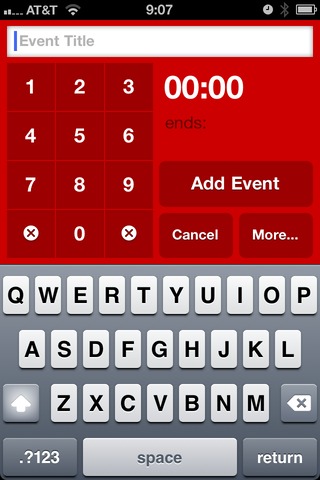
Calvetica has reworked how you create a new event in a calendar — it may be the fastest way to add a new event on the iPhone, yet not as fast as natural language input with something like Fantastical on the Mac. ((One thing that I am unsure about though is if given the smaller keyboard on iPhones, whether natural language input would be any good on iOS.)) When you want to create a new event, Calvetica presents you with this screen:
[ ](https://f3a98a5aca88d28ed629-2f664c0697d743fb9a738111ab4002bd.ssl.cf1.rackcdn.com/calvetica/new-event.jpg)
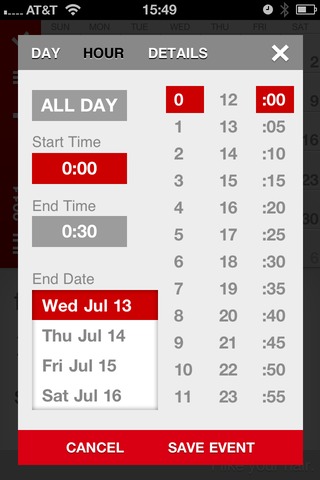
That’s very nice, enter the title and tap out the time and you are done. You can however tap that more button and you are brought to this screen:
[ ](https://f3a98a5aca88d28ed629-2f664c0697d743fb9a738111ab4002bd.ssl.cf1.rackcdn.com/calvetica/more.jpg)
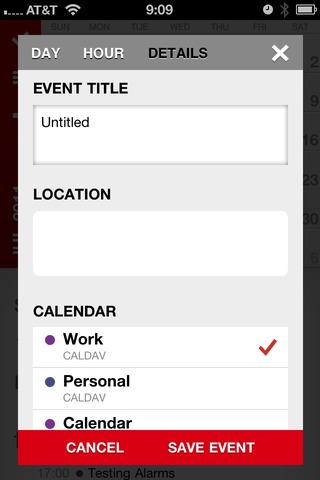
This screen is still pretty quick and straight forward (note that you can set the default duration and alarm times, thus some people will be able to avoid these screens all together). What annoys me most about this is that you are taken immediately to an expanded time screen, most of which can be controlled on the previous screen — the details screen is what I really want to get to. It looks like so:
[ ](https://f3a98a5aca88d28ed629-2f664c0697d743fb9a738111ab4002bd.ssl.cf1.rackcdn.com/calvetica/details.jpg)
There are two reasons I need this screen:
1. I like to enter locations into my events.
2. I don’t keep all my events on the same calendar. ((Though I am rethinking this, I mean does it really matter if it is a work event or personal event? I still have to attend both…))
Overall and in my usage, the Calvetica interface is a touch faster to use than Calendar’s. If I could just get a faster way of adding in the location information I think it would be a pretty killer input method for me.
### Scheduling Appointments
As I mentioned above there are rare occasions where I need to schedule a future event with someone — this means constantly scanning my calendar on different days to see what is open and what works with other people. This is quite possibly the most annoying thing to do, but I still need to do it.
With the built in Calendar app this is best done by using the month view and tapping through the days to see what each day looks like. It’s not ideal, but it gets the job done. In Agenda I just used the never ending scrolling list of days to accomplish this — this works really well, right up and until the point that you need to jump to a specific day, at this point the system breaks down a bit.
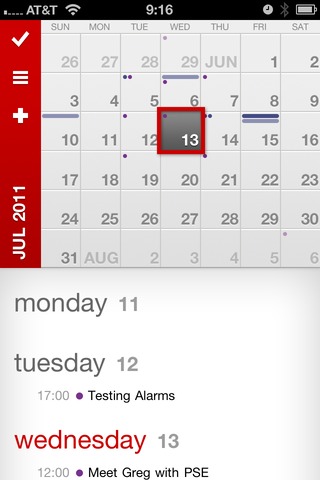
In Calvetica though you can view this:
[ ](https://f3a98a5aca88d28ed629-2f664c0697d743fb9a738111ab4002bd.ssl.cf1.rackcdn.com/calvetica/week-view.jpg)
With the full month shown and a scrolling view of the week selected — well you get a pretty good idea of what you have going on. A quick tap on the month name and you can jump to any date that you want very quickly. All of this makes for a pretty ideal way to schedule and plan with others. (The color coded dots and bars along the top of each day in the month calendar also give you a nice heads up of a potential problem/conflict.)
### Tasks
One new addition in Calvetica 4 is the ability to schedule/manage/track tasks. I get the sense that this is a fairly basic offering. One nice thing is that there is a free cloud based backup for all your tasks, this makes the system a bit better — though syncing with a Mac app is still needed.
If tasks liked this synced back to something on a Mac I could really see someone like my wife using this and liking it. Very straight forward with little confusion.
There is also a nice UI change when you are viewing tasks versus events, very neat.
### Quick Reminders
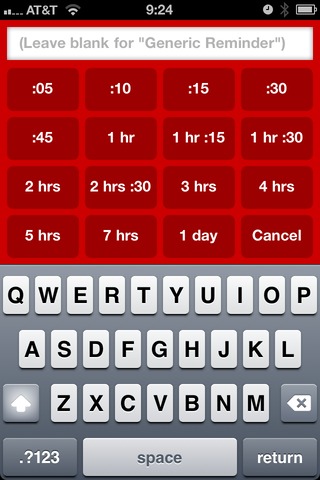
One of the neatest features is the new quick reminders, this almost takes the place of apps like Due for me. Touch and hold on the plus symbol and you are presented with the following screen:
[ ](https://f3a98a5aca88d28ed629-2f664c0697d743fb9a738111ab4002bd.ssl.cf1.rackcdn.com/calvetica/quick-remind.jpg)
These reminders will appear on your calendars as appointments, which is why I really love them for fast event creation. Sometimes when my day gets busy there are things I know I need to do before X time, but that I can forget. I used to create a task in OmniFocus for these items, but quick reminders in Calvetica is much faster and better.
My most common reminder: go to bank, set due in 1 hour. I am forever forgetting to run to the bank. Quick reminders are great for this, love this feature.
### Day View
There is no ‘day view’ in the sense that all you see is the days events, Calvetica will always keep a partial display of the month calendar. This is not bad, but it also brings about one other problem that I have with the day view as it is implemented: it feels like ‘old Calvetica’ and not this new Calvetica.
I will admit though that this is the fastest way to delete appointments on my iPhone — man do I love deleting appointments.
### Agenda View
Not to be confused with the Agenda app, agenda view is a fairly common calendar view that shows the appointments only. Using agenda view on Calvetica essentially turns the app into a better looking version of the built-in Calendar app’s month view. It works the same way.
The one nice thing about Agenda view, is that unlike with week view you get to see the location of events — we should always ‘get’ to see this information if you ask me.
### Week View
One of the best and prettiest features of the last version of Calvetica was the week views. In portrait orientation you get a lovely looking week view (which is still around), spin to landscape and you get a more traditional week layout.
Gone is the landscape mode, which was a bummer for me until I realized that even — though I liked it — I never used it.
The current week view with the mixed in month Calendar not only offers the best looking view for the app, but it is also the most useful for me when checking out my day. I can see if the day is empty at a glance and what is coming up and when. It’s clean and simple, best viewed with the month view partially hidden.
### Alerts
Calvetica suffers the same fate as Agenda: system level alerts. When you have an alert go off before an event, the default Calendar is what you are taken to when you ‘slide to view’ the alert — this is both annoying and *not* Calvetica’s fault. Unless they wanted to run their own calendar databases, thus (as far as I understand) requiring you to re-input all your data.
This is a problem and one that iOS 5 does not solve, but hopefully someone figures out and soon.
### Gesture Support
An important part of using Calvetica is to make use of the gestures the app provides. The basics are swiping between calendar months, to the more advanced tap and hold to get additional features and pinch actions on the views to change the view type.
One thing about Calvetica that should be apparent is that each of the view modes (Day, Agenda, Week) have their usefulness, tapping the small button to switch between them means that you are likely to never switch view modes, or be annoyed when you want to switch. With pinching gestures you can quickly switch between the modes — making Calvetica infinitely better.
The app has a built in tutorial on gestures and I highly recommend you look through it before using the app.
#### Hiding the Month Calendar
One gesture is swiping up and down to show and hide the month calendar. Though the calendar doesn’t disappear (it shows the last two weeks, always), this is a very nice addition to the app. As much as I like this action, I have two major complaints about it:
1. When slide the month up and out of the way, the last digit in the year is cut off, so right now it reads: JUL 201. That seems very un-Calvetica like and I would love to see it automatically change the wording to perhaps: JUL ’11. Same amount of characters, nothing cut off.
2. Sorry, but why are you showing me the last two weeks in the calendar? Why *aren’t* you showing me the current week and next week — it’s doable and seems much more helpful. I like having the month calendar slid up and out of the way, but it would really be trick if it could still be helpful while it is tucked away — beyond just giving me more screen real estate.
### One More Complaint
If you have multiple calendars syncing with the same name (say you test a lot of stuff and you have duplicate calendars in both iCloud and, oh, MobileMe) this is a very confusing app to figure out which ones should be shown.
In fact the only app that handles this well is the built in app, since it shows what account each calendar is from. This is likely only an annoyance to people that keep multiple calendars, but it drove me crazy.
### Design
When [I wrote about Agenda](https://brooksreview.net/2011/06/agenda-review/), I had this to say about Calvetica:
>The problem with Calvetica is that I have always liked looking at Calvetica more than I have liked using it.
I never meant that as a bad thing, it’s just a *thing*. When the guys at Mysterious Trousers asked if I would take a look at the beta of version 4, they seemed pretty confident that they addressed that issue. I couldn’t agree more, what’s more impressive is that they made me like using Calvetica — while also making the app *much* better looking.
Overall Calvetica is better looking, however there is one screen that really bugs me:
This details screen pop-up doesn’t sit right with me. Looks almost Android-ish. For instance: why are some of the fields rounded off on the corners, while others remain square? It’s a small nitpick, but I am not a huge fan of the design on this screen, mostly because I think these guys *can* do better.
### Spit and Polish
There’s a few little things about Calvetica that are really nice little ‘extras’.
– When in week view there is a little bit of footer text that says things like: “I like your hair.” It’s a touch of personality and makes me smile every time I see it.
– You can change the color each calendar is displayed in. Yes, this *is* awesome.
– You can rearrange the order things are shown in the ‘details’ screen so that what you use/want is at the top.
– When in week view, the day’s date is show just to the right in a subtle gray — great touch that is both nice looking and very handy. This may seem trivial, but for some reason I really noticed how much I appreciated this.
– The app still opens incredibly fast.
### Agenda v. Calvetica
Honestly, I have a tough time deciding. The interfaces and logic behind each one is very different. If I had to choose I would say that Calvetica has a slight edge over Agenda right now for two reasons: design and event creation. As for the layout and display of your calendars, it’s Agenda all the way.
Calvetica 4 is in the App Store now and is a free upgrade for existing users, [go check it out](http://calvetica.com/).
Jordan Robertson, an AP Writer:
>Goldman Sachs calls tablets “one of the most disruptive forces in computing in nearly three decades.” It predicts that as many as 21 million people will buy tablets instead of laptops this year, jumping to 26.5 million next year.
Tablets and iPads are very different beasts. In the above quote it would be more appropriate to substitute ‘iPad’ where ever ‘tablet(s)’ is used. Remember that ‘tablets’ have been around for quite sometime — it is the iPad that is disrupting the market, not the generalized ‘tablet’. ((I freely admit this may not be the case long term, but is the case right now.))
Craig Grannell:
>I recommend before installing Lion that even if you’re using Time Machine you also create a working clone of your Mac. This is because while you can restore data from Time Machine, it’s faster and simpler to do so from a clone.
He offers a couple of pieces of software — ignore all but SuperDuper!. Small backup drives are pretty cheap, even at places like Best Buy and Fry’s. I picked up a 1TB LaCie drive from Best Buy that is USB 3 for like $80. Not a steal, but a good brand and worth the peace of mind.
Oh, and if you want to upgrade to Lion when it comes out, then I suggest you get cloning tonight.
*Ed. note: Many thanks to [Stephen M. Hackett](http://forkbombr.net/upgrading-to-lion/) for helping with my comma addiction. It is a real disease.*
Tom Loftus:
>The Wall Street Journal reports that Apple is getting closer to inking a deal with China Mobile, the country’s largest cellular operator with 600 million subscriber accounts.
The U.S. has a *total* population of [311,799,978](http://www.census.gov/main/www/popclock.html) people.
My MacBook Air has this issue too, but I can’t use Dr. Drang’s solution because I constantly use a Bluetooth mouse and keyboard. I did try it out though and it solved my problem too. I hope it is a software issue that is fixed soon, ready: bug reporter.