Year: 2014

  • OmniOutliner 4

    I really like the apps that the OmniGroup puts out there, despite my sketpicism about the direction that OmniFocus is taking, the work is some of the best work on OS X.

    I’ve long been an OmniOutliner fan, having used version 3 extensively, and keeping the iPad version on my iPad home screen. When version 4 came out, I hesititated and ended up not upgrading.

    Because of that OmniOutliner began to collect dust in my app folder. Just last week I picked version 4 up, as I really needed a strong tool to get caught up on a bunch of work, and man am I impressed.

    OmniOutliner 4 is a heck of a tool, and really ‘modern’ when compared to version 3. I’m excited to learn the app more.

  • Out of the Park Baseball 15

    I’ve played this Baseball sim every year now, and it really is addictive. It’s all about making the trades and setting the rosters, love it.

  • Sketch 3

    Last week Sketch 3 was released. I’ve long owned Sketch, but never really used it — I didn’t get. I own Acorn, Photoshop CC, Pixelmator, and Sketch — and I have to say while most of these apps seem to be the same thing, Sketch is different.

    I’ve been consulting on more apps lately and that often necessitates me ‘sketching’ out an idea of how the app should look. It’s just hard to describe things in words, when a mockup can state everything more clearly. This used to take me a lot of time to do in Acorn/Pixelmator/Photoshop, but with Sketch I am have been firing them out like it’s nothing.

    I am loving Sketch.

    One thing I will note, is that like all the apps listed (save Photoshop), Sketch offers very limited control of typography. I really wish that weren’t the case, but sadly it is.

    Sketch is $79 on the Mac App Store.

  • Nest and Privacy

    Interesting tidbit in this Forbes article from Parmy Olson:

    Crucial to Nest’s pitch to utilities: its thermostat learns a household’s activity over time through multiple sensors that detect things like temperature and movement, and automatically changes the temperature accordingly. Honeywell’s thermostats don’t detect movement, relying more on customer programming. Also, while Honeywell funnels all user data to utilities, Nest takes over the difficult job of parsing it and managing consumption.
    “We don’t let utilities control the thermostat. We don’t share the data with the utility. We won’t work with them if they don’t agree,” says Nest cofounder Matt Rogers.

    If I read this correctly Nest partners with utility companies to better help with load on power companies, and make things more energy efficient. They don’t seem to sell the user data to utilities, but they are certainly profiting directly from your personal data.

    That’s a fine line to walk.

  • For a Smile Today

    One of my favorite blogs on the web.

  • Thoughts on Project Collaboration Apps

    Jared Sinclair’s post today about Glassboard got me to thinking about this type of app in general. I call them project collaboration apps because they deal more with discussions than planning. (Whereas project management apps deal more with planning than discussion.)

    The best project collaboration apps I have found are:

    • Glassboard
    • Quip
    • Slack
    • Basecamp

    The problem is that I simply cannot tell you which of these is the best because they all have issues and strengths. In short, here’s how I see these apps stacking up:

    • Glassboard: Designed around the one idea at a time approach. A users posts a new message and there is a thread of other users responding to that message. It’s best thought of as a thread on a message board. The obvious benefit being that threads are usually very on topic and to the point. The down side being that there is less room for a conversation around a general topic, as messages are designed to be more specific than that. Should you want to be more general you will quickly get lost in all the comments on messages.
    • Quip: Designed around files. Think of it like Editorially for Word documents. Quip is all about collaborating on documents, so if you are only sharing Word-like files, you cannot get anything better than Quip. It’s far better than track changes if you ask me.
    • Slack: Designed around conversation topics. The newest kid on the block is very well received (I use it multiple times a day). You create #channels that have set topics. Everything flows like a more natural conversation in those rooms — like in chat rooms. Files can also be uploaded into a room, where files then get a specific comments thread for each file. Overall Slack excels at water cooler talk, and general discussion. Where it lacks is focus. If you wanted to talk specifically about one design element of an app (like a button, instead of the app design in general), it is quick and easy for that to be derailed, and then hard to track the conversation about just one specific element.
    • Basecamp: The OG of this type of app is designed with a more traditional project management focus. Though, in recent updates, the app is slowly shifting to project collaboration. I’m of the opinion that Basecamp combines Quip and Glassboard, but doesn’t do either function better than those apps. Basecamp for the most part still lacks a freeform chat, which was previously built into the product with the help of Campfire. Basecamp excels at structure, but lacks in allowing structureless conversation.

    In a nut shell, each app has strong reasons to use it, but none of them are there yet — to me this is evidenced by the fact that I use all four of them weekly (if not everyday). I’ve been trying to think about what is missing from these apps, or what the perfect app would be, and I’ve come up with some core ideas that I think are missing (in some form) from some, or all, of these apps:

    1. Give me a way to have conversations around one central theme. Something somewhat general like ‘design’. Slack excels at this, and though you could do that with multiple boards in Glassboard, it’s not setup for free form conversation. Again, Slack is the perfect example of this. This type of loose conversation is ideal for brainstorming, and also perfect for roughing out where a project is. It’s the tool you want to keep to get the project off the ground, and then gives you a place to vent as the prject gets closer to completion.
    2. Allow me to define a specific topic within a conversation. This is where Glassboard and Basecamp excel, and Slack suffers. Going back to my earlier example, if I want to talk about button design within a ‘design’ conversation I should be able to track just that discussion without being sidetracked by side discussions. For that the Topic > Comment framework is ideal. While you could create more #channels in Slack, that’s a hack of a solution. I’d like these specific topics to be visible within a main conversation, but then to later be able to just view the specific conversation on a topic. This is critical once a project is under way, and all the way through completion.
    3. Commenting on files and images is crucial. Each of these apps handle this in some way, all different, but I think Basecamp handles this the best. I like that I can have a conversation on a topic in Basecamp and attach any file. In Slack you can do that, but then that file can have specific comments on just a file — which is confusing. If you are swapping mockups for one design element, it all needs to be maintained in the same thread — as Basecamp does. I should be able to upload a mockup, and each person responding should be able to comment on that, and upload iterations of that mockup all on the same ‘thread’. Again, crucial for most projects that are underway.
    4. I need to collaborate on text. Basecamp has a really poor implementation of collaborating on text, and it’s so bad I don’t want to talk about it any more. Quip, clearly, does the best job here, but the app is so niche it is hard to assimilate into a workflow. Every project invovles writing something at somepoint — it should be natural part of such an app.
    5. Private messages are a must, and Slack really does a good job at that. It’s nice to be able to talk directly to a team member in a private setting, but not be beeping their phone with each message. I want to be able to leave work when I leave work. I want to be able to use my comptuer without getting bugged by work. To that end, I want the private messages within the app, instead of IM or Text messages.
    6. Notifications need to be smart. The app should be able to tell me when things are directed at me, and what I have and have not read. Again, Slack does a very good job at this. I talked above about how Glassboard doesn’t handle this well, and I personally think the dashboard view of Basecamp doesn’t handle this well either. Slack needs to centralize these notifications, but does the best job of the lot. I also need to have quiet hours, to turn off the notifications, but get a summary when I get back to work.
    7. Bookmarks. Most of the apps have a way of bookmarking a topic, or message, but I always wish it went further. I’d love to be able to send different things within each topic/discussion to a reference folder of sorts. To be able to quickly cull together excellent ideas, tasks, and important notes in one place that is only visible to me. Something like a montage of important pits from all the things going on within the app.
    8. Allow me to get old stuff out of my face: a.k.a. give me an archive buttons that works. I still want to be able to see it if I need it, but I don’t want to see something that just isn’t active anymore. Once we design that button, I only need that conversation for posterity and not for active discussion. Remove the mental overhead of seeing that discussion when I login.
    9. Allow me to take any one message, or thread of messages (or files, etc) and turn it into a task for a team member. Most task systems ask you to create the task first, and then discuss it. I think that is backwards. I say, lets talk about the button design and then when we get it all figured out, assign the implementation to one person.

    That’s my quick and dirty list of things that need to be addressed in project collaboration tools. Perhaps you don’t think this is all that important — these are niche tools — but to think that seems to be sticking yourself with the idea that going into the office will always mean: going into a physical office where all your coworkers are. That’s changing, and changing fast, and these tools are becoming vital to that change.

    I hope they get better and get better faster than they are right now, because using four apps at once is tiring.

  • Friday App Design Review: Glassboard

    Jared Sinclair has a nice design review of Glassboard up today, but he misses the absolute worst part about Glassboard: knowing what is new. I only ever know when something is new by going into the notifications screen — otherwise I get lost.

    That should be the first thing fixed.

    To that end, Sinclair addresses the issue a little bit with his wireframe mockup by using tabs at the top to show unread stuff, which would be great.

    I don’t agree with many of the other items, but they are items I file under “to each his own”.

    More on this type of app in a bit.

  • Google’s Lack of Taste

    To me, this Google blog post about their new camera app “bokeh” feature epitomizes why Google struggles with “taste”. You need not look any further than the piss poor looking images used in the post.

    It doesn't even look like they tried to select decent images.

  • Quote of the Day: David Pogue

    “In short, Samsung clearly has no problem coming up with stuff to put into its phones. The challenge, as Jobs once said, is ‘knowing what to leave out.’ “
  • Misunderstanding Innovation

    John Moltz:

    Yet, the definition of the term when applied to Apple is delivering a product that completely redefines a market while with Samsung it’s providing the largest breadth of feature sets. These are not the same thing and if you’re an analyst who doesn’t know the difference then you’re not a very good analyst.

    I’ll add: likewise you are not a very good analyst if you know this, but choose to ignore it.

  • Yahoo v. Google for iPhone Search

    Danny Sullivan:

    In the years since Yahoo last did search, the amount of information to comb through on the web has increased — meaning much more noise to draw signal from. Meanwhile, potential employees serious about web search have long ago decamped to Google and Bing. Both those companies have huge teams involved in running mature search operations. Despite some Yahoo hires, there’s been no signs the company is drawing anywhere near the staffing that Google or Bing has.
    Similarly, there’s been no signs that Yahoo is out busy crawling the web in order to build an index of all those pages — and that’s one of the things you want to do fairly soon, to ensure that you can not only store everything but also have good algorithms to pull the good stuff out in response to a search.

    Count me in on thinking it’s not a likely pick for Apple. But we do know from Siri that Apple respects other search tools, and so I have to wonder: what if Yahoo’s going to acquire their way back into the search game.

    What if Yahoo bought (or partnered with) Wolfram|Alpha and DuckDuckGo? What if the search tools Yahoo is building were meant to tie those to together instead of being a new search tool all together?

    If you presented Apple with a hybrid of DDG and W|A, well I think you could make a strong case for being the default search provider. Or at the very least not be laughed out of the room.

  • Love of Pen and Paper

    Chris Bowler on planning his week with pen and paper:

    Now, I realize this could all be done in OmniFocus. I could tinker with perspectives and get a view that is very similar. But I cherish the exercise and taking the time causes me to closely consider each task and whether it’s a good use of my time. Sometimes the slow way is the better way.

    This jives well with my post yesterday about needing something to physically write on. I’ll admit that writing on the iPad is far less satisfying than writing on paper — but it’s easier to deal with in the long-run for me. And so the iPad wins out.

    That said, another option is (as Chris pointed to) the Whitelines notebooks — which are just fantastic — they have a notebook series called ‘Whitelines Link‘ which uses a special iPhone app to snap a picture of the page. The page has details on it to get the skew and alignment just right. I have one and it works pretty well. (Super hard to find on Amazon though.)

  • Improving My Workflow: Desk

    Most of the year I spend reacting to things going on at work, news on the web, and opportunities as they present themselves. So while I used to be a big GTD nerd, of late I tend to just be a reactionary fool. About once a year I stop working, dump everything rattling in my brain on something, and then reevaluate it all.

    My goal is instead of forcing myself to work in a rigid way which may actually not work for me, I try to set habits once a year and let those habits slowly change throughout the year as I need. Then at some point I stop and reevaluate it all.

    It just so happens that this once a year period is right now for me.

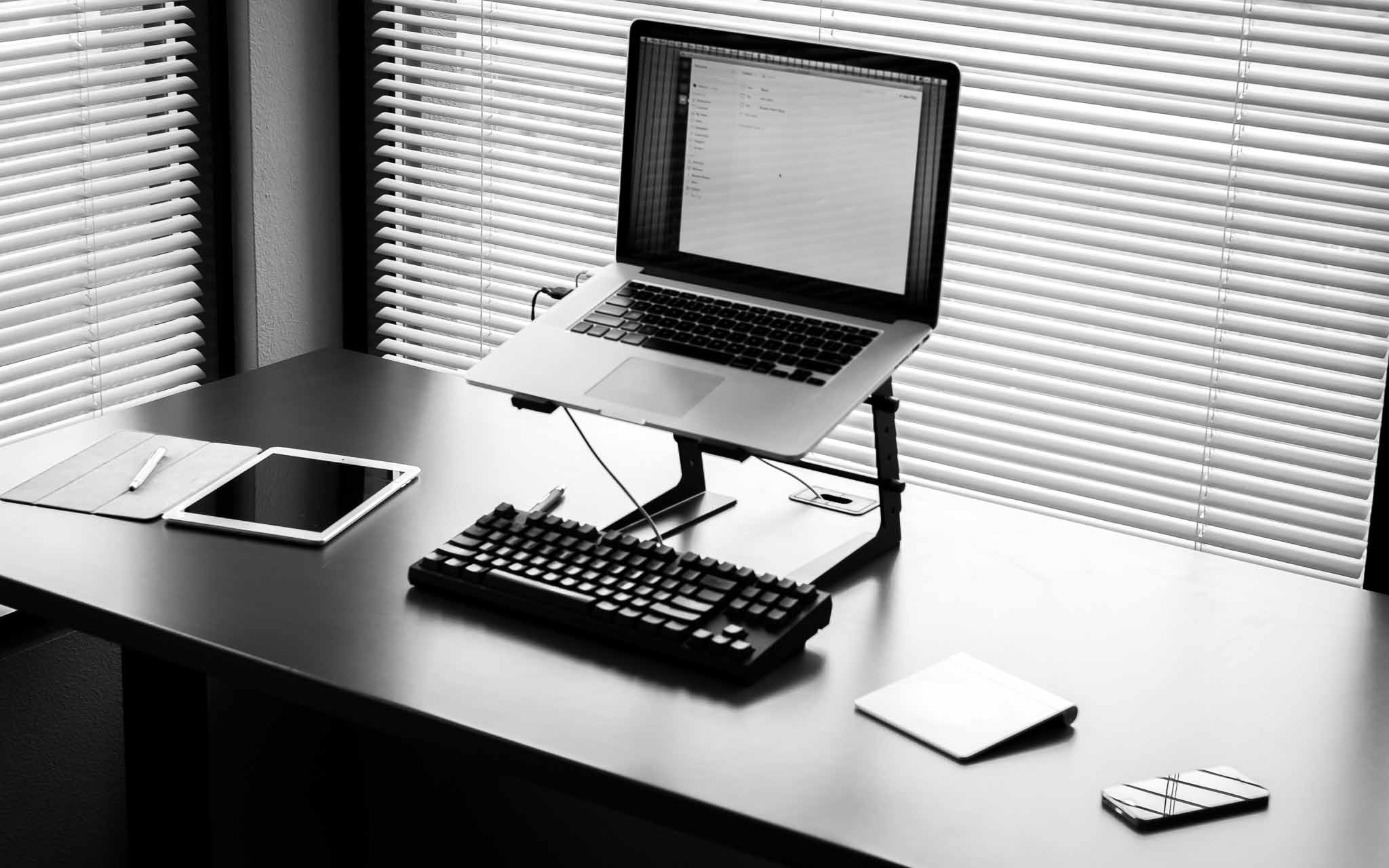
    The first up for my changes in habits are in how I work at my desk, and on my desktop. As you can see in the picture I keep my desk very tidy, so here’s a quick rundown of what’s going on.

    Left Side

    On the left side of my desk I keep my camera, my iPad, my stylus, and a pen. I’m left handed so it only feels natural to keep those items on my left.

    iPad & Stylus

    When I get to work I layout my iPad and Bamboo Stylus as you see in the picture. I also open up the Notability app, with a “scratch” document open and ready (but the iPad off). I’ve long tried different ways of entering quick notes into my Mac (notes you might take while on a phone call), but in practice it doesn’t work to use a keyboard. Typing with one hand just is annoying.

    Pen and paper are fastest, but I can’t stand a pen and paper. Instead I use Notability as the paper, and the stylus as my pen.

    I keep one running file of notes in Notability, which archive once a month. This allows me to scribble phone numbers much easier than typing with one hand while on a phone call, like I would on paper, but with the added flexibility that a digital system offers.

    So far this works well.

    An additional note: I keep the smart cover as you see in the picture. This allows my left hand/wrist to anchor the iPad in position while I write — and keeps the iPad feeling much thinner (hand is held higher because of the cover and iPad is lower than if the cover was folded behind it) than if I were to fold the cover back behind the iPad. So while it looks a bit silly, it works much better this way and feels more comfortable.

    As for the stylus: a necessary evil. I like the Cosmonaut, but the rubber makes my hand smell funny so I don’t ever use it. The Bamboo stylus is small, looks nice, and writes well.

    So there you are, I guess I am an iPad stylus guy after all.

    Pen

    I’m currently using 1.0mm Uniball Jetstream pens with blue ink. Original documents are best signed in blue ink and that’s pretty much the only reason I have the pen: signing contracts and checks. I don’t care to hear about other pen choices, I literally just use it to sign things.

    Camera

    While my camera isn’t always on my desk, it usually is 60% of the time which is why I included it in the picture. There’s no reason for the camera to be on my desk, other than to serve as a reminder of what I would rather be doing.

    Center

    Central to my desk is my retina MacBook Pro, CODE Keyboard, trackpad, and DJ stand for my Mac. The stand is to get the computer high enough, the Mac always has Flow open and ready to go. That CODE keyboard, she’s a thing of beauty. (Also trackpad, because I don’t like the scratching sounds of a mouse sliding on my desk.)

    Right Side

    Off to the right I keep my iPhone. This reason is two fold: I tend to answer my phone with my right hand, and it is easiest to move when someone wants to come set papers down for me to review. That and the left side is really crowded as is.

    Boring

    On the face of it this is all rather boring to talk about, but the biggest revelation for me was using Notability. I’ve long used the app in meetings, but making a place for my iPad & stylus on my desk has really helped me keep working without trying to type one handed, remember things, or search for paper.

    For me adding in the iPad in this way wasn’t obvious, but felt natural once I did it. It takes a lot of space on the desk, but just works brilliantly. I’ve tried many other apps, but I like the way Notability works, and so it stuck.

    Most people like to keep a scratch piece of paper handy, and I truly do too, but I don’t like dealing with that paper afterwards. Using my iPad I get 85% of the way to that paper, with the added benefit of not having to deal with the paper after I am done with it.

    I also find leaving the cover open, feels like it is an open notepad awaiting my scribbles. And yes, sometimes I just use it to doodle while on the phone — but I typically switch to Paper for that.

  • BitTorrent Sync Support for Network Attached Storage

    Erik Pounds:

    BitTorrent Sync already offers the safest and most efficient way to sync data between devices. We’re now introducing our support of network-attached storage (NAS) devices to offer BitTorrent-built Sync apps in vendor storefronts; creating a simple path to access and transfer your data from the NAS to a desktop, mobile or other NAS device, whenever and wherever you need it (and we mean all of your data, not some of it: without limits or storage fees).

    They are already partnered with Netgear. This looks like a great solution for people without a server or always-on computer to sync with. The entry-level NAS is only $166 with no drives on Amazon. I've been using BitTorrent Sync for quite a while and have been extremely happy with it.

  • Google Contact Lenses

    At first I was all like: my worst nightmare. And then I read this from Alyssa Bereznak:

    The technology could potentially allow Google to shrink its wearable face computer — known as Google Glass — into the size of a single contact lens. Rather than be controlled by voice, those wearing the contacts would command their device through, as Patent Bolt analyzes it, “a sophisticated system” of “unique blinking patterns.” In other words, people wearing these contacts may look even weirder than people in Google Glass.

    Ever wonder what could make you more stupid than the figure eight iPhone compass calibration dance? I’d argue “unique blinking patterns” pretty much takes the cake.

  • How do these people have jobs?

    John Gruber on the latest idiocy:

    That’s the extent of Nocera’s argument that iPad-like new products from Apple “seem unlikely”: Yukari Kane’s having written so in her book. Really.

    Oh boy.

  • Berkeley Drafting Table

    Thomas Brand has a nice find of a cheap “adjustable” height desk.

  • Screens 3 for Mac

    A great update to Screens 3 for Mac. I’ve been testing it out over the last week and it really is much better than built in screen sharing.

  • GoGo Wireless Adds Surveillance Capabilities for Government

    Bruce Schneier on this despicable act:

    It [GoGo] has voluntarily decided to violate your privacy and turn your data over to the government.

    Fuck them.